
Appearance
Work locally with Desktop Helper
Desktop Helper connects Animanager in the browser to the files and apps on your computer. With it, Animanager keeps a folder for each stage you work on, brings in the files of earlier stages and uploads your work files when you publish. It runs in the menu bar on macOS and in the system tray on Windows.
What the Helper does
The Helper acts when you ask for something in Animanager:
- Creates the folder of a stage on your computer and opens it.
- Downloads revisions, and prepares the inputs of a stage with Get files. See Connect stages: inputs and masters.
- Uploads the work files of a revision when you publish. See Save in Blender and publish the revision.
- Exports videos from the video editor. See Cut an edit in the video editor.
- Lets the Blender add-on and AI agents such as Claude Code or Codex work with Animanager. See The Blender add-on, panel by panel and Connect Claude, Codex or another MCP client.
- Renders jobs when the computer is a render node. See Render Farm.
It is not a sync client: it never uploads the files on your computer unless you publish. Everything else in Animanager works in the browser without it. What it does on its own, such as retrying a failed upload, is listed in What the Helper does on its own.
Install and connect
The Helper needs the Files and helper module, which is on in most new studios. If the header has no Helper badge, ask an administrator to turn on Files and helper in Settings → Studio → Features.
- Press Install Helper in the header. The window Connect this computer with your Helper. opens.
- Press Download for macOS or Download for Windows. You can also download it from the profile menu: Downloads, then Local helper.
- Install it:
- Mac: the download is a zip with the installer and a readme. Open the
.dmginside and drag Animanager Helper to Applications. - Windows: run the installer.
- Mac: the download is a zip with the installer and a readme. Open the
- Open Animanager Helper. The first time, macOS or Windows warns about it: see Open the Helper the first time.
- Back in Animanager, press Connect and continue.
- The badge in the header now says Connected.
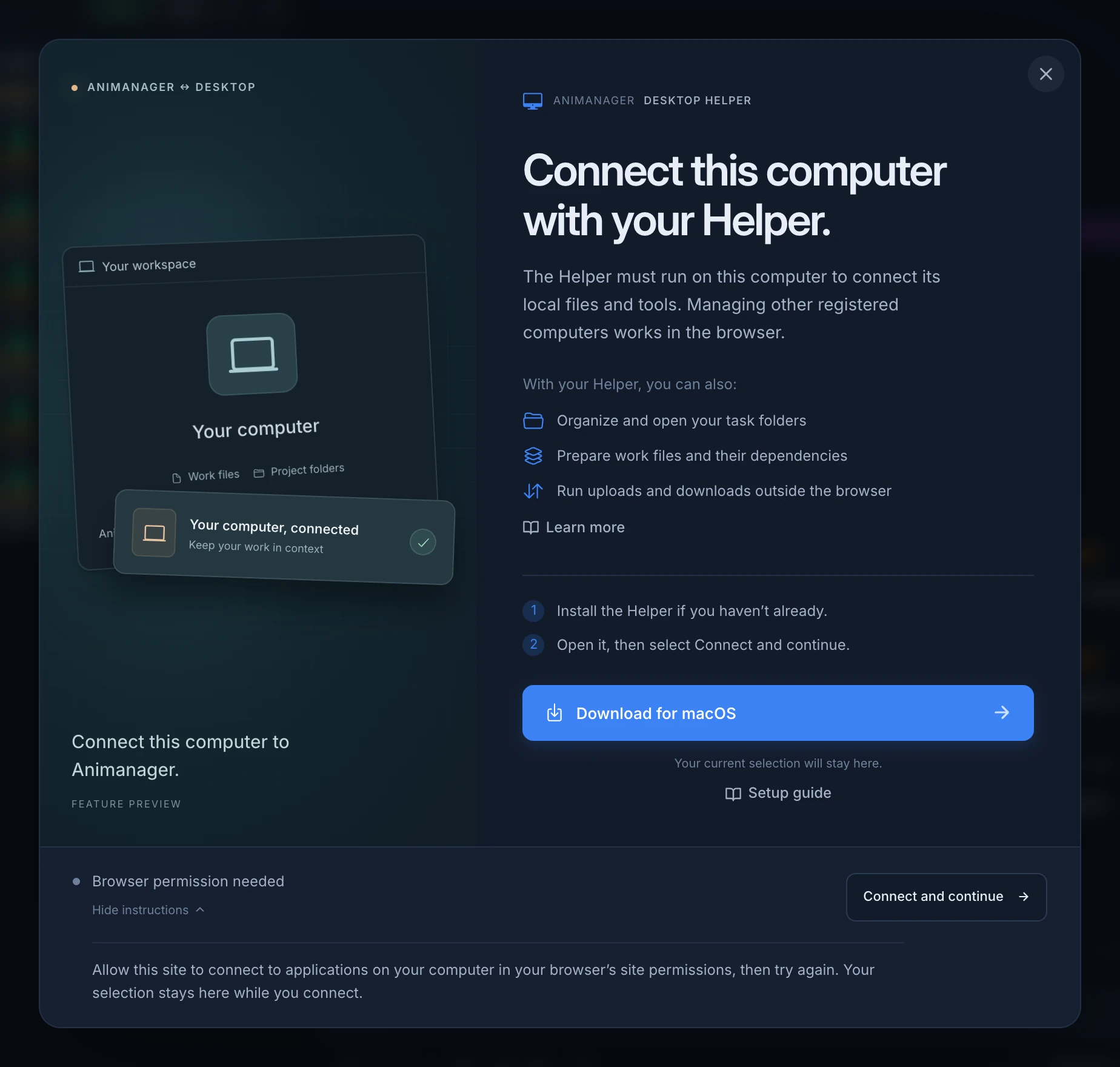
The same window opens whenever you start something that needs the Helper and it doesn't answer, such as All files in a chat or an export in the video editor. Its title says what the Helper is needed for, and what you had selected stays as it was while you connect.
The line next to Connect and continue says what is missing. How to connect opens the instructions for that case:
| Line | What to do |
|---|---|
| Already have the Helper? | Install and open the Helper, or start it if it is installed. Then press Connect and continue. |
| Browser permission needed | Allow this site to connect to applications on your computer in the browser's site permissions, then try again. |
| Update your Helper to continue | Install the current version, open it again and connect. See Updates. |
| Reconnect your Animanager session | Keep the Helper open and press Connect and continue again. |
If it still can't connect, see Troubleshooting.
What the badge says
| Badge | Meaning |
|---|---|
| Install Helper | No Helper answers on this computer: it is not installed, or not running. |
| Connected | The Helper runs here and is signed in. |
| Login | The Helper needs your Animanager session again. |
| Stale | The Helper runs here but lost its link to Animanager a moment ago. It usually comes back by itself. |
| Disconnected | The Helper runs here but has no link to Animanager. |
| Update | A newer Helper is available. Hover the badge to see your version and the new one. See Updates. |
Name this computer
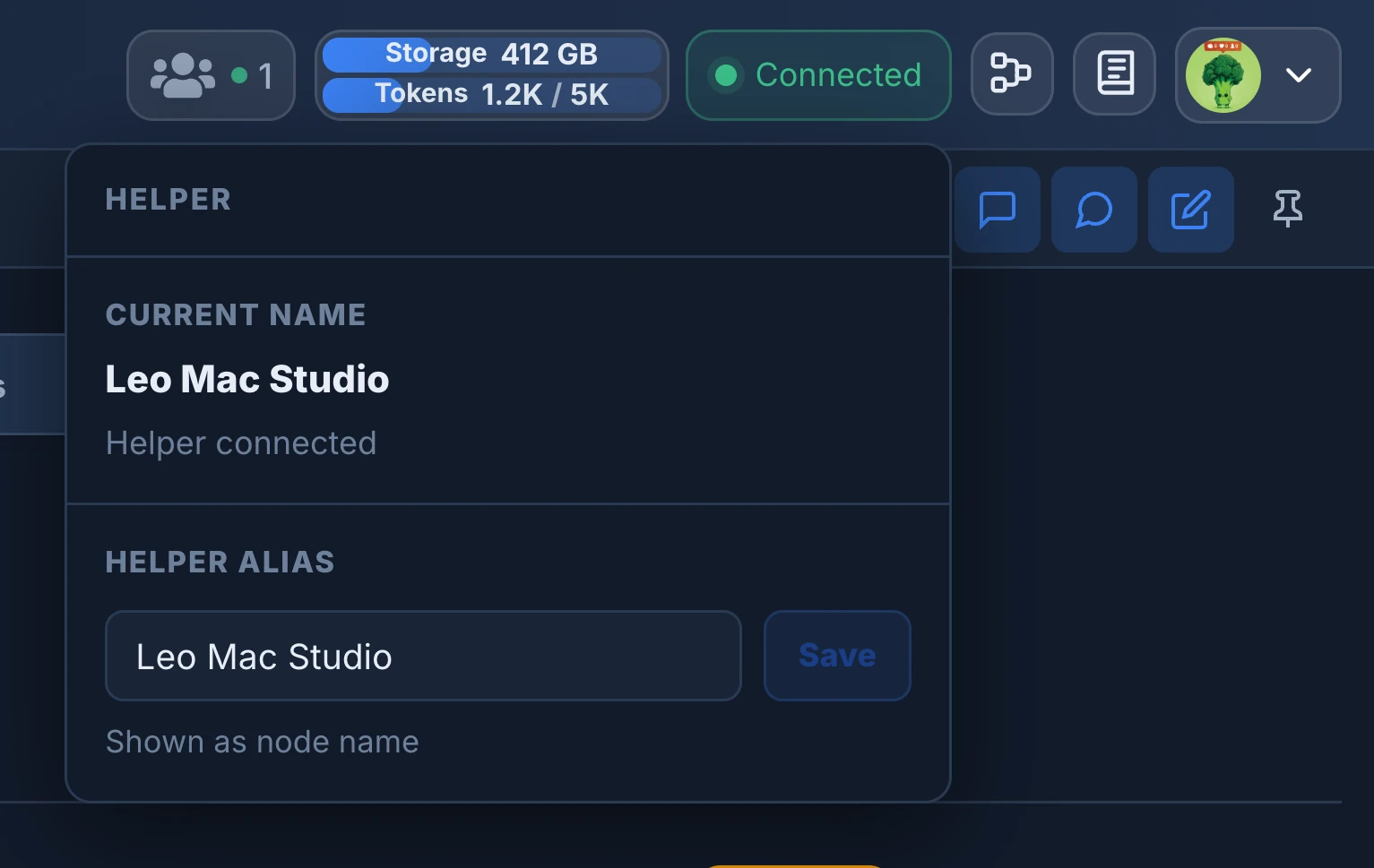
Click Connected to open the Helper popover. Current name is how Animanager shows this computer, for example in the render farm. Type a new name in Helper alias and press Save, up to 80 characters. The Helper window has the same Helper alias field.
Open the Helper the first time
The Helper is not signed by Apple or Microsoft yet, so the system warns the first time you open it. You only do this once.
Open the Helper on Mac
- Open Animanager Helper from Applications. macOS shows “Animanager Helper” Not Opened: Apple could not verify “Animanager Helper” is free of malware that may harm your Mac or compromise your privacy. Press Done.
- Open System Settings → Privacy & Security and scroll to Security.
- Next to “Animanager Helper” was blocked to protect your Mac. press Open Anyway.
- Press Open Anyway again in the dialog and enter your Mac password.
If macOS says instead “Animanager Helper” is damaged and can’t be opened. You should move it to the Trash., press Cancel, open Terminal and run:
bash
xattr -cr "/Applications/Animanager Helper.app"
codesign --force --deep --sign - "/Applications/Animanager Helper.app"
Then open the Helper again. The app is not damaged: macOS says that about unsigned apps downloaded from the internet.
On Windows
- Run the installer. Windows shows Windows protected your PC: Microsoft Defender SmartScreen prevented an unrecognized app from starting. Running this app might put your PC at risk.
- Press More info. The window shows Publisher: Unknown publisher.
- Press Run anyway.
The Helper turns on Start at login the first time it runs, so it is there every time you sign in to your computer. Closing its window does not quit it.
The Helper menu
Click the Helper's icon in the menu bar (Mac) or the system tray (Windows). The menu shows:
- **Running on http://127.0.0.1:46321/health**: the Helper is working. Starting... while it starts, or Error: and the reason when it could not start.
- What it is uploading, for example Uploading 1 package, Retrying 1 package, 1 failed package or No active uploads.
- Show status opens the Helper window.
- Open local files folder opens your local folder in Finder or Explorer.
- Open health check opens the Helper's status page in the browser. If it opens, the Helper runs: a Helper Animanager can't find is then a browser problem.
- Open helper log opens the Helper's log file, to send to support.
- The state of updates, such as Up to date or Update 1.0.58 ready, with Check for updates and Install update and restart. On a Mac they read Manual updates on macOS. See Updates.
- Uninstall Animanager Helper..., on Windows only. See Uninstall.
- Start at login, on or off.
- Quit Animanager Helper stops it. It first finishes sending what a render already delivered.
The Helper window
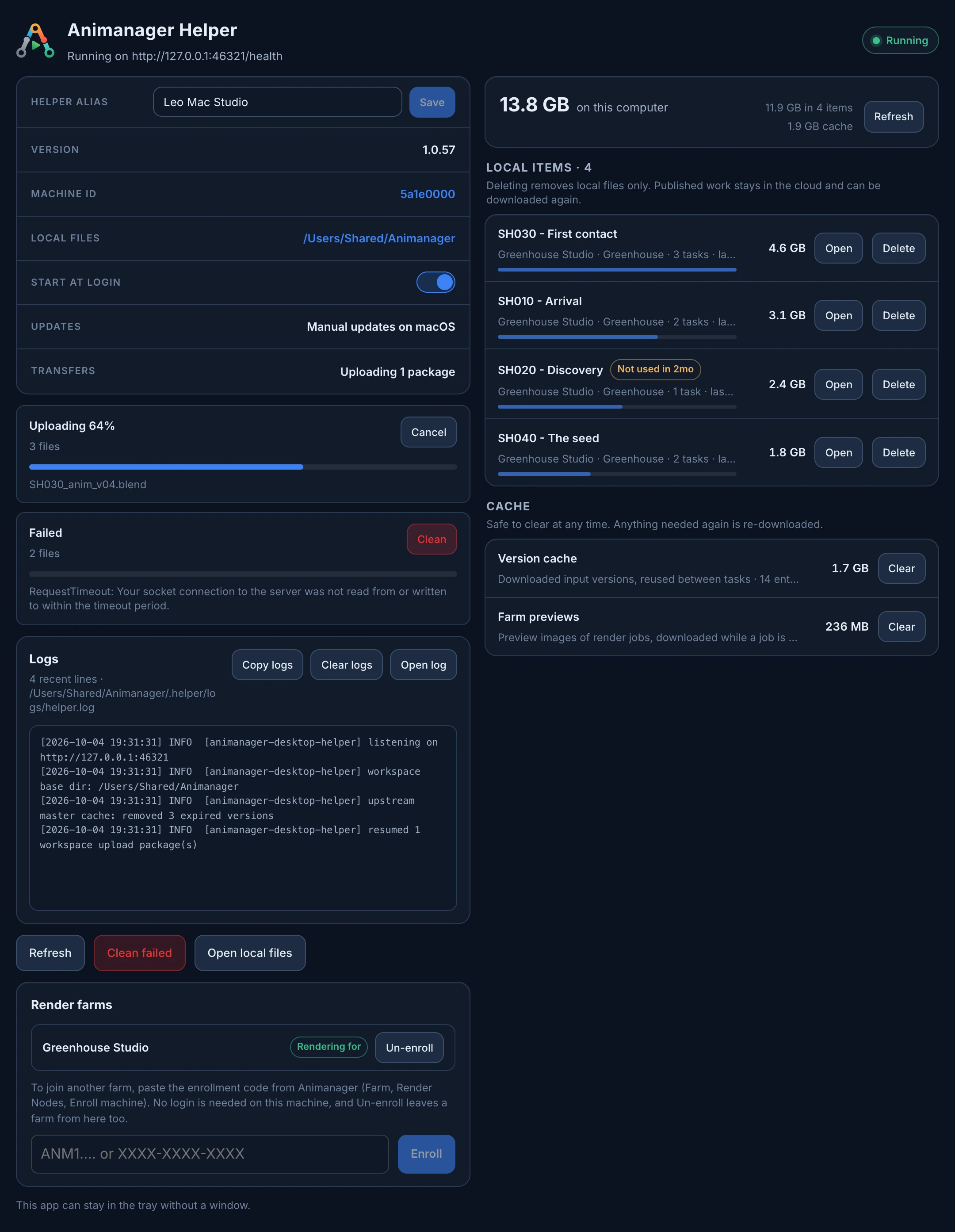
Choose Show status in the Helper's menu. The window follows the theme you chose in Animanager.
Status
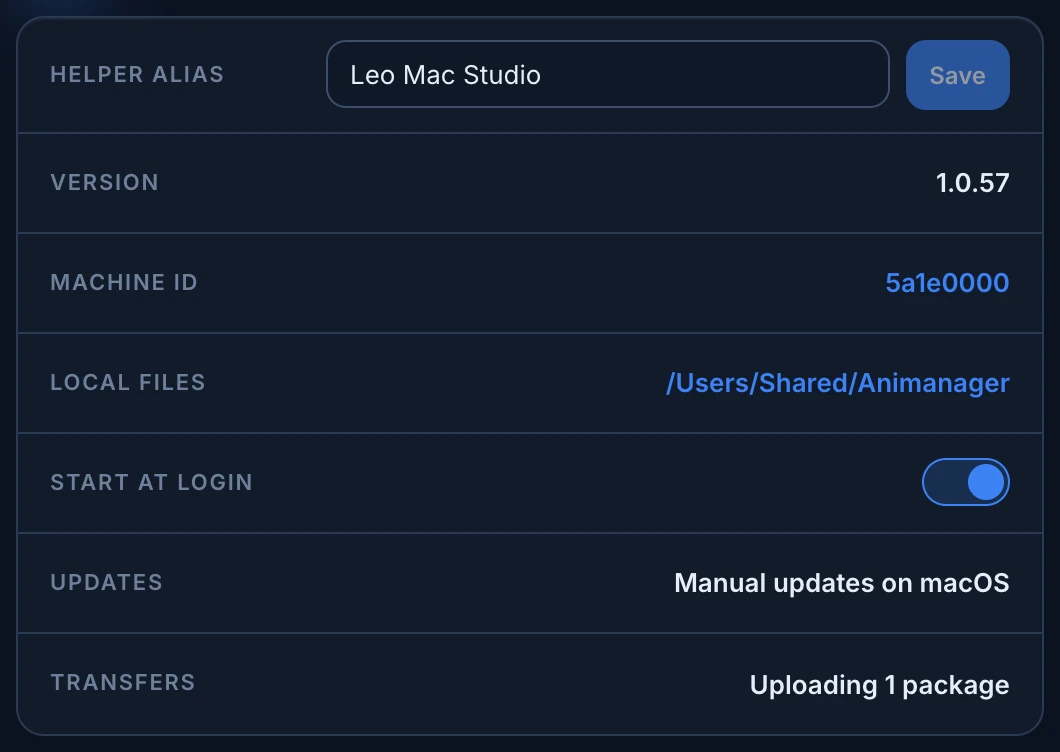
- Helper alias: the name of this computer in Animanager and in the render farm. Type it and press Save. It stays greyed out until the Helper has signed in once.
- Version: the Helper's version.
- Machine ID: the start of this computer's identifier. The render farm shows the same one next to the node. Click it to copy the whole ID.
- Local files: where your work goes. Click the path to choose another folder. See Local folder.
- Start at login, Updates and Transfers, as in the menu.
A red line under them, such as This machine is enrolled in another studio's render farm., is a warning about this computer.
Transfers
Each upload in progress shows as a card with its state, the number of files, a progress bar and the file it is sending. The states are Preparing, Checking (comparing the files with what Animanager already has), Uploading, Finalizing, Ready to publish, Retrying and Failed.
- Cancel stops an upload and cancels its revision, as Cancel revision does in Animanager. See Cancel a revision while it uploads.
- Clean removes an upload that failed for good from the list. It never touches your files.
- Clean failed, under the logs, cleans every failed upload at once.
See An upload failed for what to do next.
Logs and buttons
- Logs shows the Helper's latest lines. Copy logs copies them to send to support, Clear logs empties them and Open log opens the full file. After a crash, Copy last crash and Clear last crash appear, with the report.
- Refresh reads the state again. Open local files opens your local folder.
- Render farms lists the studios this computer renders for. See Add render nodes.
The window can stay closed: the Helper keeps working in the menu bar or tray.
Local folder
The Helper keeps your work under one folder, Animanager in your home folder unless you choose another. Inside it, folders follow your studio, project and items, with one folder per stage.
To choose another folder:
- Open the Helper window.
- Click the path next to Local files.
- Choose a folder with enough free space.
Stages you open from then on go to the new folder. Files already in the old folder are not moved or deleted.
A stage folder holds:
- Stage folder
- work filesat the root of the folder
- files/the other files of the revision
- exports/renders and exports
- .animanager/hidden, kept by the Helper
The Helper also keeps a hidden .animanager folder in each stage folder for its own data, such as the stage's masters that later stages link to. See Masters on disk. Don't rename or move these folders while a transfer runs.
Get files
- Local files in the chat of a stage opens that stage's folder, and creates it if it is missing.
- Get files on a revision card downloads that revision's files into the stage folder. You choose the files in Choose revision files: folders can be skipped without opening them, so a heavy project can be downloaded in part.
- Get all files on a revision card chooses among the files published across every revision of the stage.
- All files, then Get files, in the chat of a stage brings the stage and its inputs. See The Get files window.
While it works, the card shows the progress: Checking local files, Getting files, then Files ready locally, with how many files were downloaded and how many were already up to date. The folder opens at the end.
If the Helper doesn't answer within a few seconds, a revision's Get files offers Download in browser instead. The browser downloads one file as it is, or a zip of up to 256 MB. Keep the tab open until the download is ready. For more, use the Helper.
A revision that changed no files has its Get files greyed out: it says which earlier revision holds the current files.
When a file on your computer differs from the one Animanager has, Get files keeps yours. The window at the end lists it under Kept local versions.
File management
When you publish a revision with work files, the Helper uploads them from the stage folder. The preview media is what people see in the chat and in Review mode. The work files are what the next person downloads to go on working. Follow uploads in Transfers in the Helper window.
To free space, the right side of the Helper window shows how much your work takes on this computer and lists your Local items, largest first:
- Each item shows its studio and project, how many stages of it you have, and when you last used it. An item you have not used in 60 days says so in yellow, for example Not used in 2mo.
- Open opens the item's folder.
- Delete removes the item's folders from this computer. It turns into Delete and the size it frees, next to Keep: press it again to confirm.
- Cache holds downloaded input versions (Version cache) and Farm previews, the frames of render jobs you opened in the Farm. Clear is safe at any time: anything needed again is downloaded again.
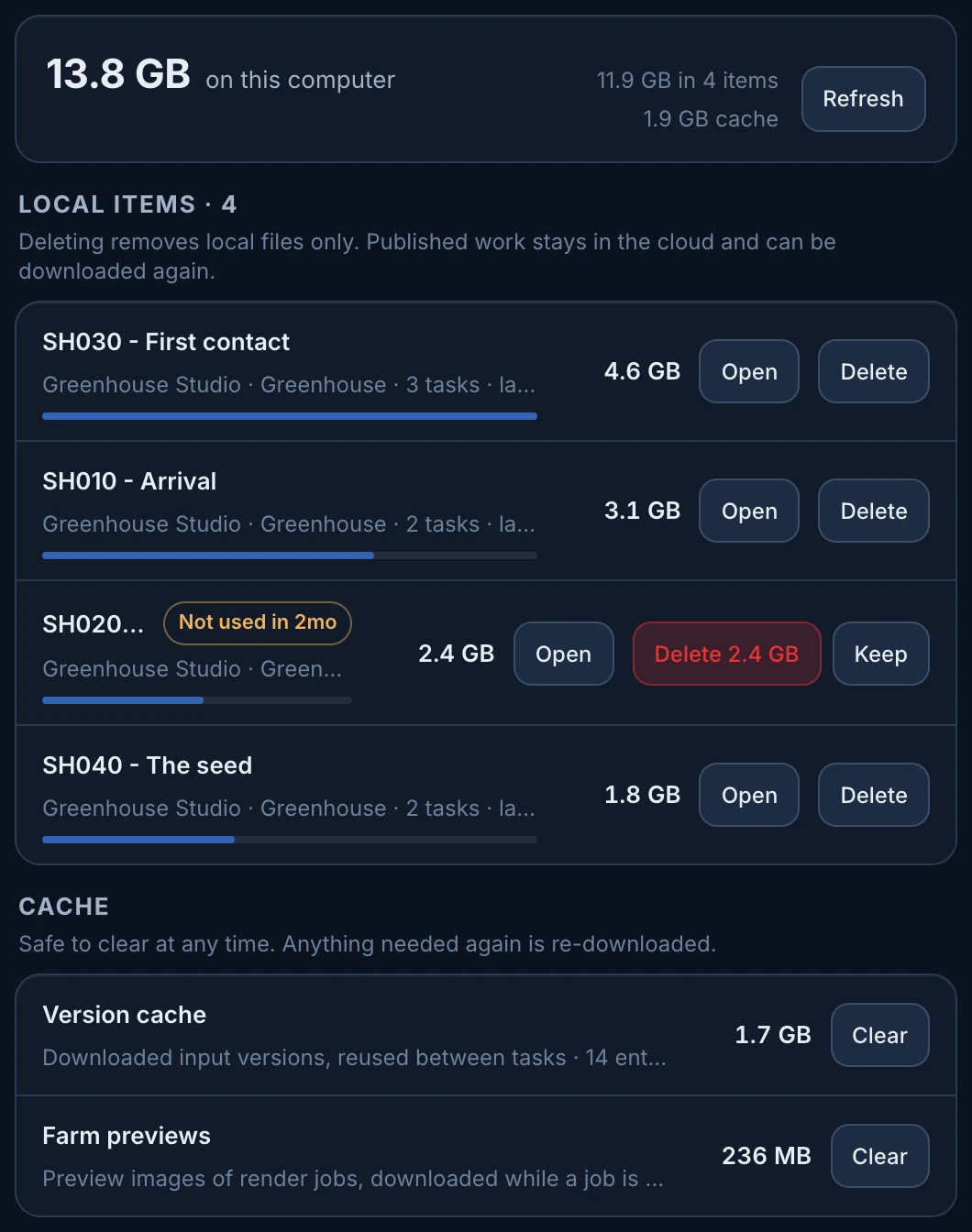
The list updates itself every 30 seconds while the window is open. Refresh measures again at once.
Delete removes unpublished work
Delete only removes files from this computer, and published revisions stay in Animanager. But anything in that folder you have not published is lost. The Helper refuses while a file of the item is open in Blender or Photoshop, or while a transfer is running.
What the Helper does on its own
The Helper never uploads or deletes your work by itself. It does take care of a few things without asking:
- Failed uploads are retried, after 10 seconds, then 30 seconds, 2, 5, 15 and 30 minutes, 1 hour and 2 hours. Transfers says Retrying meanwhile. After the last attempt the upload shows as Failed.
- Uploads resume where they stopped when the Helper starts again after a restart or a crash.
- Canceled revisions stop uploading as soon as the Helper hears of it, even when the cancel was made in the browser or on another computer. A cancel made while Animanager couldn't be reached is sent when it can.
- Old input versions in the Version cache are removed after 30 days without use.
- The video editor's media is kept in a cache of up to 20 GB, the oldest removed first.
- Activity from Blender is shared with your team while the add-on's Share activity snapshots is on. See Team Activity.
- On a render node, it asks for work, renders and sends the frames back. See Node lifecycle.
- On Windows, it updates itself. See Updates.
Photoshop files
Photoshop work goes through the Helper like any other work file:
- A stage can accept Photoshop files (
.psdand.psb) as its work files. See Files and system requirements. - On such a stage with no work file yet, the chat of the stage offers CREATE BLANK FILE: the Helper creates an empty
.psdin the stage folder, named after the item and the stage with_v000at the end. It is 1 × 1 pixel, so set its size when you open it. - Publish it with Upload work files, like any work file. Photoshop has no Save for Animanager step.
There is no Photoshop plugin to install yet: Photoshop work does not show in Team Activity.
Updates
Animanager tells you when your Helper is too old: the header badge says Update, and Downloads in the profile menu shows Update too. Actions that need a newer Helper open Update your Helper to continue.
- Windows: the Helper updates itself. It checks a few seconds after it starts and every 6 hours, downloads the update, and installs it and restarts once no upload or render is running. If a download fails it tries again 30 minutes later. Install update and restart in the tray menu installs a downloaded update at once.
- Mac: updates are manual for now, and Updates in the Helper window says Manual updates on macOS. Download the new version from Downloads → Local helper, quit the Helper, and replace the app in Applications. If macOS warns again, repeat Open the Helper the first time.
After updating, check Version in the Helper window and reload Animanager. The badge says Connected again.
Render nodes can be updated all at once from the Farm. See Render Nodes.
Uninstall
- Windows: choose Uninstall Animanager Helper... in the tray menu and confirm with Uninstall. It removes the app, its settings, its update cache and its Start menu shortcut. Your local folder and your files stay. Use this instead of Apps & features, which can fail with "installer integrity check has failed".
- Mac: choose Quit Animanager Helper, then move Animanager Helper from Applications to the Trash. Your local folder stays.
Troubleshooting
Problems with the Helper, such as a Helper Animanager can't find, a failed transfer or a full disk, are in Troubleshooting.