
Appearance
Turn modules on and off
Modules are the parts of Animanager a studio can do without, such as the Timeline or the video editor. Turn on the ones your team uses and the rest stay out of everyone's way.
Turn a module on or off
- Open Settings → Studio → Features.
- Check a module to turn it on, or clear it to turn it off.
- Press Save changes.
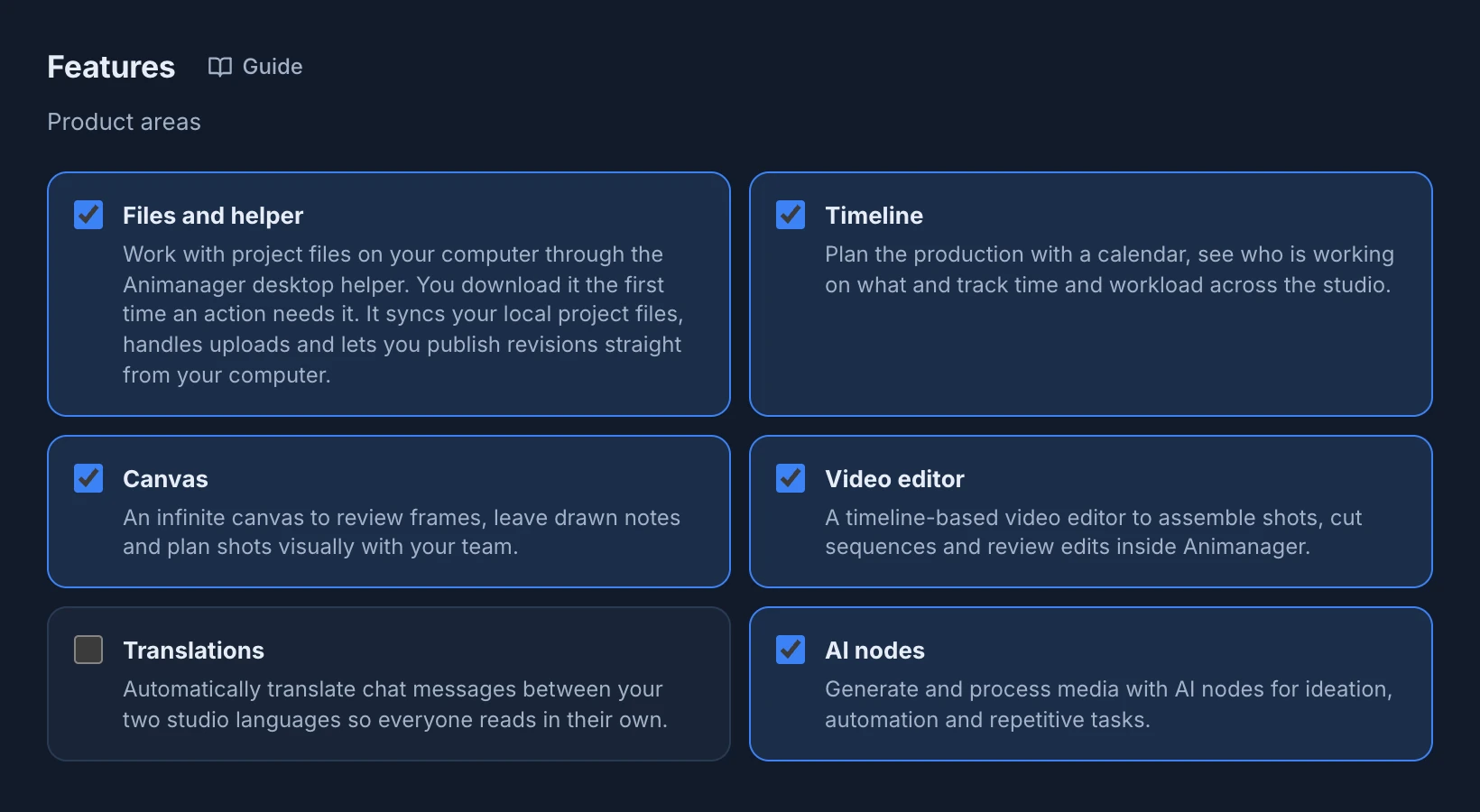
Features needs the studio permission Studio settings set to Manage. The change applies to the whole studio.
The modules
| Module | What it adds | A new studio |
|---|---|---|
| Files and helper | Work with project files on your computer through the Desktop Helper: it syncs the files, handles uploads and publishes revisions from your computer. | On, except for a Solo studio that doesn't work in Blender |
| Timeline | Plan the production on a calendar, see who works on what and follow time and workload. See Timeline. | On |
| Canvas | An infinite canvas to review frames, draw notes and plan shots visually. | On |
| Video editor | A timeline-based video editor to assemble shots, cut sequences and review edits. | Off |
| Translations | Translates chat messages between English and Spanish, so everyone reads their own. See Automatic translations. | Off |
| AI nodes | Generate and process media with AI nodes, for ideas, automation and repetitive tasks. | On |
Review and chat are always on: they are not modules.
Each module is a checkbox with what it does under its name. The list is the same for every studio type; the type only decides which ones start on. Translations always works between English and Spanish: the languages can't be changed.
When a module is off
A module that is off is hidden for everyone in the studio. For example, Timeline and Video editor leave the header, Translations stops translating new messages, and Files and helper hides the Desktop Helper and the upload of work files with revisions.
Nothing is deleted: turn the module on again and its work is still there. Tell the team before you turn off a module they use.
The render farm needs Files and helper
Features doesn't stop you from turning off Files and helper while the studio has the render farm: the farm sends its renders through the Desktop Helper, so it stops working too. Keep Files and helper on in a studio with the render farm.
Modules and permissions
When a module is on, members still need their role's permission to open it. In Roles & permissions, the Modules group of Studio access has Timeline module, Editor module, Render Farm module, Studio canvas and Finances module, set to Use or No access, and Publisher and Publisher connections. Editor module is the permission of the Video editor, Render Farm module of the Render farm and Studio canvas of the Canvas. See Roles and permissions.
Files and helper, AI nodes and Translations have no permission of their own: when they are on, everyone in the studio has them, within what their role can do in each project.
Modules managed by Animanager
Render farm, Finances and Publisher are not in Features and never come with a studio type. Animanager turns them on for each studio: contact Animanager support if your studio needs one.
- Render farm sends renders to the studio's machines through the Desktop Helper, and needs Files and helper. See Render farm.
- Finances tracks payroll, invoices, project costs and profitability. See Follow costs in Finances.
- Publisher plans social posts on a calendar with the studio's media. Members also need the Publisher permissions of their role. See Plan social posts in Publisher.