
Appearance
Configure items and recurring work
Each item, such as the shot SH030, has its own settings: its title, the stages it goes through, the estimates and deadlines of those stages, its pipeline metadata and its dependencies. They start from its space and collection, and you change them in Item Settings. An item can also be recurring work, such as dailies, that repeats on the Timeline instead of going through stages.
Open Item Settings
- Right-click the item in the Tree and choose Configure Item, or
- Click the gear next to its name in the Grid (Item settings).
The dialog is called Item Settings and the item's name. Its sections are on the left:
| Section | What it holds |
|---|---|
| Details | The Title and the Mode: Standard or Recurring. |
| Stages | The stages this item goes through, from those of its space. Click a stage to turn it on or off. |
| Stats | The hours spent and estimated on each stage, estimates from the pace of other items, and the deadline of the item and of each stage. See Estimates from the pace of other shots and Set deadlines. |
| Metadata | The pipeline fields of the item, such as its frame range. See Pipeline metadata. |
| Dependencies | The item's own pipeline. Use parent settings goes back to the pipeline of its collection or space. See Connect stages. |
Press Save Changes to keep your changes, or Discard to drop them. The dialog stays open after saving, so you can go on with another section. Esc closes it.
Configuring an item needs the project permission to edit items: any item, or only the ones you created.
Set deadlines
A stage's deadline is its own date, or else the item's, or else the project's. Set them in Stats:
- Item deadline, above the table, shows the item's date and where it comes from, for example Item deadline ← Greenhouse · Dec 18. Click its calendar icon to change it.
- The last column of the table, Deadline (marked Editable), has one cell per stage in pipeline order. A stage with its own date shows it with the days left. A stage without one shows the date it inherits in grey, such as Oct 30 · item.
To date one or several stages:
- Click a cell to select it. Click it again to deselect it.
- Ctrl/⌘ + click adds or removes cells, and Shift + click selects every stage between two cells. The column header shows how many are selected, and Esc deselects them.
- Click the calendar icon of a selected cell. The date you pick goes to every selected cell. The icon of a cell that isn't selected dates only that cell.
- Pick a day, or +1 week, End of month or Clear. Clear removes the stage's own date, so it inherits again.
- Press Save Changes.
The days left turn from grey to amber to red as the date comes, starting at the project's Deadline warning (14 days unless you change it, see Schedule). They are red once overdue. Approved and delivered stages have no mark.
You can only save deadlines of items you are allowed to edit. If the deadlines can't be loaded, Stats says Failed to load deadlines. with the reason and a Retry button, and the deadline cells stay locked until they load, so no date is picked that would not be saved.
Configure several items at once
- Select the items in the Grid: Ctrl/⌘ + click each one, or Shift + click the first and the last of a run.
- Right-click one of them and choose Configure Item. The dialog says Configure N Items.
- Change what they should share:
- Stages: the stages you set replace those of every selected item. The button says Replace Stages on N Items.
- Dependencies: the dialog says whether the items share a pipeline. When they don't, editing starts from the first item's pipeline, and saving gives that pipeline to all of them. The button says Apply Pipeline to N Items.
- Stats (Deadlines): the Item deadline and a table with every stage of the selected items, how many of them have it (Items, such as 3/4) and its Deadline. A date you pick goes to that stage in every item that has it, and the item deadline to all of them. A cell says Mixed when the items have different dates, and Inherited when none has its own. Cells are selected as in Set deadlines. The button says Apply Deadlines to N Items.
- Press the button. When you change more than one of these, it says Apply to N Items.
Use parent settings on all, in Dependencies, makes every selected item follow its collection's or space's pipeline again. It applies at once, without the button.
In Stages, a checked stage is one every selected item has. A dashed stage marked Some items is one only some of them have. Click it to check it for all, or leave it unchecked to remove it from all when you save.
The selected items can come from different collections of the same space. Stages then lists every stage any of their collections uses, and a stage that some collection doesn't use says so, for example Not used in Sequence 02. When you save, each item only gets the stages its own collection uses. The other sections work the same as with one collection.
Items from different spaces can't be configured together. The dialog says so: select items from one space instead.
Recurring work
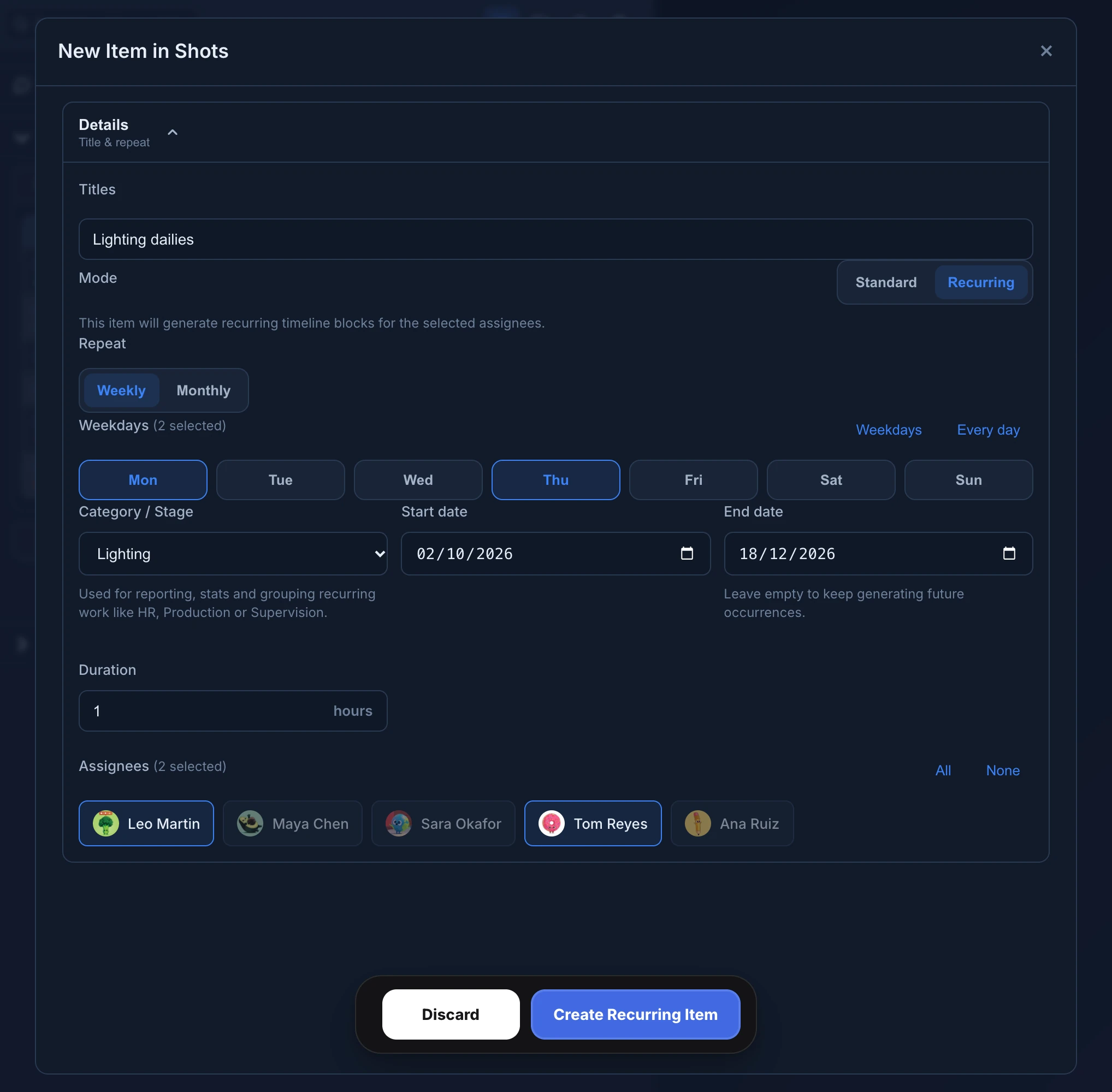
A recurring item is work that comes back on a schedule, such as dailies, a weekly client call or supervision time. It has no stages: it puts blocks on the Timeline for the people you choose, on the days you choose.
- Right-click the space and choose New Item.
- Type the title, for example
Lighting dailies. - In Mode, choose Recurring.
- In Repeat, choose Weekly and click the days, or Monthly and type the Day of month. Weekdays and Every day pick the days for you.
- Choose a Category / Stage, such as Lighting, to group the hours in reports and stats. No category is fine too.
- Set the Start date, and an End date if it stops. Without an end date it keeps going.
- Set the Duration of each block, from 1 to 8 hours.
- Under Assignees, click the people it is for. All and None select everyone or no one in the project.
- Press Create Recurring Item.
When the monthly day falls on a weekend, a studio holiday or a day the month doesn't have, such as the 31st, the block moves to the business day before.
In the Grid, a recurring item fills its row with Recurring, its rule, its category and up to two people, then +N for the rest. Click it to open the item.
- To pause it, open its settings and clear Active next to Repeat. Its row says Paused and no new blocks appear until you tick it again.
- Changing a standard item to Recurring deactivates its stage tasks: the dialog warns you before you save.
- A recurring item has no Dependencies section.