
Appearance
Pipeline metadata
Pipeline metadata is the technical data of the work: the frame range of a shot, its frame rate, its render resolution, notes for whoever opens the file. You set it once on a space, a collection or an item. It shows on the stage cards of the pipeline that use it, and it is applied when the working file opens, so every artist starts from the same values.
Add metadata to a space
- Right-click the space in the Tree and choose Settings. The Settings page opens on Project → Pipeline for that space.
- In the Metadata card (Pipeline fields), click a preset under Presets to add it.
- Type the values.
- Press Save changes in the bar at the bottom.
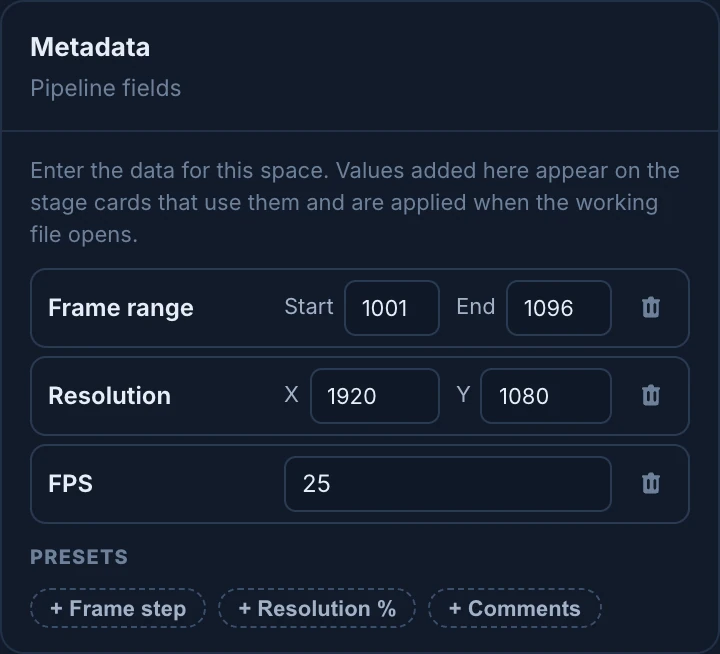
The presets are:
| Preset | Fields | What it is |
|---|---|---|
| Frame range | Start and End | First and last frame of the shot. |
| Frame step | One number | Frame step used for playback and rendering. |
| FPS | One number | Frames per second of the shot. |
| Resolution | X and Y | Horizontal and vertical render resolution in pixels. |
| Resolution % | One number | Render resolution percentage. |
| Comments | Long text | Free notes delivered with the shot as raw data. |
A preset you added leaves the list. The trash button of a field removes it.
Show it on a stage
A field shows on a stage card only on the stages you choose: frame range on Layout and Animation, resolution on Lighting and Compositing, for example.
- In the Dependencies card of the same page, find the stage.
- Click the + at the right of its title (Add metadata) and choose the field, such as Frame range. Only the fields of this space that the stage doesn't show yet are listed.
- Press Save changes.
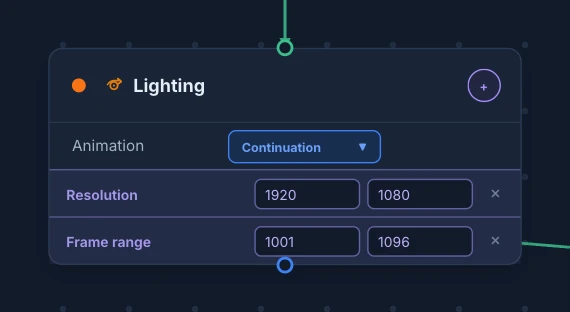
The × of a row takes the field off that stage. A number left empty shows Default.
Collections and items
Metadata passes down: a collection takes the fields of its space, and an item the ones of its collection, field by field.
- A field that comes from above shows where it was set, such as Space or Collection, next to its name.
- Change its value to give this collection or item its own. For example, set the frame range of SH030 in its Item Settings → Metadata when the shot is longer than the others.
- The trash button of an inherited field turns it off for this collection or item only. Adding the same preset again brings the inherited one back.
Collections are in Settings for at the top right of the page: open a space there to see its collections. Items have the Metadata section of Item Settings.
Workflows
A workflow of Settings → Studio → Workflows & pipeline has its own Metadata, under All stages, and the stage cards of its pipeline can show it. A space that uses the workflow keeps its own metadata: set it in the space's settings.
Where it is used
- When the working file opens, the values of its stage are applied, so the shot starts with the right frame range and resolution. If the scene changes later, the Blender add-on shows the difference, with Fix and Push. See Metadata in the Blender add-on.
- In Review mode, Metadata in the header shows the pipeline data of the revision.
Changing metadata needs the permission to edit the space or the collection, or the item. Like everything on the Settings page, it waits for Save changes.