
Appearance
Connect Claude, Codex or another MCP client
An AI agent reaches Animanager through its MCP server, which comes with the Desktop Helper. Once connected, the agent reads and works on your canvases and your production with your account and your permissions.
Before you start
- Install the Desktop Helper on the computer where the agent runs, sign in, and keep it running. The connectors need Helper 1.0.25 or later.
- The agent acts as the person signed in to the Helper on that computer.
Connect your agent
In Animanager, open the profile menu and choose Downloads. Then:
- Claude Desktop: choose Claude Desktop extension. It downloads
animanager-canvas-launcher.dxt. Open that file with Claude Desktop to install the Animanager Canvas extension, then restart Claude Desktop. - Claude Code: choose Claude Code. It copies a command and says Command copied. Paste it in a terminal and run it. It adds Animanager for your user, so it works in every project.
- OpenAI Codex: choose OpenAI Codex. The Helper adds Animanager to the Codex configuration and says Added. Restart Codex to see it. It keeps a copy of the previous configuration. With a Helper older than 1.0.30, it copies a command to paste instead.
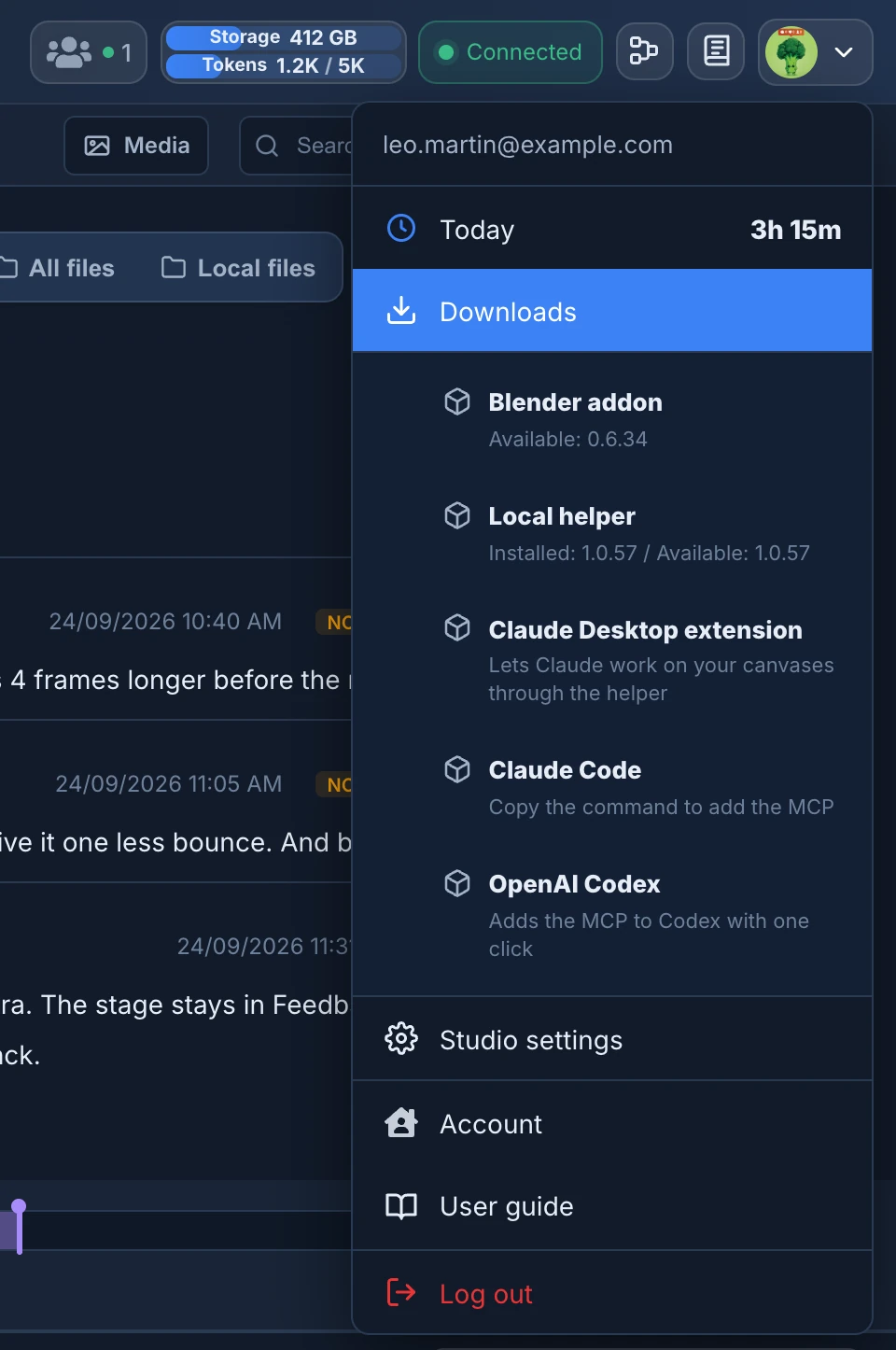
If an entry says Needs helper 1.0.25 or newer, start the Helper or update it, and choose the entry again. With no Helper running, choosing an entry asks you to install it and Connect and continue. When a newer Helper is out, Downloads shows an Update badge.
If Codex's configuration can't be written, the entry says Could not write the Codex config. Command copied instead: paste that command in a terminal.
Another MCP client
Any client that starts MCP servers over stdio can run the Helper's server. Use the command that Claude Code copies: it names the Helper program, the MCP script inside it, and the variable ELECTRON_RUN_AS_NODE=1. With the Helper in its usual place on a Mac, a client that takes JSON would get:
json
{
  "mcpServers": {
    "animanager": {
      "command": "/Applications/Animanager Helper.app/Contents/MacOS/Animanager Helper",
      "args": ["/Applications/Animanager Helper.app/Contents/Resources/app.asar.unpacked/src/mcp/index.mjs"],
      "env": { "ELECTRON_RUN_AS_NODE": "1" }
    }
  }
}
On Windows the Helper is in %LOCALAPPDATA%\Programs\Animanager Helper, with the script in resources\app.asar.unpacked\src\mcp\index.mjs.
Check that it works
Ask the agent "What can you do in Animanager?". It answers with its catalogue, which starts with who it acts as and whether the Helper is running. If it says NO SESSION, sign in to the Helper on that computer. In Claude Code, /mcp also lists animanager.
Then open a canvas in your browser and ask "What do I have selected on this canvas?". The agent sees the canvases open in the browser on the same computer, and what you select on them. See Point at what you mean.
The agent works as you
An agent connected on your computer uses your account and your permissions, and spends the studio's tokens when it generates. Connect it only on a computer you use yourself, and see What an agent can and can't do.