
Appearance
Save in Blender and publish the revision
The Animanager add-on keeps a Blender file in step with the pipeline: it brings in the inputs of the stage and saves the file so it can be published. Publishing itself happens in Animanager, from the chat of the stage, and the Desktop Helper uploads the files.
Everything else the add-on shows in Blender is in The Blender add-on, panel by panel.
Install the add-on
- In Animanager, open the profile menu, choose Downloads, then Blender addon. It downloads
animanager_save.zip. The menu shows the version available. - In Blender 3.6 or later, open Edit → Preferences → Add-ons, install that zip and enable Animanager Pipeline.
- Keep the Desktop Helper running on the same computer: the add-on works through it.
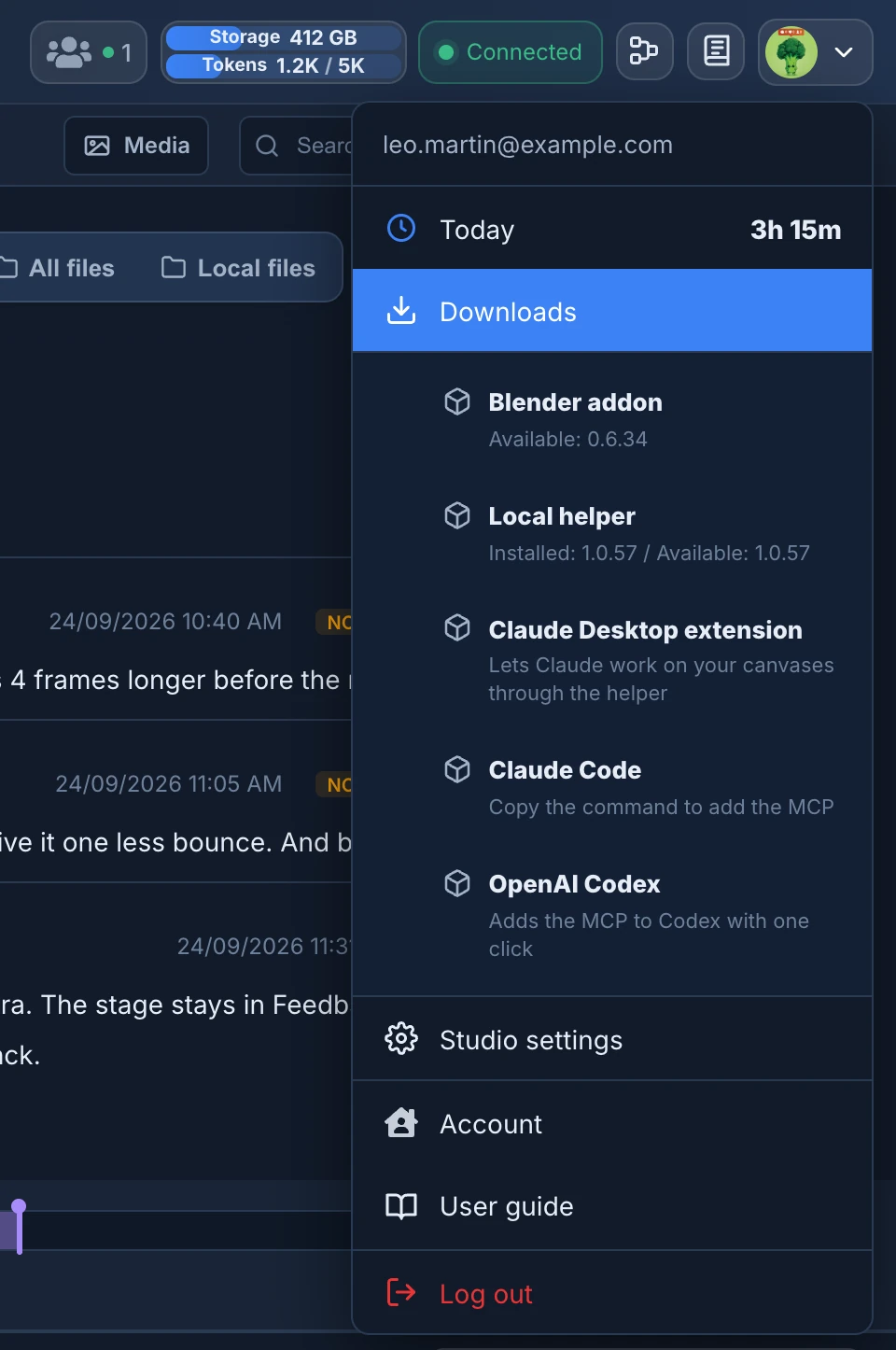
You install it once. When a newer version exists, the add-on's panel says Animanager and the version available, with Update add-on. It updates without restarting Blender.
Work in the file
- In Animanager, bring the files of the stage to your computer with Get files on a revision card, or open the stage folder with Local files in the chat of the stage.
- Open the
.blendfrom that folder. The add-on only saves files that are inside an Animanager stage folder. - Open the Animanager tab of the sidebar (N) in the 3D view. Upstreams lists the inputs of the stage and their state: Get inputs brings the missing ones, Reload masters updates linked masters. See Inputs.
- Work inside your stage collection, the blue one at the top of the Outliner. See Collections and colours.
- When the work is ready, press Save for Animanager in the panel, or in the File menu. It says Saved for Animanager. when it is done.
What Save for Animanager does
Save for Animanager prepares the file so that whoever opens it next, a teammate or a render node, finds everything it needs. In one step it:
- Checks the file is inside a stage folder and is your work file, not a master of another stage.
- Puts back the names of collections Animanager manages, and moves objects left at the root of the scene into a Local collection.
- Removes the sequence context, if it is loaded, and restores the shot's frame range.
- Copies every external file the scene uses into the
files/folder of the stage, by kind:textures,media,audio,fonts,cachesandlibraries. Image sequences, UDIM tiles and volume sequences are copied whole. The file then points to these copies with relative paths, so it opens the same on any computer. - Removes unused data.
- Records the render settings of each scene, which Launch render uses later.
- Signs the file and saves it compressed.
Images packed inside the .blend stay packed: Save for Animanager doesn't pack or unpack anything.
When it finishes, it says one of:
- Saved for Animanager.
- Saved for Animanager with 2 warning(s).: something could not be handled, and the warnings say what.
- Saved for Animanager. Skipped 1 missing external file(s).: a file the scene points to doesn't exist on your computer. The scene will miss it on other computers too: relink it and save again.
It refuses a file that was never saved (Save the Blender file once before using Save for Animanager.) and a file outside a stage folder (This .blend is not inside an Animanager task folder. Use Get files from Animanager first.).
Publish the revision
- In the chat of the stage, choose Post as: Revision.
- Open Upload work files. Animanager asks the Helper which files changed and opens Files to publish.
- Check the files to publish and press Stage selected files.
- Add the preview media, a summary, the status and your time, and publish. See Revisions.
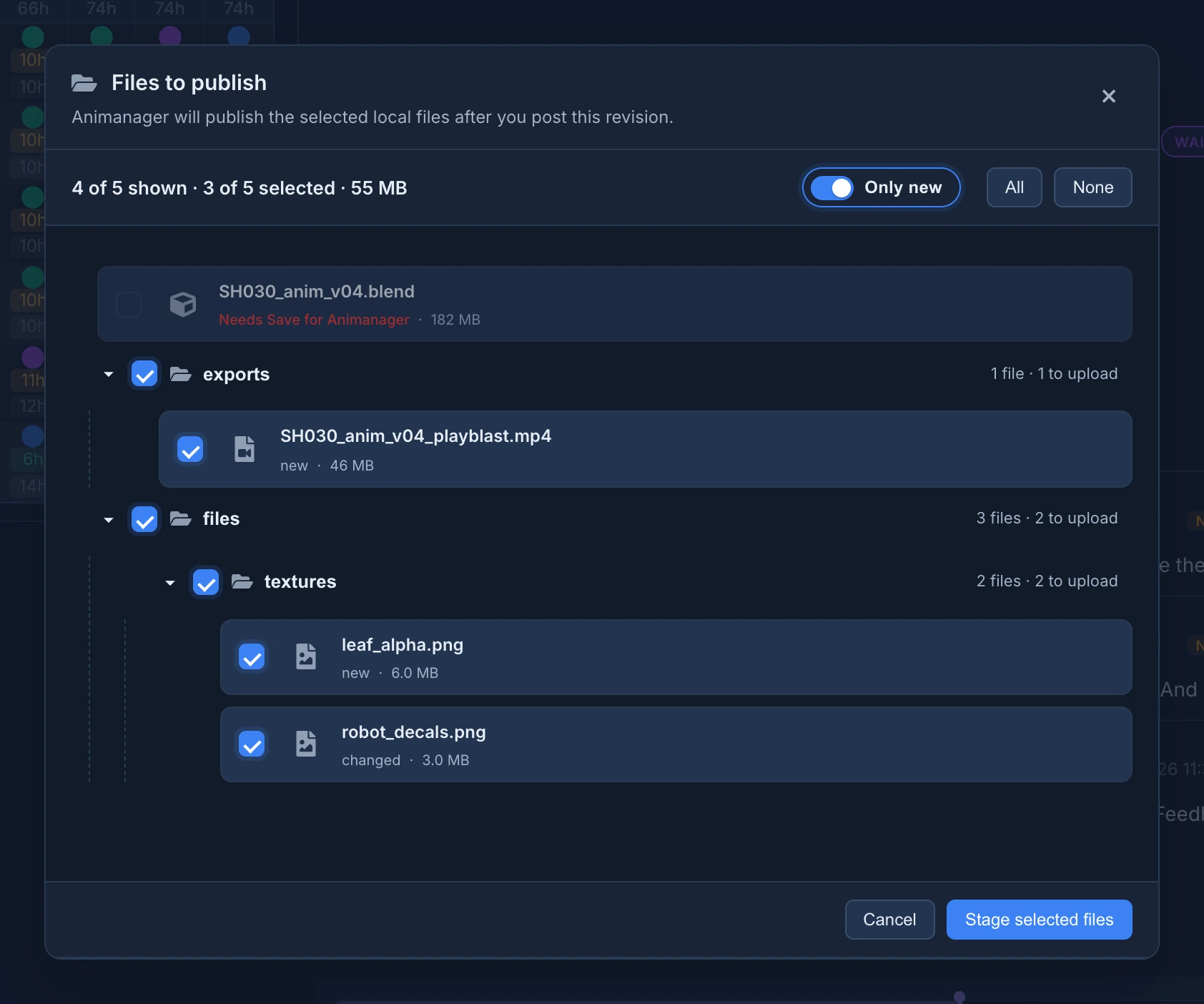
In Files to publish:
- Each file says what it is: new, changed, No changes, or Will check on upload while the Helper is still comparing a large file.
- Only new hides the files Animanager already has. Turn it off (All files) to see everything in the stage folder.
- All and None check or uncheck every file. A folder's box checks everything inside it.
- The line at the top counts the files shown and the files and size selected.
- Needs Save for Animanager marks a
.blendchanged after you saved it for Animanager. Save it again in Blender, then open Upload work files again.
Once files are staged, the button reads Update staged files if you open the window again before posting.
A .blend dropped into the message box is refused: Blender work files are published from Upload work files, after Save for Animanager.
Follow the upload
After you post, the revision card shows the upload as it goes, for example Preparing work files, Checking server for known files, Uploading work files with its percentage and Finalizing work files. Files Animanager already has from an earlier revision are not sent again. The Helper window shows the same upload in Transfers.
You can close the browser: the Helper goes on uploading. Other states:
- Retrying work files: the connection failed and the Helper tries again by itself.
- Waiting for Animanager Helper: the Helper isn't running. Open it and the upload goes on.
- Work files upload stalled, Local file changed during upload or Work files upload failed: see An upload failed.
- No new or changed work files: nothing had to be sent.
The info button on the card, Revision technical info, shows the versions of the Addon, Blender and Helper the revision was published with. It says Not recorded when no tool reported them.
Activity snapshots
With Share activity snapshots on, which it is unless you change it, the add-on shares a small screenshot of the Blender window with your team about once a minute. Turn it off in the add-on preferences. See Team Activity.