
Appearance
Generate a stage for a whole space
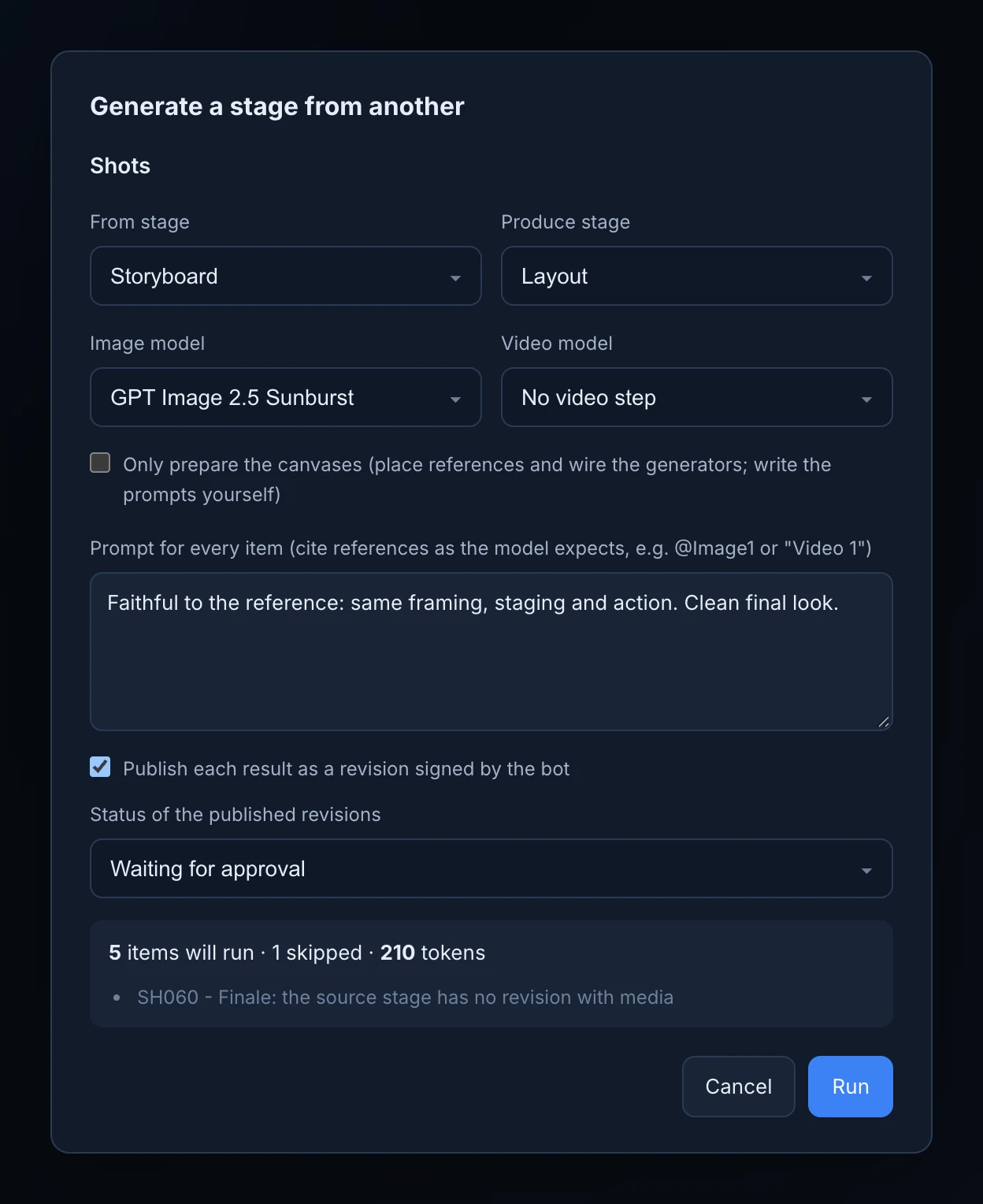
Generate a stage… does for a whole space what you would otherwise do item by item on each canvas: take the latest revision of one stage, wire it into a generator, write the prompt, run it and, if you want, publish the result on the next stage. For example, a first Layout frame for each of the six Greenhouse shots, made from their Storyboard.
It runs on the Animanager server, so you can close the window while it works. You see the cost in tokens before it starts.
Run it
- In the Tree, right-click a space and choose Generate a stage….
- In From stage, pick the stage the references come from, such as Storyboard. Each item uses the media of its latest revision of that stage.
- In Produce stage, pick the stage the results are for, such as Layout.
- Pick an Image model (GPT Image 2.5 Sunburst unless you change it), a Video model, or both. No image step and No video step leave one out:
- With an image model only, each item gets a new image.
- With a video model only, the source media go straight into the video model.
- With both, the image is made first and then animated by the video model.
- Write the Prompt for every item. It starts as "Faithful to the reference: same framing, staging and action. Clean final look." Cite the references the way the model expects them, such as
@Image1for Seedance or "Video 1" for Kling. - To publish the results, tick Publish each result as a revision signed by the bot and choose the Status of the published revisions, such as Waiting for approval.
- Press Estimate. The dialog says how many items will run, how many it skips and why, and what the whole run costs.
- Press Run.
Each item then shows its step: Placing references, Generating image, Image ready, Generating video, Generated, Published or Done, or Skipped, Failed or Cancelled with the reason. Stop ends the run; what already finished stays.
An item is skipped when it has no From stage or no Produce stage, when its source revision has no media, or when the source has no image for an image model.
Only prepare the canvases
Tick Only prepare the canvases (place references and wire the generators; write the prompts yourself) to stop before generating. Each item's canvas gets the source media and a generator wired to it, with no prompt and nothing spent. Then open each canvas, write a prompt that fits that shot and press Generate. Nothing is published in this mode.
Where the results go
Everything happens on each item's own canvas, as if you had done it by hand: the references, the generators and the results stay there, so you can change a prompt and run one shot again. See Generate images and video on the canvas.
When you publish, each revision is signed Anibot and opens with your name, with the generations and the tokens they used listed below. See What an agent can and can't do.
The option needs a role that can use the canvas (Studio canvas set to Use). Publishing also needs permission to post revisions on the stage. The tokens come from the studio's balance; see Buy token packs and follow usage.
The same job from an agent
An AI agent connected by MCP runs the same job with the stage-to-stage prompt, for one item or a whole space. See Prompts that work.