
Appearance
Follow activity in the feed
The Feed panel collects what your team posts across the studio, in one list, newest first and unread on top. Click a card to jump to the thread where it was posted.
Open the Feed panel
The Feed is the right-hand panel of Production. Its button at the left of the header (Toggle Feed panel) shows or hides it. Drag the button onto the button of another panel to change the order of the panels. While the Feed is hidden, the button counts your unread cards, or your unread mentions when you have any, up to 99+. See Navigate Animanager.
Drag the divider on the left of the Feed to make it wider or narrower. This browser remembers its width.
On a phone, the Feed is the Feed tab at the bottom, and opening a card switches to the Chat tab.
What reaches your feed
Every message someone else posts in a place you can open reaches your feed: Team Chat, a project, a space, an item or a stage. Your own posts don't. You find them under My Activity. Messages Anibot posts reach it too.
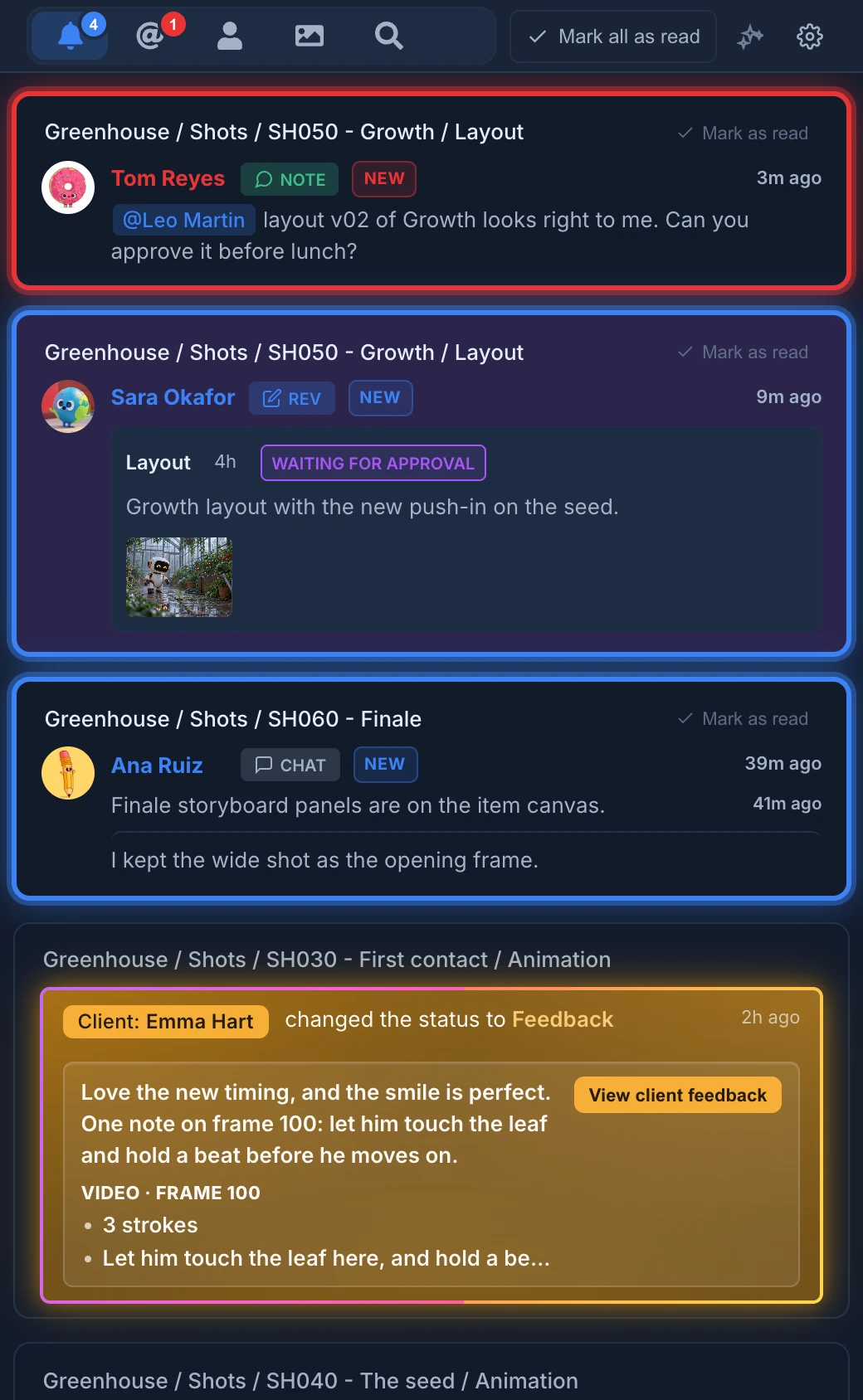
Each card shows where the message was posted (for example Greenhouse / Shots / SH050 - Growth / Layout), who posted it, how long ago (now, 3m ago, 2h ago, 4d ago, then the date) and a preview. A badge tells its kind:
- Chat: a message.
- Note: feedback on a stage, with the status it set. Feedback that only changes the status shows as a line such as "Maya Chen changed the status to In progress".
- Rev: a revision, with its stage, the time spent, its status and up to four pictures of its media, then +2 for the rest.
A chat message or a note that changed the status shows the new status too, and the card takes its color. Pictures, videos, PDFs, archives, sounds and GIFs posted with a message show as small tiles under it, up to three, then +N.
A card is marked NEW until you read it. It is highlighted when it mentions you: someone wrote your name with @, wrote @everyone, or replied to one of your messages. See Notifications, sounds and badges.
The preview follows your language: when the studio has the Translations module on, you read it in the language you chose in Settings → My account → Preferences. See Automatic translations.
The feed only ever shows places you are allowed to open.
Stacked messages
Chat messages in a row from the same person, in the same place, stack into one card, oldest first, each with its own time. Messages with files, a GIF or a checklist don't stack, and neither do read and unread ones. Mark as read on a stack marks every message in it.
Feedback drawn on the frame
Feedback drawn in Review mode shows its notes and what was drawn, frame by frame (FRAME 100), with View feedback. It opens the revision full screen at that frame. A picture pasted into the feedback shows as a thumbnail with its frame; click it to open the review there.
When a client sends feedback from a review link, the card says Client: and the name they typed, and the button reads View client feedback. See Invite a client to review.
Farm notices and summaries
Render farm jobs post cards too: FARM · queued, finished, finished with errors or stalling, with the job and its version (such as sh010_001 v003), or the machine that stopped answering. See Notices from Anibot.
The AI summaries you ask for arrive as AI Summary cards. See Summarize the feed with AI.
Open a card
Click a card to open its thread in the Chat, scrolled to the message. The Tree opens down to that place, and the unread messages of that thread are highlighted and marked as read.
In a stacked card, click one of the messages to open the thread at that message. With the keyboard, Tab to it and press Enter or Space. Scroll down the feed to load older cards.
A message that arrives in the thread you are reading is marked as read straight away.
Switch tabs
The icons at the top of the panel are tabs:
- All (bell): every card. Its badge counts your unread cards.
- Mentions (@): only the cards that mention you. Its badge counts the unread ones.
- My Activity (person): your own posts, newest first. Feed Settings apply here too.
- Generations (picture): the images and videos your AI generations made. See Generations.
- Search (magnifier): search every message you can read. See Search all messages.
When the feed has nothing to show, it says No notifications, No activity yet or No generations yet. If your filters hide every card loaded so far, Load older notifications looks further back.
Generations
The Generations tab groups the images and videos your AI generations made by item, or by video editor project. Each group shows where it is, how many generations it holds and how many are new.
- Click a group to unfold it. Mark group as read marks all of it.
- Each generation shows what was made (such as Image ready), the prompt, the model and a picture. Click it to open its canvas in a new tab.
Generations play no sound. See Generate images and video on the canvas.
Search all messages
- Click the Search tab.
- Type in Search all messages. Use at least 3 letters.
- To find messages that contain several words, join them with
+, for examplelayout+camera. Each word needs at least 2 letters. - Click a result to open its thread.
The Search tab looks through the chat messages, feedback and revisions of the whole studio, newest first, with the words you looked for highlighted. It shows 20 results at a time and more as you scroll, up to 100. Clear search, the x, or Esc empties the box.
To search only the thread you are in, use Search messages... at the top of the Chat.
Mark cards as read
- Mark as read, on an unread card, marks that card.
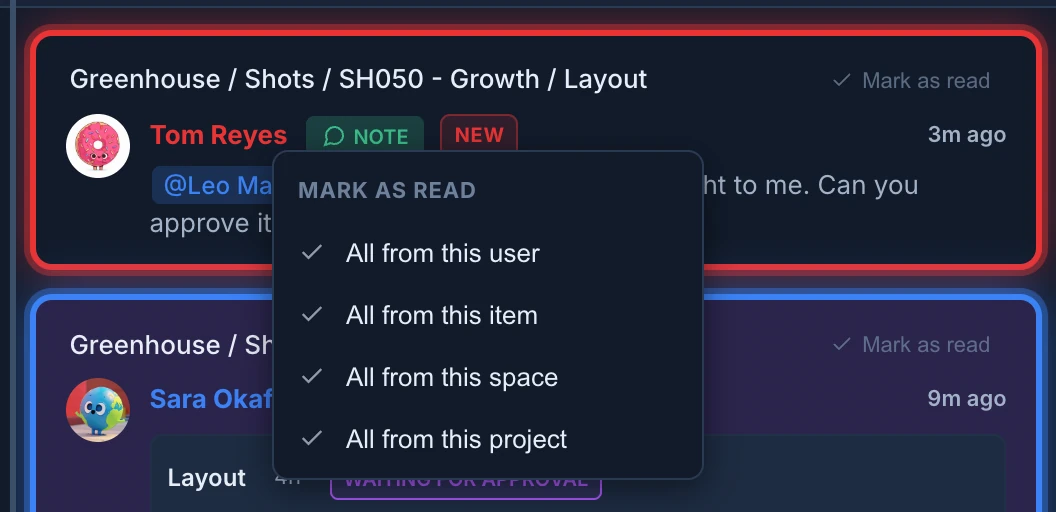
- Right-click a card to mark several at once: All from this user, All from this item, All from this space or All from this project. Esc or a click elsewhere closes the menu.
- Mark all as read, at the top of the panel, marks every unread card of the studio, generations included. On a narrow Feed it shows only its tick.
Opening a card also marks what was unread in its thread. The right-click menu isn't there in My Activity or Search.
Filter the feed
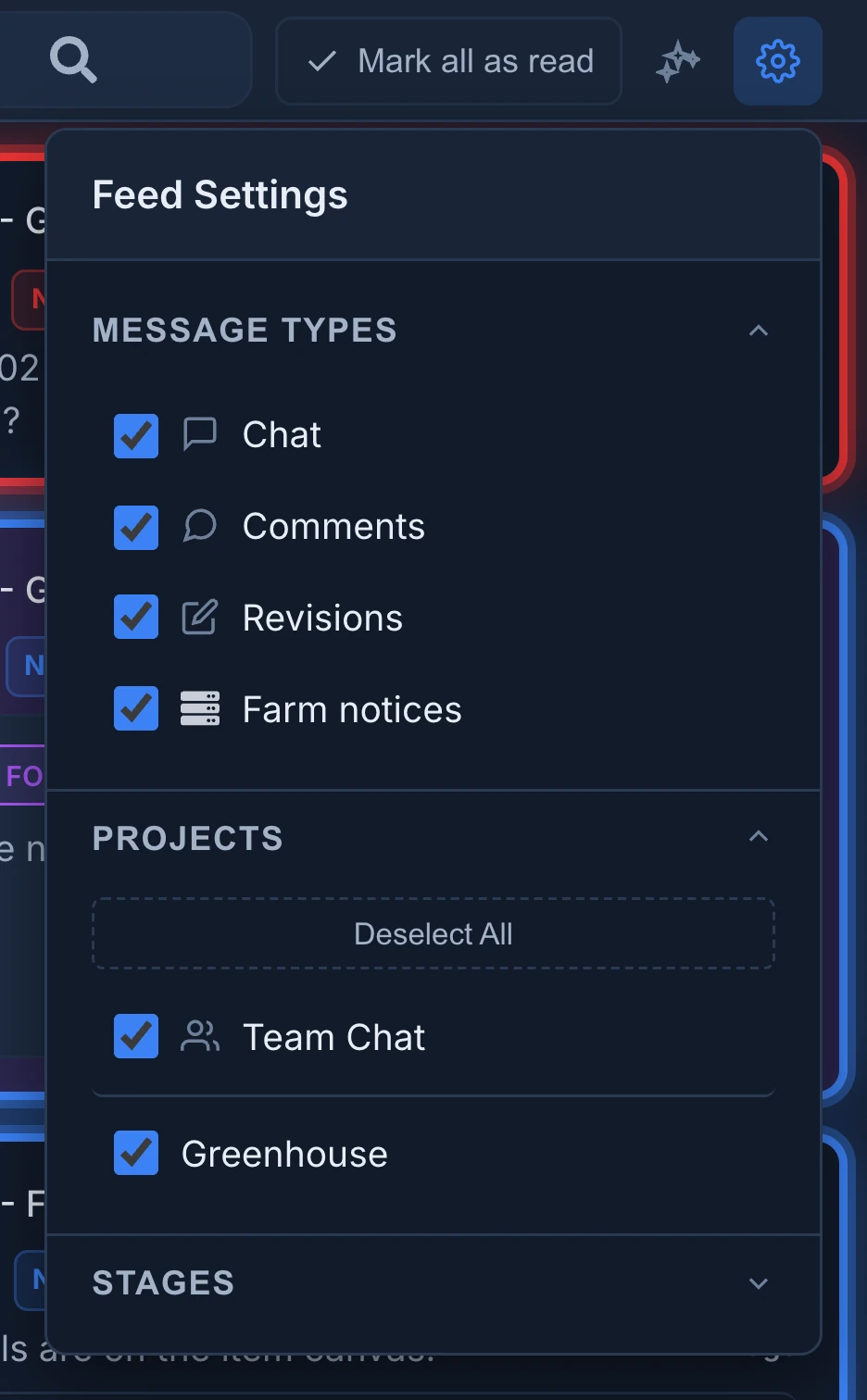
The gear (Feed settings) opens Feed Settings. Each section folds:
- Message Types: Chat, Comments (feedback), Revisions and Farm notices.
- Projects: Team Chat and each project, with Select All and Deselect All.
- Stages: each stage of the studio. It only filters cards posted in a stage.
Clear a box to hide those cards. Mentions always stay, whatever you hide. The same choices decide which new messages play a sound, and they never silence a mention.
Every change applies and saves at once, for you, in each studio. Click outside to close it.
When you clear a project while all were shown, the feed keeps the list of projects you chose: a project created later stays hidden until you tick it.
Summarize the feed with AI
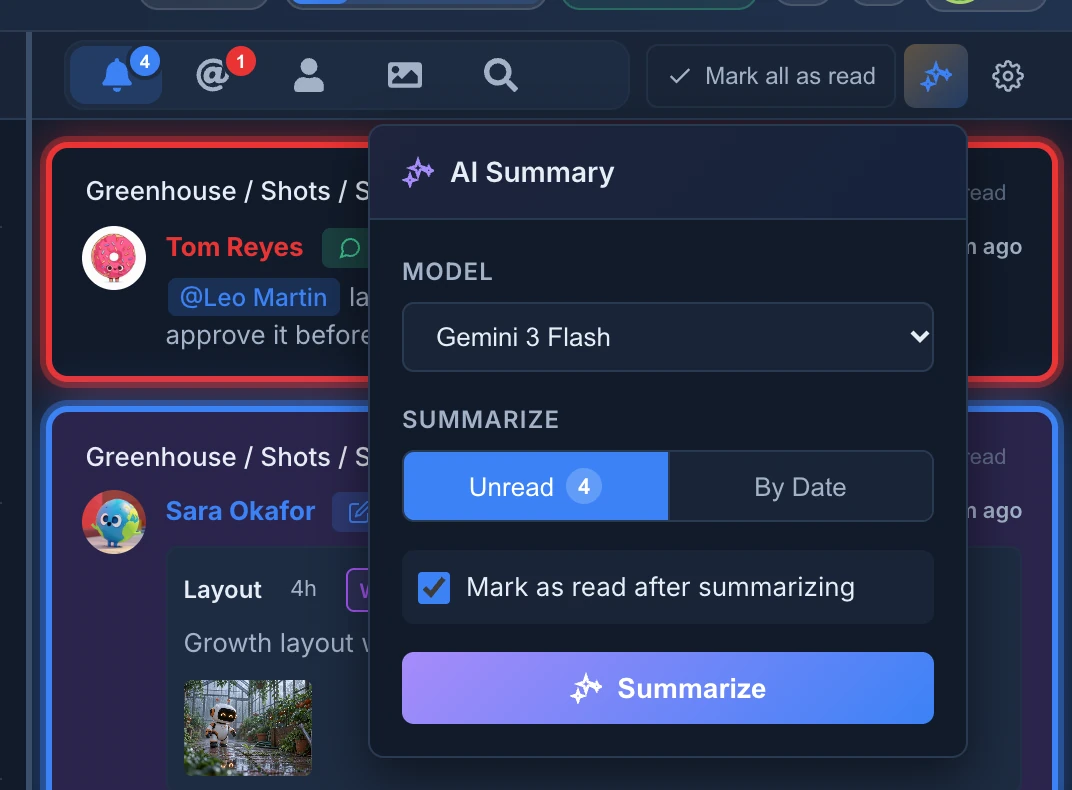
- Click the sparkles button (AI Summary).
- Under Summarize, choose Unread, or By Date and pick the days in From and To. By Date starts on the last 7 days.
- With Unread, Mark as read after summarizing is ticked: clear it to keep those cards unread.
- Press Summarize. It reads "Generating..." while it works.
The summary follows your Feed Settings, mentions always included, and reads at most the newest 200 notifications. It is written in your language and arrives in the feed as an AI Summary card, grouped by project, with how many notifications it covers. Clicking that card marks it as read.
When there is nothing to summarize, it says why: No unread notifications to summarize, or that nothing matches the dates and your feed filters. With too many notifications, narrow the dates or the filters.