
Appearance
Set item priority
Priority tells the team which items come first. It puts an arrow next to the item's name and moves it up or down in the Grid. It doesn't assign anyone, change a status or set a due date.
The five levels
| Level | Next to the item's name |
|---|---|
| Very high | Two green arrows up |
| High | One green arrow up |
| Normal | Nothing. Every new item starts here |
| Low | One red arrow down |
| Very low | Two red arrows down |
Point to an arrow to read the level, for example Priority: High.
How priority orders the Grid
Items are listed by priority first, the highest at the top. Items with the same priority follow in name order.
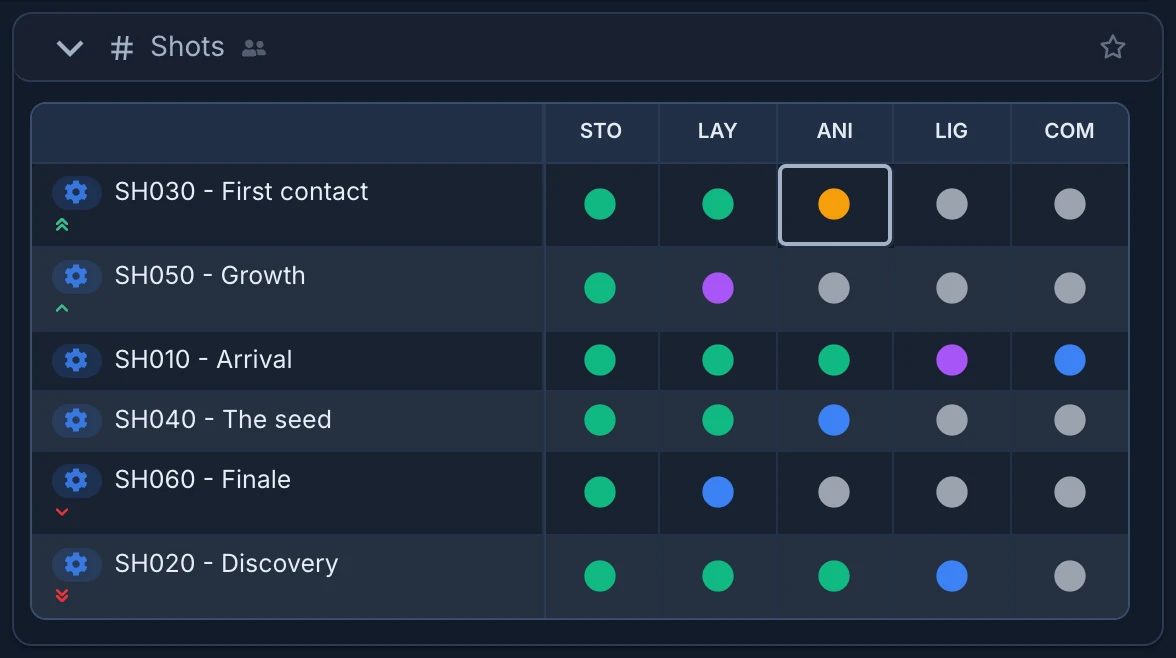
When the Grid is grouped by collection, priority orders the items inside each collection, and Sort by in the collection's menu sets the order after priority: by name or by date. Collections have a priority of their own, High, Normal or Low, set from Priority in their menu. It orders the collections in the space.
Replan also reads item priority. Work on High and Very high items is planned before Normal work, and Low and Very low after, unless a level is set for that work in Replan itself. See Let Replan schedule the work.
For Replan, Very high counts the same as High, and Very low the same as Low. To put one item ahead of other High items, give it a higher level in Replan's Deadline impact.
Change the priority of an item
- Right-click the item's name in the Grid.
- Choose Priority.
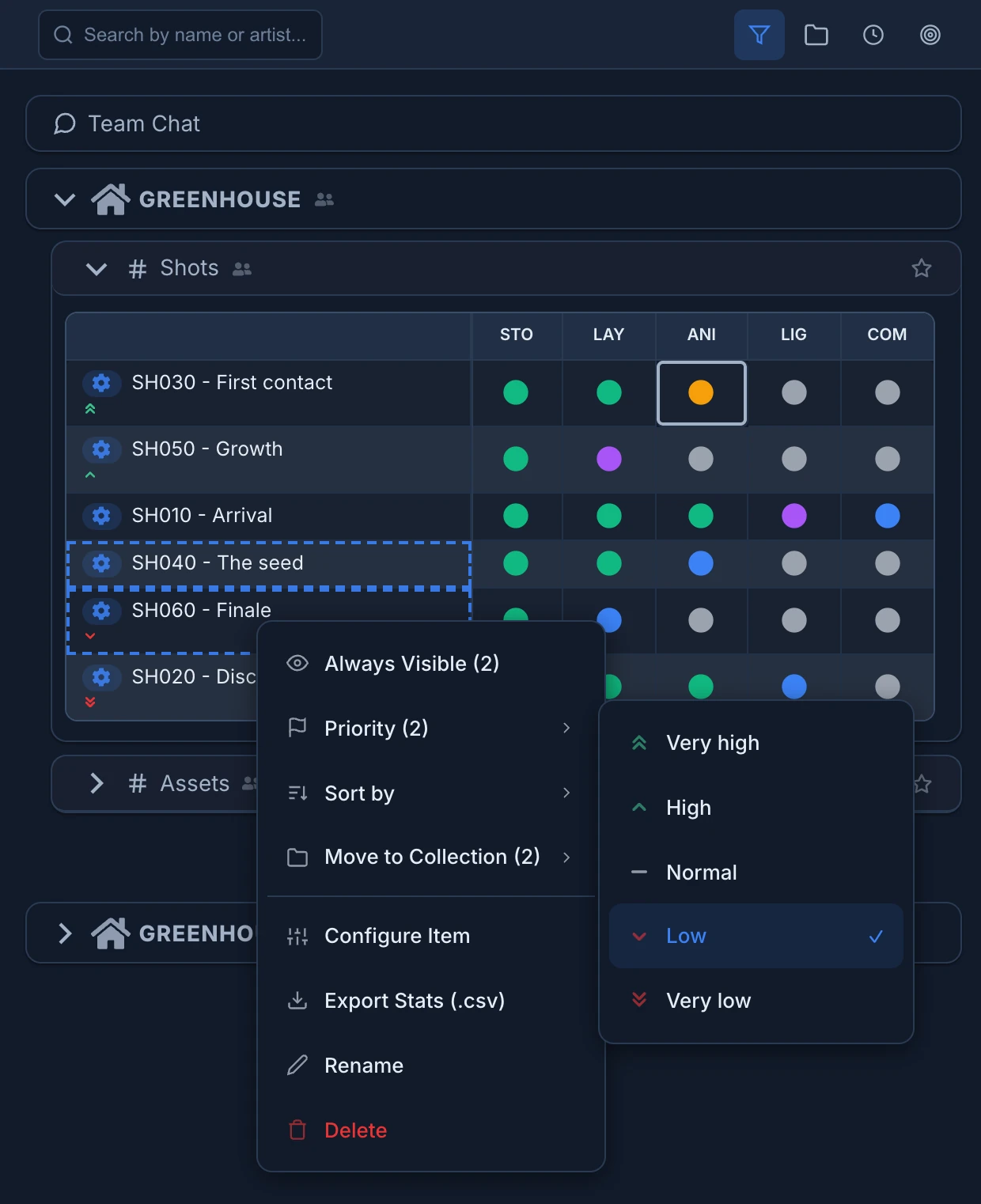
- Pick the level. The current one has a check mark.
Everyone's Tree shows the new order at once. Changing priority needs the permission to edit the item.
Change several items at once
- Cmd-click (Ctrl-click on Windows) the names of the items, or Shift-click to select a range.
- Right-click one of the selected items. The menu shows how many are selected, for example Priority (2).
- Choose Priority (2) and pick the level. Every selected item gets it.
Ask an AI agent
An agent connected to Animanager can change priorities when you ask it to, for example "make SH050 high priority" or "set the shots of SEQ02 to low". It uses the production_set_priority tool:
- It needs your explicit request: the agent is told never to change priority on its own initiative.
- It acts with your permissions. If you can't edit one of the items, none of them is changed.
- If you give a reason, it posts it in the chat of each item, signed by Anibot.