
Appearance
The Blender add-on, panel by panel
The Animanager add-on keeps a Blender work file in step with the pipeline. It brings in the inputs of the stage, warns when one is out of date, keeps the shot's frame range and resolution, and saves the file so it can be published. In Blender's add-on list it is called Animanager Pipeline.
It works through the Desktop Helper, which must be running on the same computer, and only with files inside a stage folder of the Helper. To install it and publish, see Save in Blender and publish the revision. How inputs and masters work is explained in Connect stages: inputs and masters.
Where to find it
- The Animanager tab of the sidebar in the 3D view. Press N to show the sidebar.
- File → Save for Animanager.
- A warning button in the header of every 3D view when inputs need attention. See Warnings when the file opens.
- Two entries in the right-click menu of a collection in the Outliner. See Delete from the shot or from this file.
The add-on has no keyboard shortcuts of its own.
The Animanager panel
From top to bottom, the panel shows only what applies to the open file:
| Part | When it shows | What it is for |
|---|---|---|
| Animanager version available and Update add-on | A newer add-on exists | Updates the add-on. See Update the add-on. |
| EDITING LOCAL MASTER in red | You opened a master of another stage | Your changes stay on this computer. See Masters you open from Blender. |
| Save for Animanager | Always | Prepares and saves the file for publishing. See What Save for Animanager does. |
| Convert to Blender 5.x+ | Blender 5.0 or later, without ACES color management yet | See Blender 5 color management. |
| Metadata | The stage shows pipeline metadata | The shot's frame range, resolution and other values. See Metadata. |
| Sequence context | Always, closed until you open it | Plays the neighbouring shots around this one. See Sequence context. |
| Reconciliation pending | The same asset arrives from more than one stage | See Reconciliation in Blender. |
| Continued from Stage vN | The file continues another stage's work file | See Continuation. |
| Upstreams | Always | The inputs of the stage and their state. See Inputs. |
| Assets | The item uses assets | The assets linked to the item, closed until you open it. |
| Legend | When there are inputs | Blue: your stage - work inside it, Green: managed by Animanager, Yellow: needs attention. |
Inputs
Upstreams lists the inputs of your stage, with the number of stages in brackets and a refresh button. The list also refreshes itself every 30 seconds while the file is open.
Above the list, a summary says what to do first:
- N input(s) not imported with Get inputs, and the missing inputs by name.
- N update(s) available with Reload masters, which brings every linked master to its current version.
Each input shows its name, its revision and status (for example Rev 004 - Approved, or No .blend when its revision has no Blender file), the collection it lives in and the file it comes from. A green icon means it is in your file, a yellow one that it is not.
Then its state and its buttons:
| State | What it means | Buttons |
|---|---|---|
| Linked Stage - v3 | A link, up to date | Edit master, Open |
| v6 -> v8 available | A newer master was published | Reload |
| Not imported or Missing: … | The input is not in your file yet | Get |
| Nothing published yet | The source stage has not published | None: it comes when it publishes |
| Append ready to compose | An append was downloaded and waits for you | Compose |
| Appended - v3 | An append, up to date | None |
| applied v3 - v5 available | A newer version of an append exists | Replace, Copy |
| Merged into this file - v3 | You merged it with other copies of the same asset | None |
| merged v3 - v5 available | A newer version of a merged input exists | Update |
| Continuation - this work file | Your file started as a copy of this input | Bring changes when it has a new version |
| Mode changed: Linked Stage -> Append Stage | Someone changed the input mode in the pipeline | Reload |
| No longer a Blender input - Get files removes it | The input is now Get files or Ignore | Run Get files |
| Removed from pipeline - Get files removes it | The input was taken out of the pipeline | Release (keep as yours) if its content is still in your file |
| Components unverified | The add-on could not check what the link brings | Reload |
| Reconcile failed | A reconciliation of this input did not finish | Retry |
Get, Reload and Retry download through the Helper first. When the new version is not on your computer yet, the add-on says Run Get files in Animanager to download the new revision.: run Get files in the chat of the stage, then press the button again.
Under an input, extra lines can appear:
- Local copy kept: name (has your work): the add-on kept a copy because it holds your changes.
- Appended copy remains: name with Remove copy. It refuses when the copy holds your work: overrides, animation or objects you added.
- Leftover local copies: … with Clean up.
Appends: compose, replace or copy
- Compose brings a downloaded append into the file. When the file opens with appends waiting, the add-on asks first: "Appends available - compose them into this file?".
- Replace brings the new version in and keeps your edits. Items changed on both sides are asked in the reconciliation list.
- It finds the append wherever it sits: at the top of the scene, inside your stage collection or inside any other collection. An asset appended twice is updated copy by copy.
- An append brought in from a revision published before Animanager tracked datablocks is matched with the new version by name. Animanager can't tell which side changed what, so the items that differ are listed for you to decide: For every row takes one side for all of them. What you added stays and what the new version added comes in. Items whose names fit several of the new version's are kept apart and named at the top of the list. After the update the append is recognised directly, so the next one works like any other.
- When there is nothing to replace, the panel says which asset, what was not found and what to do, usually bringing the new version in with Copy.
- Copy adds the new version next to the current one as a separate collection, for example
Layout_updated001, and leaves yours untouched. Animanager does not manage the copy. - Release (keep as yours) on a removed input keeps what it brought as your own data. Nothing is deleted.
Masters you open from Blender
- The folder button of an input opens the input's source file in another Blender window, to look at it.
- Edit master opens a copy of the source stage's file in another Blender, named like the file with
_tweakat the end. It never opens the master itself. - Opening a master file of another stage shows EDITING LOCAL MASTER in red, at the top of the panel and in the 3D view. Saving it only changes the copy on this computer: "Cloud consumers and other users keep the published revision." To share a change, publish a new revision of that stage.
Continuation
A file that continues another stage's work file says Continued from Layout v2, for example. When the source publishes again, the input shows v2 -> v3 published and Bring changes, which merges the new version into your file through the reconciliation list. See Continuation.
Collections and colours
The add-on keeps the Outliner in order:
- Your stage collection is named after the stage and the item, with a short code at the end. It is blue and always first. Work inside it.
- Inputs live inside your stage collection, each in its own green collection.
- A missing input gets an empty yellow collection where it will go.
- Objects left at the root of the scene move into a Local collection when you save for Animanager.
Rename what you want inside your stage collection. If you rename a collection the add-on manages, it puts the name back and says so: Animanager keeps managed collection names, with "Organize freely INSIDE your stage collection - managed names stay put."
Overrides you make on a linked input survive a reload. When an input switches from link to append, what you changed becomes local data of your file, overrides included.
Delete from the shot or from this file
Right-click a collection in the Outliner:
- Delete from shot (Animanager) deletes it and remembers it was deleted on purpose. When a later version brings it back, the reconciliation list asks before restoring it. It asks you to confirm first.
- Remove from this branch only (Animanager) removes it from this file without recording anything.
Metadata
When the stage shows pipeline metadata, the panel has a Metadata table with Frame range:, Resolution: and the other fields of the shot.
- When the file opens, the add-on applies the values to the scene: SH030 opens with frames 1001 to 1096 at 1920 × 1080 without anyone typing them.
- If the scene changes later, for example when you extend the shot to frame 1120, the field turns red and shows the file's value under it, after File:.
- Fix sets the scene back to the value of Animanager.
- Push sends the scene's value to the item in Animanager. It changes the value for everyone, so it asks you to tick "I understand this changes the values on this item for everyone" first.
- With more than one difference, Fix all (N) fixes them all, and Change item pipeline pushes them all to the item, with the same confirmation.
The table refreshes every 15 seconds. Metadata could not be loaded. means the Helper could not read it: press the refresh button next to it.
Sequence context
Sequence context plays the published playblasts of the shots around this one on the active camera, before and after your frame range. Use it to check continuity with the neighbouring shots without leaving Blender.
- Open Sequence context.
- Choose the Stage whose playblasts to bring: Same stage or another one, such as Animation while you light.
- Set Shots around: how many shots before and after this one. Load all shots brings the whole sequence instead.
- Press Load context. It downloads in the background and Blender stays responsive. The summary says, for example, 4 playblasts · F905-1192 · active camera.
Then:
- Adjust frame range widens the scene's frame range to the loaded shots. Revert frame range sets it back to this shot.
- Opacity fades the neighbouring playblasts.
- Audio plays their sound, and Audio stage takes the sound from another stage's playblasts. Volume sets its level. With Shots around at 0, only this shot's own sound loads.
- Refresh context loads them again after new playblasts are published. The X button removes them and restores your frame range.
Save for Animanager removes the context before saving, so it is never published with your file.
Warnings when the file opens
When you open a work file, the add-on checks every input. If something needs your attention:
- A popup Animanager inputs need attention lists the problems, ends with "See the Animanager panel in the sidebar." and opens the sidebar.
- The header of every 3D view shows a button such as Inputs: 1 missing, 2 outdated. Click it to open the panel. The X next to it hides it until Blender restarts.
By default, opening a file never changes your linked masters: they are marked out of date and you reload them when you are ready. See Preferences to change that.
Preferences
In Edit → Preferences → Add-ons → Animanager Pipeline:
- Linked master updates: Warn, update manually (the default) keeps the version already in your file and marks newer ones in the panel. Update automatically reloads every linked master as soon as the file opens.
- Share activity snapshots, on by default. About once a minute, while Blender is idle and not playing, the add-on shares a small screenshot of the Blender window with your team, for files inside an Animanager stage folder. Only the Blender window is captured. Untick it to stop sharing.
Your team sees it in Team Activity, in the header of Animanager, next to the file you have open and whether it is saved, prepared and up to date. See Team Activity.
Team Activity
The people icon in the header of Animanager, with the number of people online, opens Team Activity: who is online, away or never seen. A teammate with Blender open on a stage counts as online, and their row shows:
- Blender, the file name and how long ago it reported.
- Working, Blocked when an input is broken, or Closed and how long ago.
- Expanded: File (Saved or Unsaved changes), Preparation (Prepared, Changed after prepare or Not prepared), Dependencies (for example Up to date or 2 outdated) and Local masters (Published or Unpublished edit).
- The last snapshot. Click it to open it large: it says when it was captured, with Open in new tab.
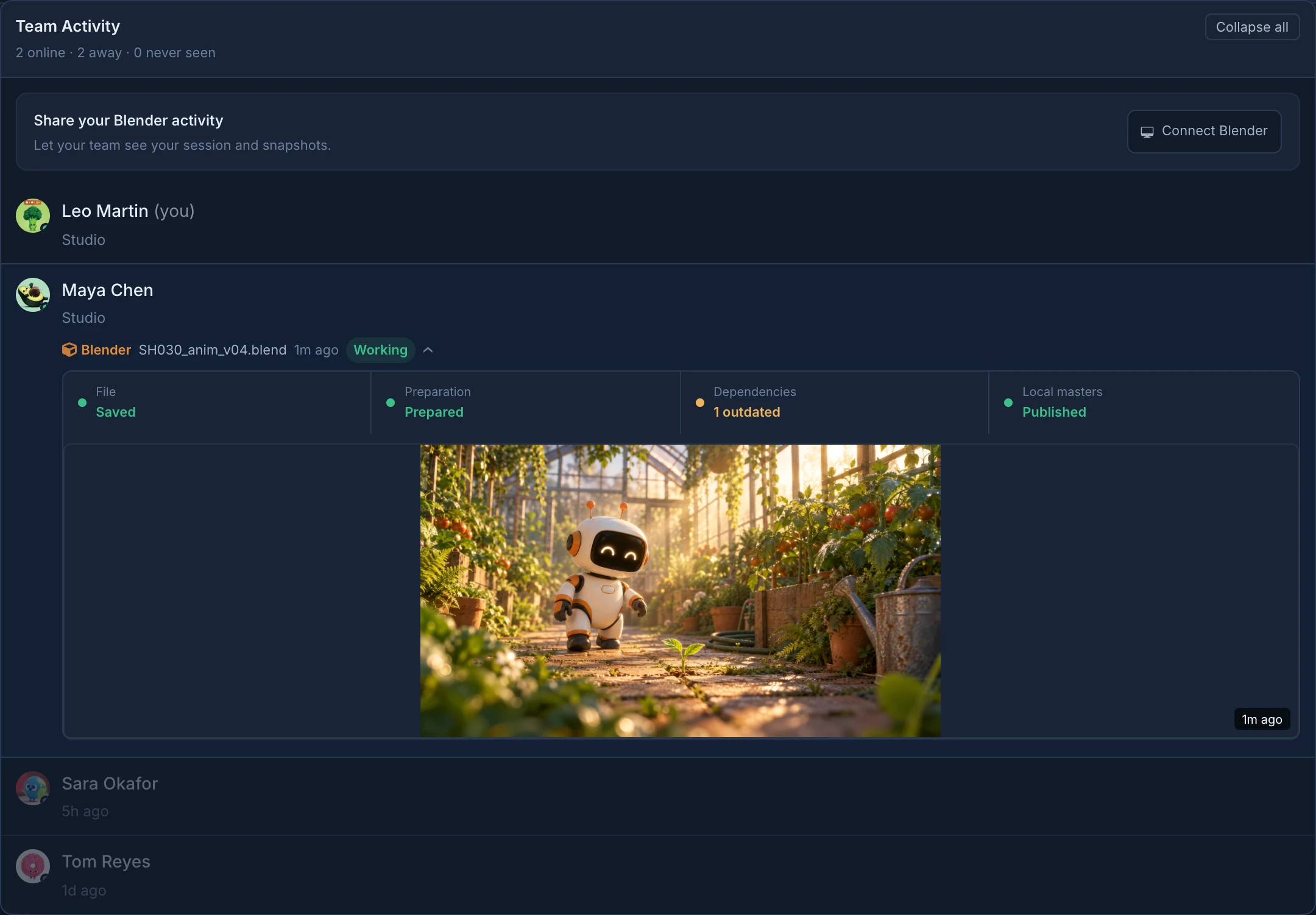
You see the sessions of the people of your studio you can see in the team list, and only for work of this studio. A session not heard from in 2 minutes shows as closed, and closed sessions disappear after 15 minutes. Snapshots are deleted after 48 hours.
If you have not connected your own Blender, the list offers Share your Blender activity with Connect Blender, which explains how to set up the Helper.
Update the add-on
When a newer add-on is published, the panel says Animanager version available, with a short note of what changed and Update add-on. The add-on downloads, checks and installs the new version and reloads itself: you don't restart Blender. It says Add-on updated and the version now active.
The add-on checks for updates every minute while Blender is open.
Blender 5 color management
In Blender 5.0 or later, Convert to Blender 5.x+ sets the scene to ACES 1.3 with an ACEScg working space, and the color spaces of color textures to match. It doesn't change the values of materials or lights. The button disappears once the scene uses it.