
Appearance
Set up a project in Settings
The Project group of Settings has four sections: General, Pipeline, Schedule and Permissions. They apply to the project, or to one of its spaces or collections, chosen in Settings for. A space or collection shows what it takes from the project, and where to change it.
Open it
- Right-click a project in the Tree and choose Settings to open General, or Due Date to open Schedule. Rename on a project also opens General.
- Right-click a space or a collection in the Tree and choose Settings to open its Pipeline. The gear of a collection in the Grid does the same.
- From any other section of Settings, while a project is in context: the Project group is in the side menu, below the studio sections.
The Project group appears when a project is in context: you opened Settings from it, or you were working in it before you opened Settings. Everyone sees it. What you can change depends on your permissions in the project: see Who can change what.
Choose the scope
Settings for, at the top right of each section, shows the scope as a path, such as Greenhouse › Shots. Click it to choose another:
- the project, marked Project;
- one of its spaces, marked Space;
- one of the collections of a space, marked Collection. Open a space with its arrow to see its collections.
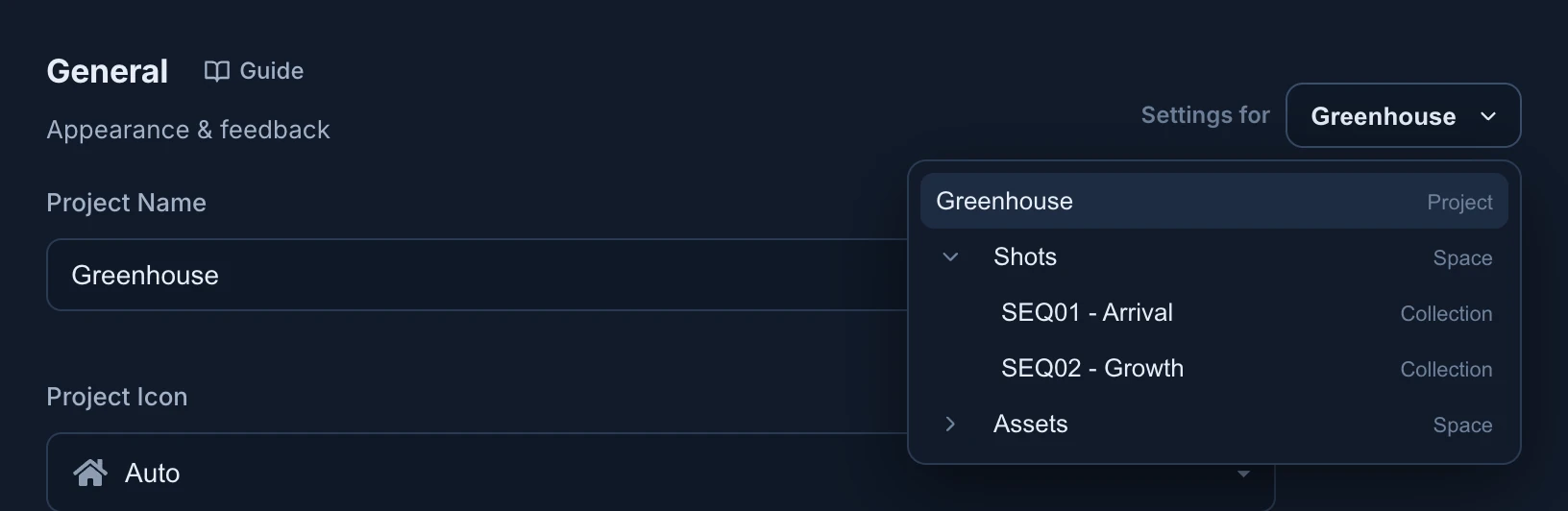
If you changed something and haven't saved, Animanager asks first: Discard and switch drops every unsaved change on the page, studio sections included, and Keep editing stays. Save first to keep them.
General
At project scope, General holds:
- Project Name. It can't be empty: saving without one says The project needs a name.
- Project Icon: type in the search to find an icon. Auto picks one from the project's name.
- Icon Color: Auto, or one of 19 colours from Red to Stone. Choosing the Auto icon puts the colour back on Auto too.
- Feedback Buffer: the share of each stage's estimate kept for feedback rounds, from 0 to 100%. It starts at 20%.
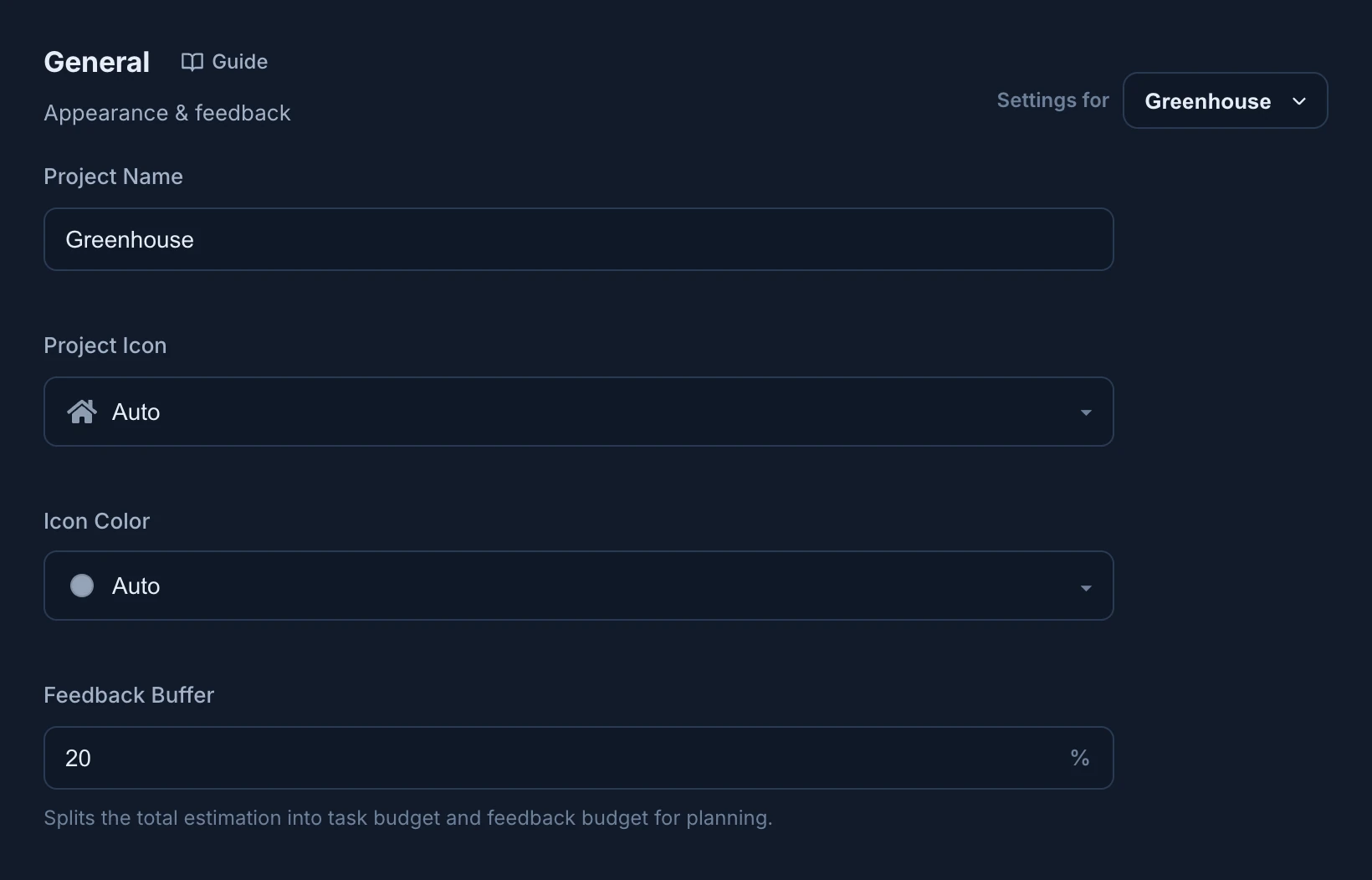
The feedback buffer splits each estimate into the work and the reserve for feedback. With 20%, a 10-hour Animation estimate plans 8 hours of work and keeps 2 for feedback rounds. Replan plans with the work part, and the budget under a stage's chat marks where the reserve starts: see The feedback reserve.
A space or a collection has no General of its own. It shows the project's Icon and Feedback buffer as Inherited from project Greenhouse, with Open project settings to change them. Spaces and collections are renamed in the Tree, with Rename.
Pipeline
At project scope, Pipeline lists the spaces of the project, each marked Space pipeline, or Inactive space when it is turned off. Every space has its own pipeline: click one to open it. Edit studio workflows opens the studio's workflows, for people who can change them.
At space scope it shows the space's stages and dependencies, and at collection scope the collection's. A collection follows its space until you change it, and Use inherited puts it back. See Choose the stages of a space and Where connections are set up.
Schedule
Schedule holds the project's Due date. Pick a date, or press Clear due date to remove it. The due date shows on the Timeline as a line with the project's name. Items and stages without a deadline of their own follow it (see Set deadlines).
Deadline warning is how many days before a stage's deadline its days left start turning from grey to amber to red: 14 unless you change it, from 0 to 365. With 0, a deadline only turns red on the day and after it.
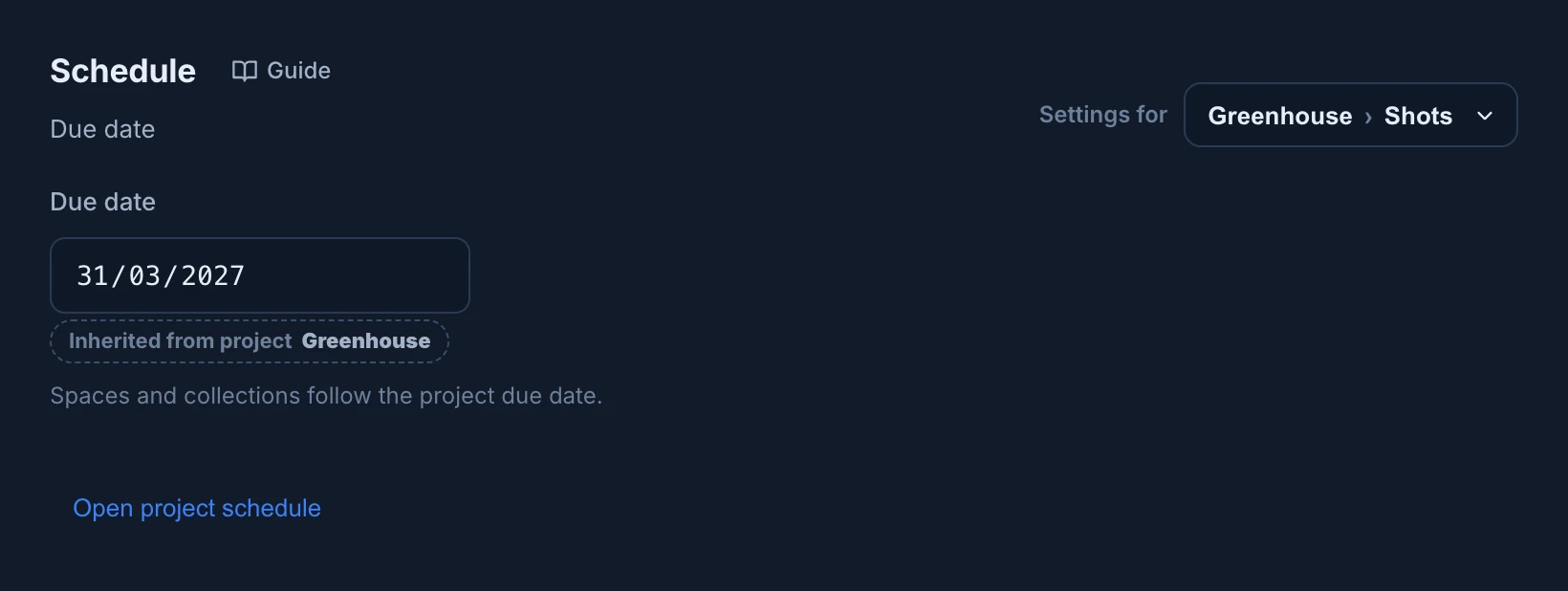
Spaces and collections have no due date of their own: they follow the project's. At their scope, the date is read-only, marked Inherited from project Greenhouse, with Open project schedule to change it.
Permissions
Permissions sets who can open the project and what each role can do in it. A space can leave a role out and change its levels inside the space. A collection uses the permissions of its space: it says Collections use the permissions of their space. Change them on the space., with Open space permissions. Everything is in Roles and permissions.
Who can change what
| Section | Needs, in the project |
|---|---|
| General and Schedule | Project set to Edit |
| Permissions | Project set to Manage |
| Pipeline of a space | Spaces set to Create & edit, or the studio permission Pipeline |
| Pipeline of a collection | Collections set to Create & edit, or the studio permission Pipeline |
When you can see a section but not change it, its fields are greyed out and it says You can see these settings but not change them. In Permissions the notice reads You can view this configuration, but you cannot change it.
Changes wait in the save bar with the rest of Settings: see Save your changes.
Not here
- Items keep their own settings in the item dialog: Configure Item in the Tree context menu. See Configure items and recurring work.
- The order of projects and spaces, and turning them on and off, are in the Tree: Reorder Projects and Reorder Content. See Reorder and activate content.
- Collection priority is in the Tree context menu of the collection. See Set item priority.