
Appearance
Plan social posts in Publisher
Publisher plans the studio's social media posts on a calendar. You write each post once, with images and videos from your revisions, tick the accounts it goes to and pick a date. Publisher hands it to Buffer, which publishes it on each network at that time.
Who can use it
- Publisher is a module Animanager turns on for each studio. Contact Animanager support if your studio needs it. See Turn modules on and off.
- In Roles & permissions, Publisher sets what each role can do: View the calendar, Edit drafts and groups, or Publish: schedule, move and cancel posts.
- Publisher connections, set to Manage, lets a role connect Buffer and the accounts.
Someone who can only view sees a note at the top: "Read-only: you can view posts but not change them."
Connect the accounts
Publisher publishes through Buffer, so the accounts are the channels of your Buffer organization.
- In Buffer, connect the studio's channels, then go to Settings → API and create a key.
- In Publisher, press Accounts, paste the key in Buffer API key and press Connect Buffer.
- If the key sees several Buffer organizations, choose the studio's.
The channels come in as accounts, grouped by network. After a change in Buffer, press Sync channels.
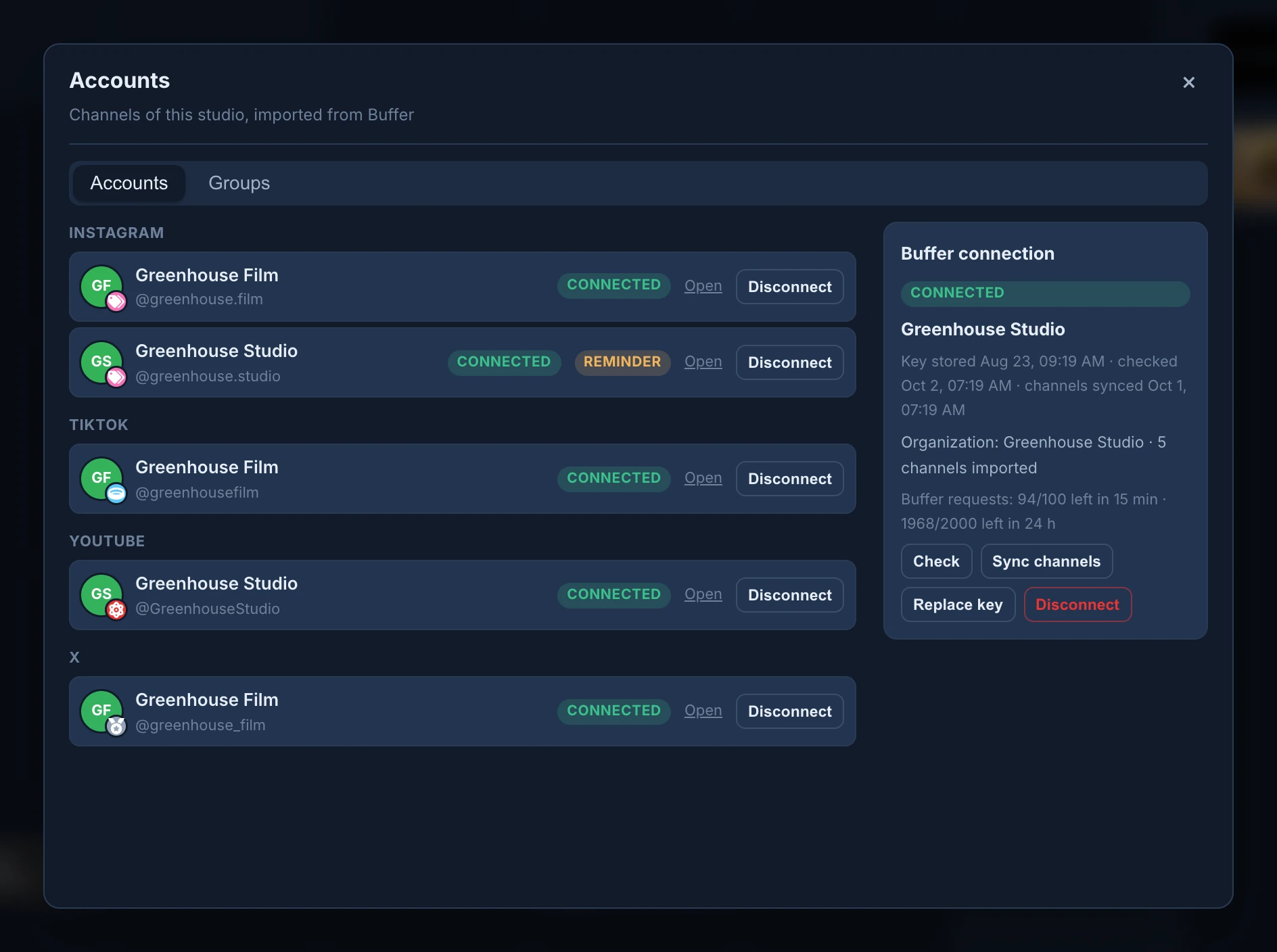
- Reminder marks an account Buffer can't publish to directly: at the time, Buffer sends someone a reminder to publish it from the network's app. This is the case of Instagram accounts that are not business accounts, and of Facebook groups.
- Queue paused means the channel's queue is paused in Buffer: nothing goes out until it resumes.
- Disconnect stops an account from getting posts. Its past posts stay.
- The Groups tab makes groups of accounts, such as "Main channels". In the post editor a group ticks all its accounts at once, and the calendar can show only its posts.
You can write drafts before connecting anything.
The calendar
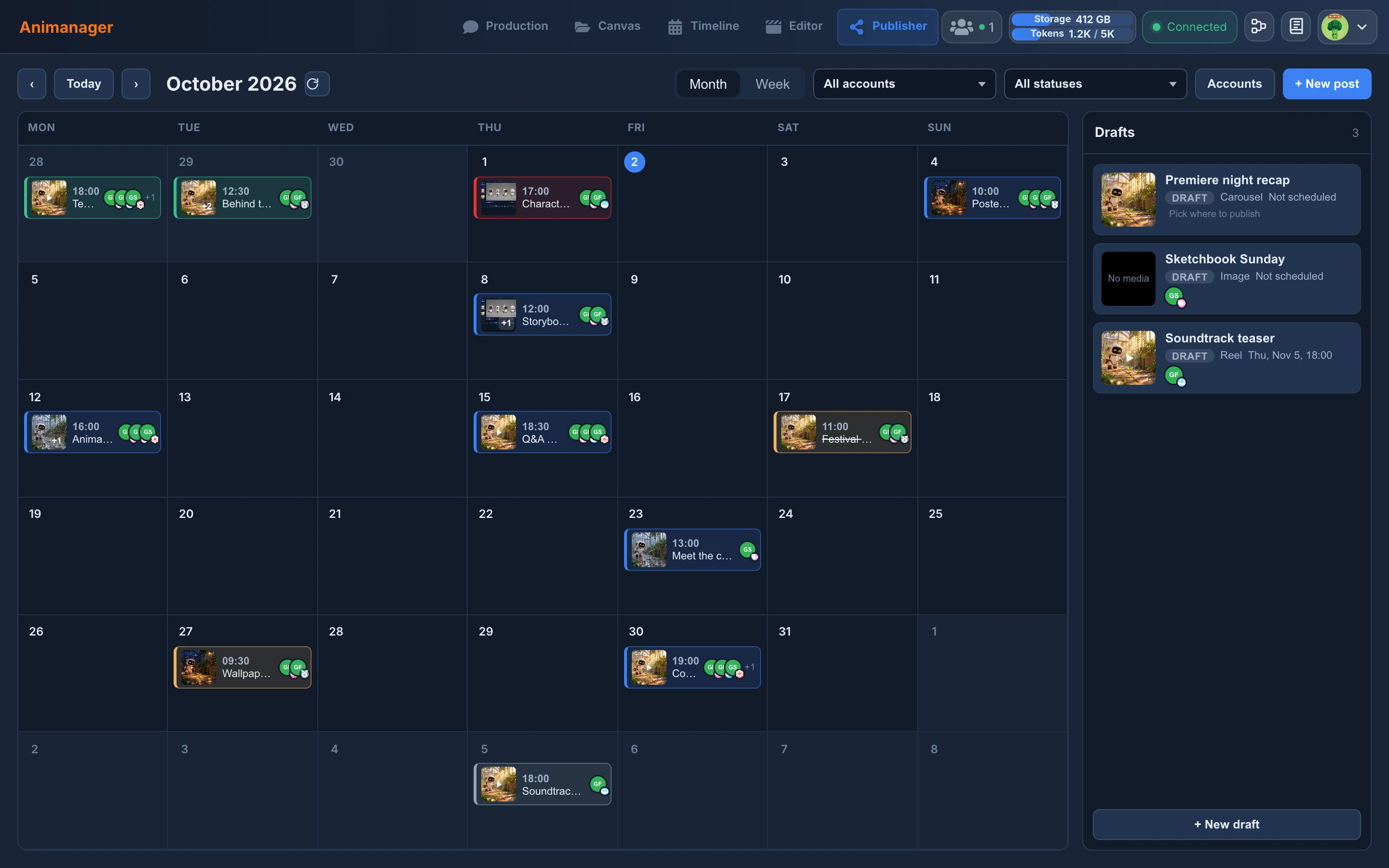
- Month and Week change the view. ‹, Today and › move through it.
- Each post shows its time, cover, title and accounts. Its colour gives its status: grey Draft, blue Scheduled, green Published, red Error, orange Needs attention, struck-through Canceled.
- Point to a post to preview it as it will look on each account.
- Drag a post to another day to move it. It keeps its time.
- The menus filter by account or group, and by status.
- Drafts, on the right, lists the posts with no date.
Write a post
Press + New post, the + on a day, or double-click a day in Month.
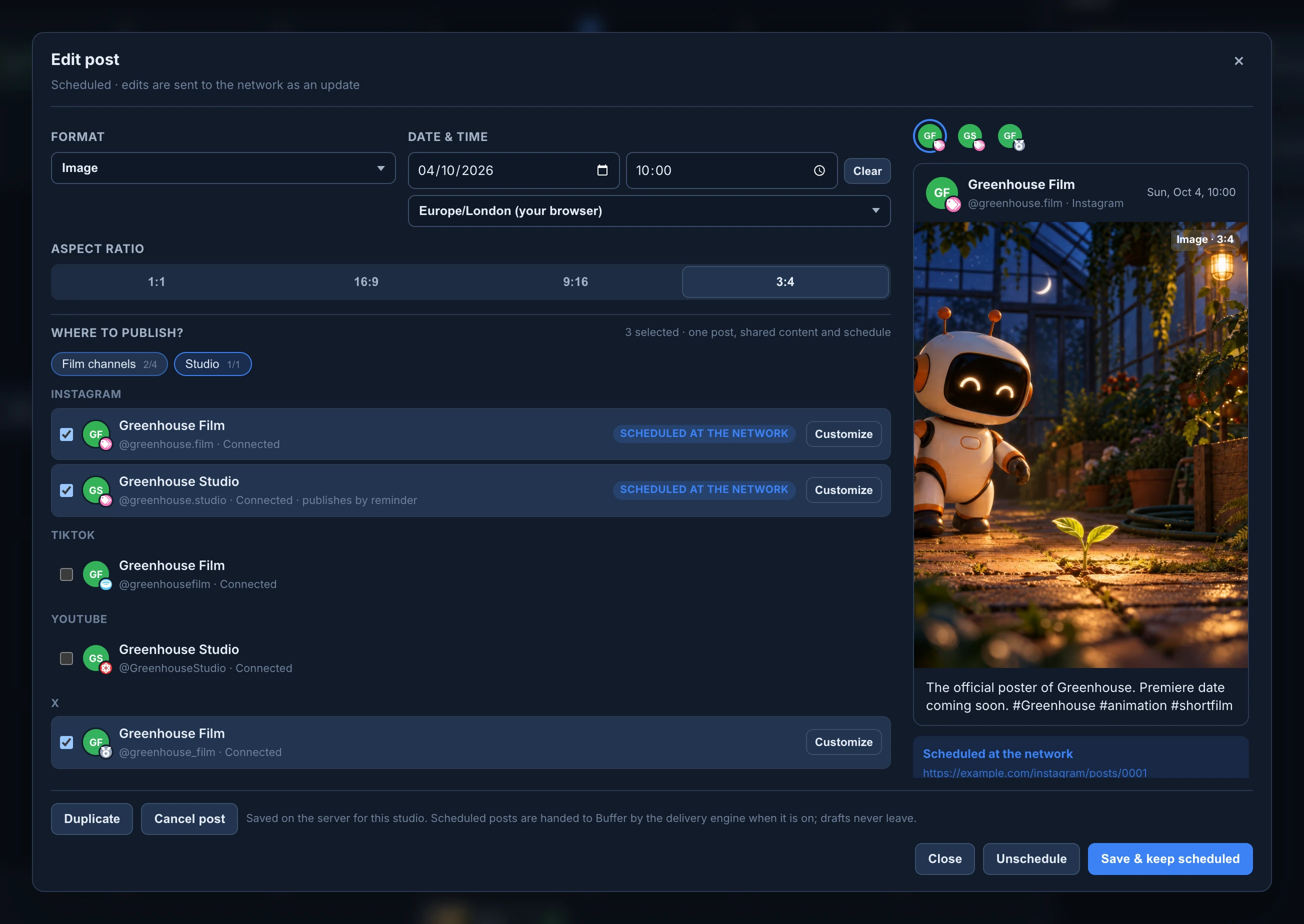
- Give it a title. Only the team sees it.
- Press + Add media and choose images or videos. The picker lists the files of the studio's revisions and chat attachments. Filter it by kind, by stage, by Master revision only, or search it. The order you pick them in is the order of the post.
- Write the text. The counter shows the limit of the strictest network ticked: 280 characters on X, 2,200 on Instagram.
- Choose the Format (Image, Carousel, Reel or Story) and the Aspect ratio. A format no ticked network takes is greyed out.
- Set the date, the time and the time zone. A new date starts at 10:00.
- Under Where to publish?, tick the accounts, or a group.
- Check the preview on the right, one tab per account, and the problems listed under it, such as a video too long for a network.
- Press Schedule, or Save draft to keep it without a date.
To change one account's version, press Customize on it and tick what differs: its own text, media, format, time or ratio. Everything else follows the post.
What happens after you schedule
Nothing leaves Animanager when you save. About 6 hours before the time, Publisher prepares the files and hands the post to Buffer, and Buffer publishes it at that time. Publisher then checks it went out and marks it Published.
Open a post to follow it under Delivery: the status of each account, and Open at the network once it's out.
- Send now hands a scheduled post to Buffer without waiting.
- Retry failed tries again for the accounts that failed.
- Check files confirms each file is something the networks take.
- Dry run shows what would happen, without sending anything.
- If the time passes before the post could be handed over, it becomes Needs attention: pick a new time.
- When Publisher can't tell whether a post went out (Unknown outcome), check the account on the network, say what you found and press Resolve.
Change, copy or cancel a post
- Open the post and change it. Changes to a post the network already has are sent as an update.
- Unschedule keeps the date but takes the post off the schedule, as a draft.
- Duplicate makes a copy as a new draft.
- Cancel post takes it off the schedule and asks Buffer to stop it. Posts already published stay published.
- Delete removes a post that never reached Buffer. The media stay where they came from.
If someone else saved the post while you had it open, Publisher keeps your changes and asks: Load their version or Overwrite with mine.