
Appearance
Let Replan schedule the work
Replan proposes a schedule for the stages waiting in the Timeline queue, and can move the work already scheduled to make room. The proposal shows on the Timeline as preview cards, and no stage moves until you apply it.
Before you start
Replan plans with what the studio has set up:
- Skills. An administrator marks who does each stage in Settings → Studio → Members: Skills on a member, then one of the three boxes of a stage (1st · 2nd · 3rd). Replan gives work to people with at least one skill. If nobody in the studio has skills yet, a stage goes to whoever did it before, or to anyone when nobody has.
- Estimates. A queued stage takes its estimate, less the project's Feedback buffer and the hours already logged. Without an estimate it takes the stage's past average, or one 8-hour day.
- Dependencies. The stages each item waits for come from its pipeline.
Start a Replan
- Open Timeline and press Queue in the toolbar.
- Press Replan at the top of the queue.
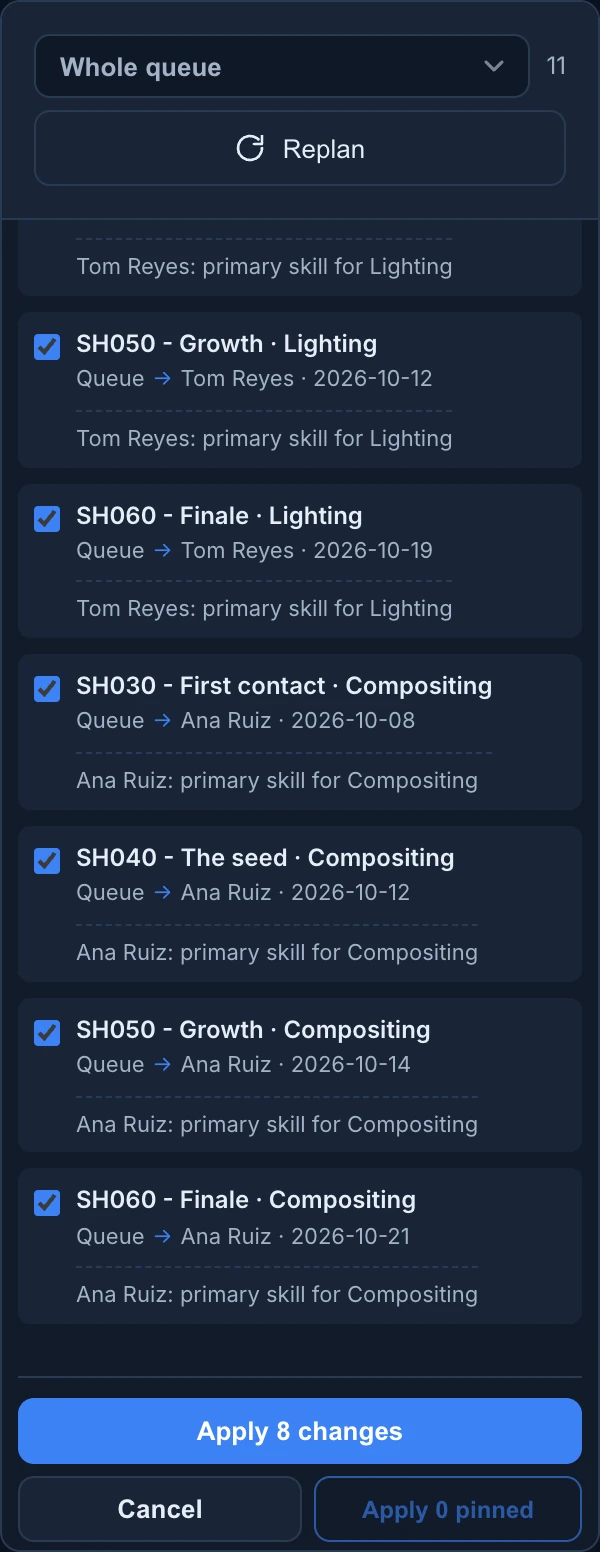
Your unsaved Timeline changes are saved first. Then Replan proposal opens at the top of the queue, and the proposed cards appear on the schedule with a dashed border. The cards they replace are hidden while you preview, and the selection is cleared.
If there is nothing to change, Replan says "No changes to propose for the current selection" and no proposal opens.
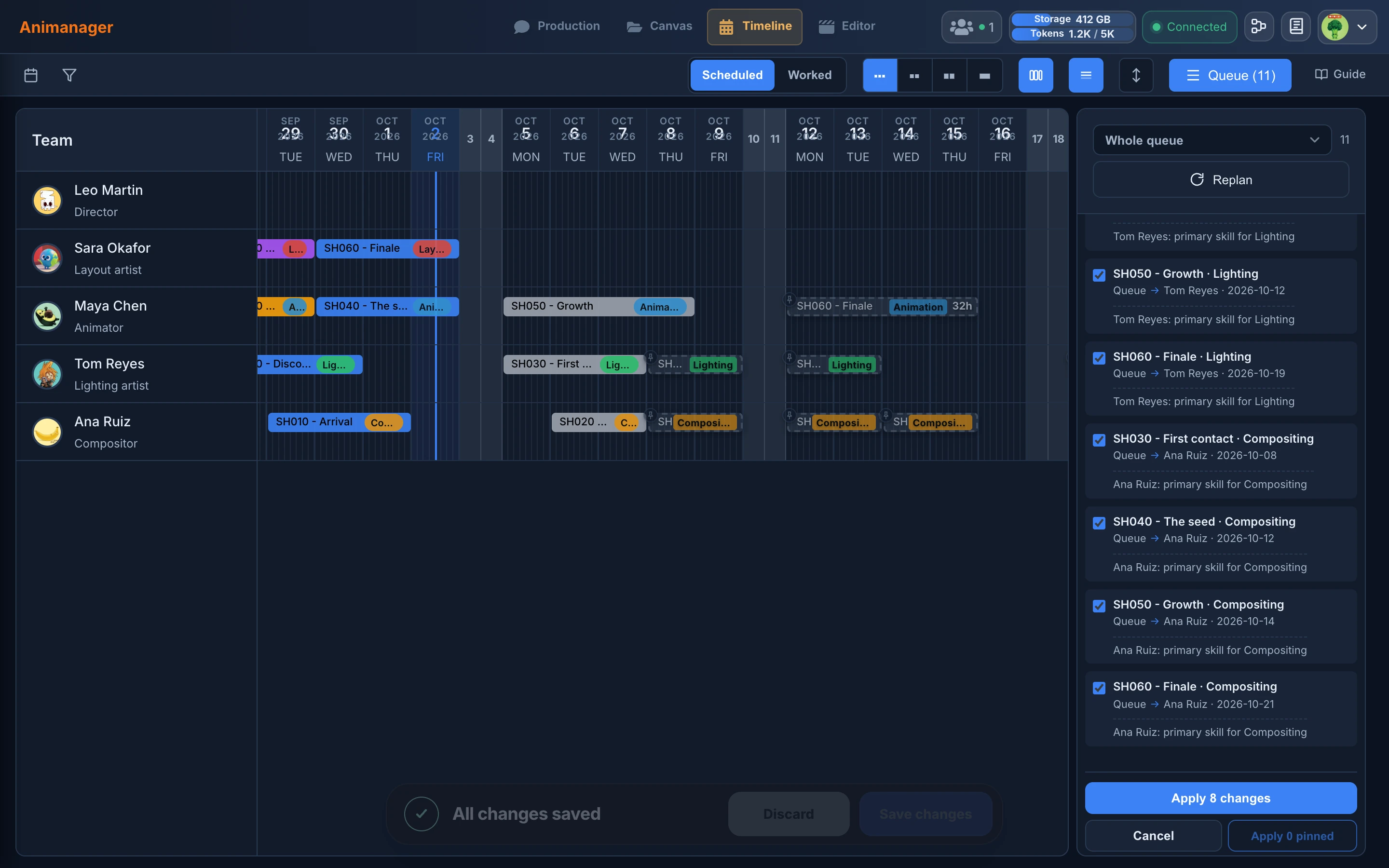
Choose what it plans
Scope at the top of the proposal says what the plan covers:
- Work. Whole queue plans every stage in the queue and, while Alter existing tasks is on, the work already scheduled from the start date on. Visible plans only the stages the queue lists once you narrow it.
- Artists. With skills gives work to everyone with at least one skill. Timeline filter gives it to the people ticked in the Team filter of the Timeline, with skills or without, and is available while that filter is on.
Replan starts on the narrower choice of each: Visible when the queue is narrowed, and Timeline filter when people are ticked in Team. Otherwise it plans the whole queue with everyone who has skills. Narrowing the queue while you preview recalculates the proposal.
Plan settings
Each change recalculates the proposal at once: a number when you press Enter or leave the field, the slider when you let it go. Your settings are kept for the studio in this browser, except Start from.
- Start from: the first day Replan can use. Tomorrow unless you change it, and never before today. Work that starts before this day stays where it is.
- Client offset: hours to wait after a stage ends before the next one starts, for example for a client's approval, up to 80. Applies to chooses Core stages (only after the connections marked Require client approval in the pipeline) or All stages.
- Min block: the smallest card, in hours, Replan makes from queued work, up to 40.
- Balance: from Finish early, which spreads the work across people, to Best fit, where the best person for the stage takes it.
- Split tasks to avoid idle: a stage can be split into free gaps when that finishes it earlier. On at first. Across fitting artists lets the pieces go to several people with the skill.
- Alter existing tasks: turn it off to keep the work already scheduled where it is. On at first.
What Replan takes into account
- Skills. A stage goes to people with that skill: first skills before second, second before third, unless another person finishes much earlier. Work already started stays with its artist, and a stage stays with the person doing the stage next to it on the same item when it can. The person a card is already on can keep it without the skill. If nobody has the skill for a stage, Replan uses who did that stage before and says so in Warnings.
- Availability. A working day is 8 hours, Monday to Friday. The studio's holidays, the absences on the Timeline and the work already on each person's row are taken as busy. Recurring work is not.
- Dependencies. A stage starts after the stages it waits for end. A finished stage never holds it back. A stage that waits for one with no dates at all is planned anyway, with a warning.
- Deadlines and priority. They set the order, not a limit: urgent work first, then higher priority, work already started, the earliest due date, and the stage order. Within the same priority, work that other stages wait for goes first. The due date is the stage's, else the item's, else the project's. Deadline impact shows when a plan finishes late. Replan looks up to 90 days ahead.
- Feedback. A stage in feedback gets at least one working day, for the changes.
- What stays put. Finished stages, work that starts before Start from, recurring work, the work of archived people, and stages parked in a waiting status, such as waiting for approval.
Replan does not check whether a person has access to the project. Check it before you apply.
Review the proposal
The panel shows the number of changes, and the share placed when some stages could not be placed. Changes, Could not schedule and Warnings start folded: click one to open it.
- Deadline impact lists each item the plan touches, with its due date, its new finish date and a check mark, or LATE. Sort it A-Z or by Date.
- The number next to an item is its priority level: 9 goes first, 5 is the default and 0 (F, filler) only fills free gaps. Changing a level recalculates the plan. Levels are saved for the whole studio, which needs the permission to manage the studio settings. Reset all to 5 puts every item back to the default.
- To change several items, click them (Shift-click for a range): the bar that appears sets one level for all of them with Apply. Press Backspace or Delete to leave the ticked items out of this plan. They come back the next time you run Replan.
- Changes lists each change: the item and stage, where it goes from and to (person and date), and why, such as "Tom Reyes: primary skill for Lighting", "After Animation (dependency)" or "Uses a free gap". A card that goes back to the queue reads Queue. Untick a change to leave it out when you apply.
- Could not schedule groups the stages Replan could not place by their reason, such as "No artist has Lighting as a skill" or "No free capacity before" a date.
- Warnings lists what to look at, such as a person with more than 8 hours on one day, or a stage that waits days for the only person with its skill. A warning that was already true before this plan says (pre-existing).
On the schedule:
- Expanded rows label each preview card: moved, displaced in amber for work pushed aside to make room, or nothing for a new card.
- Click a preview card to inspect it. The cards of its item show as if applied and the rest dims. The stages before it get an amber border and the ones after it a green one. Double-click it to open its Task Chat.
- Drag a preview card to another person or date, or drag its right edge to change its length. Replan recalculates the rest around it.
- Press the pin on the corner of a preview card to freeze it where it is for the next recalculations. A pinned card turns solid blue, and keeps its pin when you drag it.
- The real cards on the Timeline can still be changed while you preview. The proposal recalculates around them.
Apply or discard
- Apply N changes saves the ticked changes for the whole studio at once, with no Save changes step. If the Timeline changed while you were previewing, nothing is saved: cancel and run Replan again.
- Apply N pinned saves only the pinned cards and keeps previewing the rest.
- Cancel, or Esc, discards the proposal and its pins.
Applying moves other people's work
With Alter existing tasks on, applying can move stages already scheduled for anyone in the studio. Read Changes before you apply.
Other ways to start it
- Fix blocked. When stages are scheduled before the stages they wait for, the toolbar shows how many are blocked and Fix blocked. It opens a Repair proposal: blocked chains move later, nothing is resized and started work keeps its artist. Fix this blockage, in the right-click menu of a card, does it for one card. A repair has no scope or settings, and ignores Start from and Client offset.
- Preview domino. When you move a card that later stages wait for, the Timeline says how many follow it. Preview domino replans those stages of the item. Dismiss hides the offer, and it goes away on its own after a few seconds.
- Schedule urgently. Right-click a stage and choose Schedule urgently. Set the Deadline and the Priority (High, Normal or Low), choose whether to Allow moving other projects' blocks to make room, and press Propose placement. Only work of the same priority or lower can be pushed aside, and cards moved aside to make room are marked as displaced. If the item has its own level in Deadline impact, that level counts instead of the Priority you choose here.
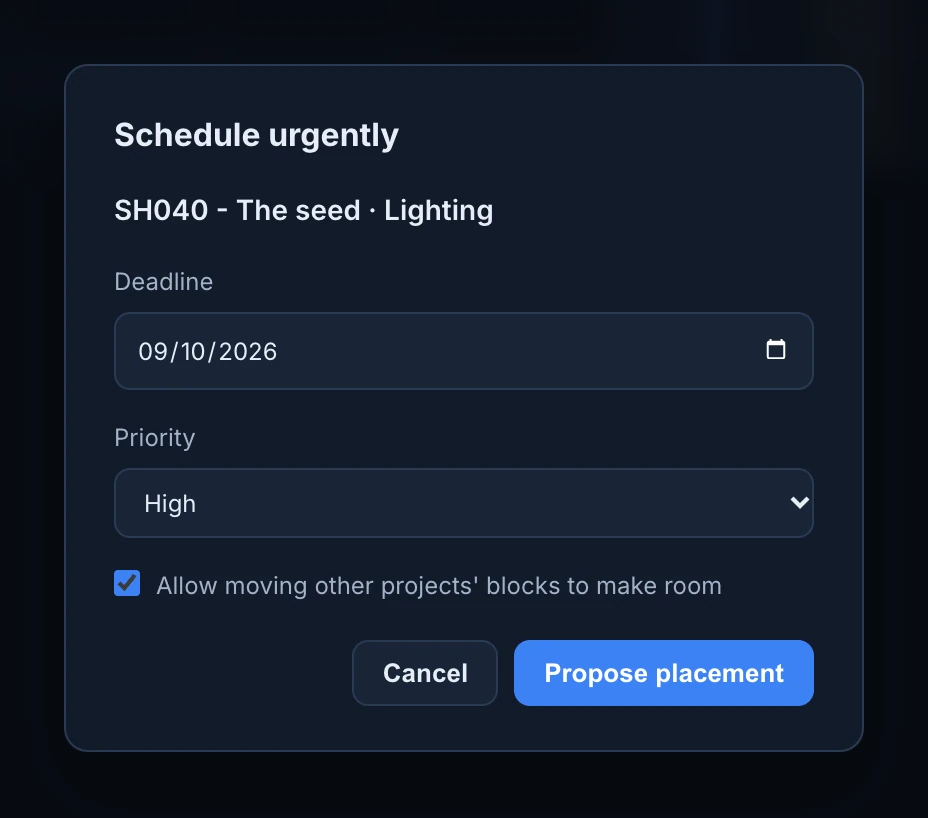
Each of these opens a proposal you apply or discard the same way. They start planning today, not tomorrow. When the queue is closed, the proposal opens in a panel of its own.