
Appearance
Navigate Animanager
Animanager keeps one place selected at a time: Team Chat, a project, a space, an item or a stage. The Tree, the Chat and the address bar all follow that place, so you always know what you are reading and where a post will go.
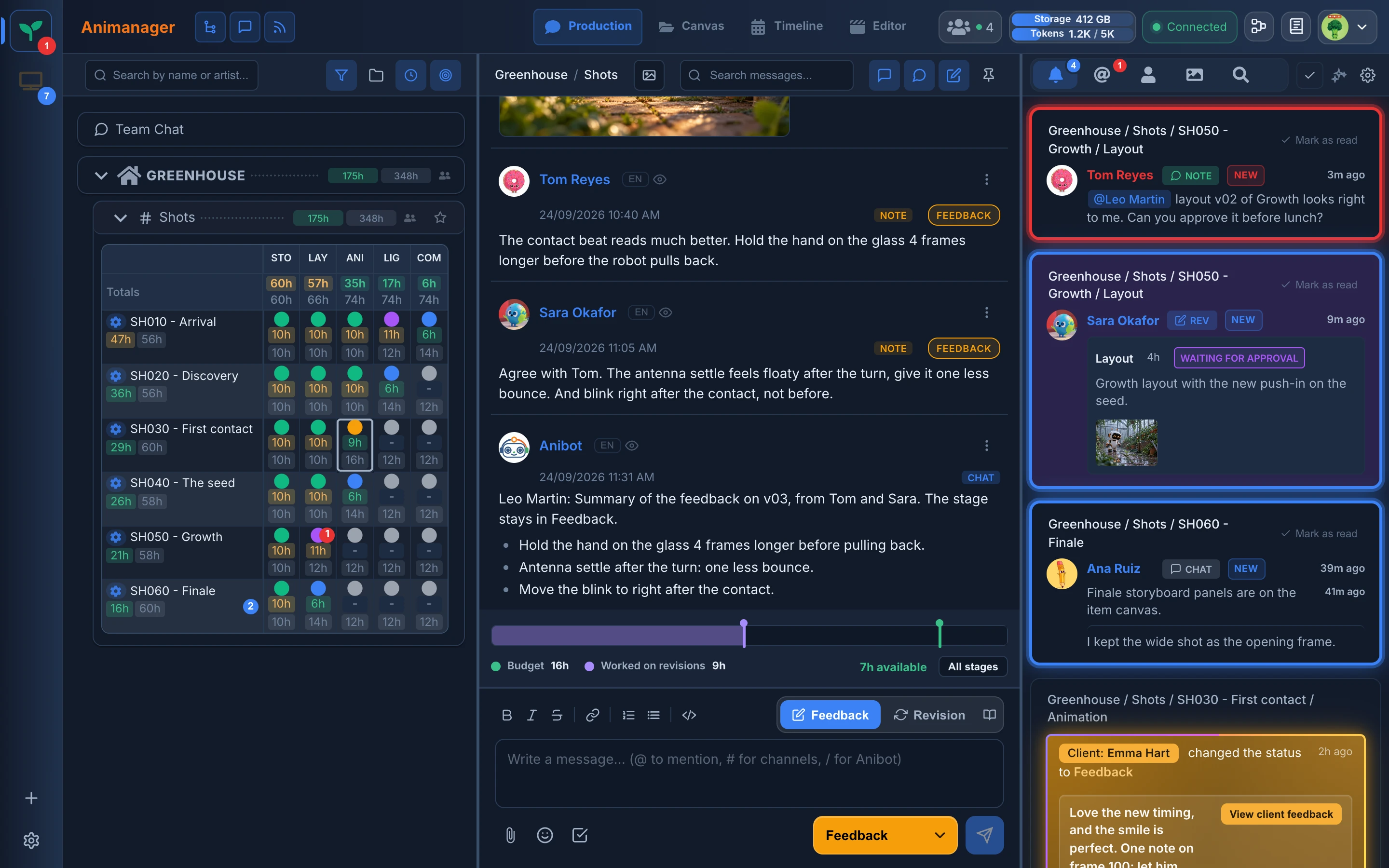
The main workspace
Production opens a workspace of three panels, from left to right by default:
- Tree: the projects, spaces, items and stages of the studio. Select a place here.
- Chat: the conversation of the selected place, with its feedback and revisions.
- Feed: new activity from everywhere you have access. See Follow activity in the feed.
To change the layout:
- Drag the line between two panels to resize them.
- Click a panel button at the left of the header (Tree, Chat, Feed) to hide or show that panel.
- Drag a panel button onto another one to change the order of the panels.
Your layout is kept in this browser, for you and for each studio. Review mode can open over the workspace. See Review mode.
The header
The header runs across the top of the app, whatever part you are in.
- Animanager, on the left, takes you to Team Chat.
- The tabs in the middle switch between the parts of the app: Production and Canvas, plus Timeline, Editor, Publisher, Farm and Finances when the studio has those modules and you have permission to use them. In a narrow window, the tabs fold into one menu.
- Production brings you back to the thread you left. Click it again while you are in Production to go to Team Chat.
- On the right: who is online (the people icon opens Team Activity, with where each person is working and their Blender sessions; see Team Activity), the studio's storage and AI token usage, the Desktop Helper badge, the Pipeline button for those who manage it, Personal notes, and your profile menu.
- The profile menu has Today (the time you logged today), Downloads, Studio settings, Account, User guide and Log out. Some entries appear only with the right permission or module.
Tree and Grid
The Tree starts with Team Chat, the conversation of the whole studio. Below it come your projects, and inside each project its spaces.
- Click the arrow of a project or a space to open or close it. An open space shows a grid: one row per item, one column per stage, and a coloured dot with the status of each stage.
- Click an item's name to open the item's conversation. Click a dot to open that stage.
- Right-click Team Chat, a project, a space, a collection or an item to see what you can do there, such as New Project, New Space or New Item. Right-click a dot to change the stage's status.
- Numbers on a row count unread messages. A mention badge means someone mentioned you there. A project or space with unread messages opens by itself unless you closed it.
- Click the star of a space (Add to favorites) to pin it at the top of the Tree.
- Point at the people icon of a project or a space to see the Roles and users with access.
The buttons above the Tree turn filters on and off, group items by collection, and show time spent and estimates in the grid (see Track time and estimates). Filters and favorites are yours: they don't change what other members see. Drag the edge of the Tree to make it wider or narrower.
See Organize projects, spaces and items to create and organize content, and Set item priority to sort the work.
Chat panel
The Chat shows the conversation of the selected place. The breadcrumb at the top of the panel tells you which place it is, for example Greenhouse / Shots / SH030 - First contact / Animation.
- In a stage, you post as Feedback or Revision. Everywhere else, you post chat messages.
- Media lists the pictures and videos posted in this chat.
- Search messages... looks for messages in this place. See Search.
- The buttons on the right show or hide chat messages, feedback and revisions, or only pinned messages.
See Chat panel and Revisions.
Feed panel
The Feed panel now has its own page: Follow activity in the feed. It explains the tabs, the cards, marking as read and the feed filters.
The unread badges, the sounds and the notifications of your browser are in Notifications, sounds and badges.
Switch studios
The studio rail on the far left lists your studios. Click a studio to open it. Animanager takes you back to the page and the thread you had open there last time.
- A red badge counts your unread mentions in that studio. Without mentions, a blue badge counts its unread messages.
- Drag the studios to put them in the order you like. The order is saved to your account and only you see it.
- + (Create studio) creates a new studio. See Create a studio.
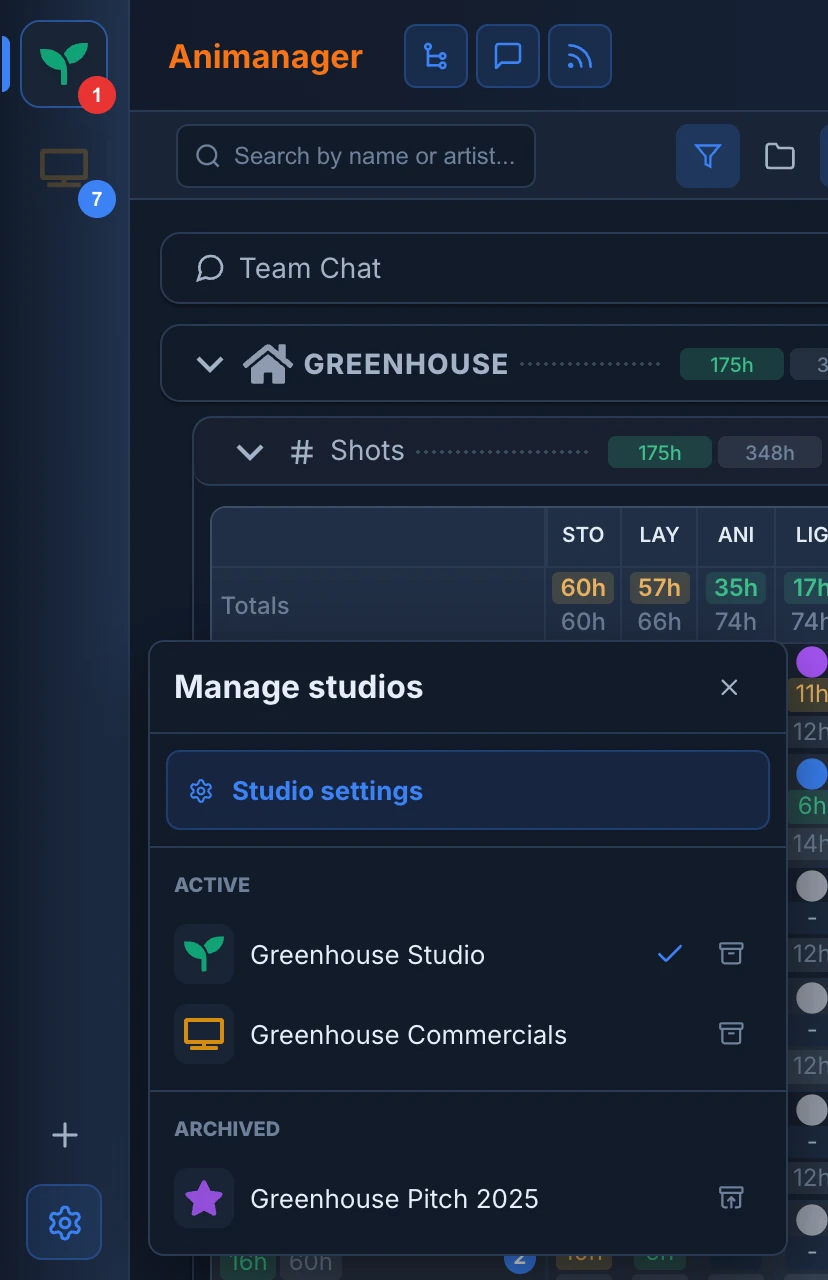
- The gear (Manage studios) opens a panel with Studio settings, when you can manage the studio, and your Active and Archived studios.
Archive a studio you no longer use to take it off your rail, and restore it from Archived when you need it. Archiving is personal: the studio and its members are not affected. You can't archive your only active studio, or the official Animanager studio.
If files are still uploading, Animanager asks before switching, because switching stops the upload. Opening a studio doesn't give you access to all its projects: each project and space decides who can open it.
Search
There is no single search box for the whole app. Each panel searches what it shows:
- Search by name or artist..., at the top of the Tree, filters the Tree by the name of a project, space or item, or by the person assigned. Join words with
+, for exampleshots+sh030. - Search messages..., in the Chat, finds messages in the selected place and everything inside it. In a stage, it searches the whole item, and in Team Chat only Team Chat. Type at least 3 letters and click a result to jump to it.
- The Search tab of the Feed finds messages anywhere in the studio that you can read. See Follow activity in the feed.
Share a location
The address in your browser always says where you are: the studio, and the project, space, item and stage you selected. Copy it and send it to a teammate to take them to the same place.
To point at one message, use the link button of the message (Copy link to message), or right-click the message and choose Copy link. The link opens the thread scrolled to that message.
Opening a link switches to its studio if the person belongs to it, and opens the Tree down to the place. A link never grants access: the person must be a member of the studio and have access to that project and space.
On a phone
On a phone, Animanager shows one panel at a time. The bar at the bottom switches between Tree, Chat, Feed, Timeline (when you can use it), Notes and Settings, and the studio name at the top switches studios. Opening a card of the Feed takes you to its Chat.