
Appearance
Roles and permissions
A member's studio role decides what they can do. The audience of each project decides where they can do it. You set roles in Settings → Studio → Roles & permissions and audiences in Settings → Project → Permissions.
How access works
Three things decide what someone sees and can change:
- The modules of the studio. A module that is off is hidden for everyone. See Turn modules on and off.
- Their role: a level, such as View, Interact or Manage, for each kind of thing in the studio and in projects.
- The audience of each project and space: which roles can open it.
For example, an artist may be allowed to post in stage chats but see only two projects. Mentioning that artist in a project they can't open doesn't show them the project or its messages.
Roles do not grant project access
A role with broader permissions doesn't let a member into a project whose audience leaves that role out. Set the permissions of the role and the audience of the project separately.
Permissions are given to roles, never to one person: to give someone different access, give them another role, or create one.
Studio roles
Every studio starts with five roles, from the top: Owner, Admin, Lead, Member and User. The number next to each role is how many members have it. In Greenhouse Studio, Leo is the Owner, Maya the Admin, Sara a Lead, and Tom and Ana are Members.
- The person who creates the studio is its Owner. The Owner always has every permission, and its role can't be edited, deleted or given to anyone else.
- Owner, Member and User are required: they can't be deleted or turned off.
- Default studio role is the role new members get unless their invitation gives another. It starts as User. Its menu lists the roles below your own.
A role has everything the roles below it have, plus what you give it. You can also set a role below what it inherits, to take something away from it only.
Set what a role can do
- Open Settings → Studio → Roles & permissions.
- Pick the role in the list.
- Choose the tab:
- Studio access: permissions for the whole studio, such as its settings, members, Team Chat and modules. It Controls studio-wide settings and modules.
- New project defaults: the levels the role gets in a project. They are Copied into each new project. Existing projects keep their own matrix. To change an existing project, use its Permissions.
- For each permission, click a level. Search permissions finds one by its name or description.
- Press Save changes.
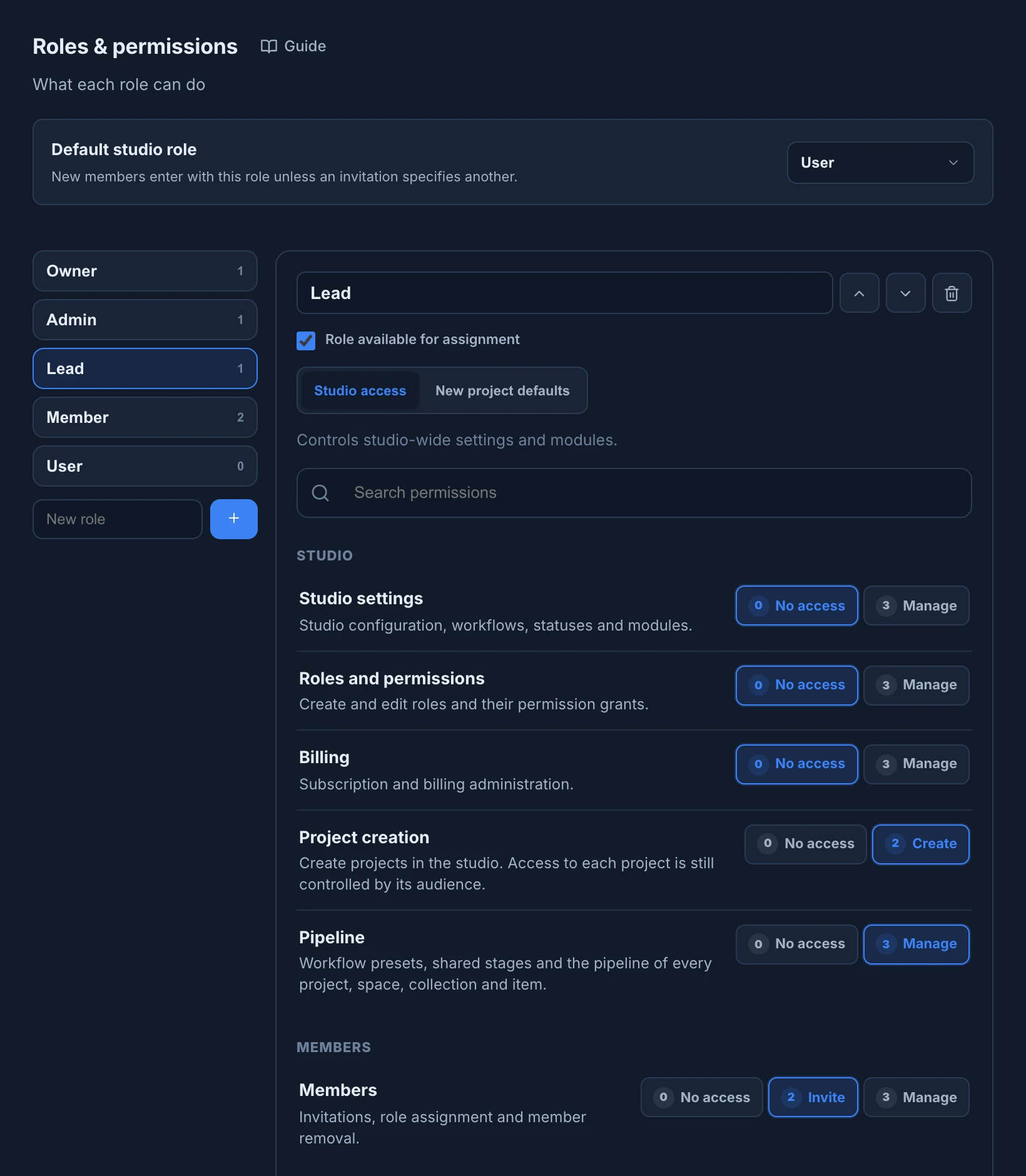
Each permission offers only the levels that make sense for it, numbered from 0 (no access) to 3, each button with its number and its name. The highlighted level is what the role has in the end: what it inherits from the roles below it, plus what you gave it. Point at a lower level to see Restrict this role below its inherited and the inherited level: clicking it takes that level away from this role only, and the roles above keep it.
For example, in Greenhouse Studio Member can write in Team Chat, and Lead can also moderate it. Set Lead's Team Chat to View: Lead can only read it, while Admin, above it, still inherits Moderate.
Studio access
| Group | Permission | Levels |
|---|---|---|
| Studio | Studio settings: studio configuration, workflows, statuses and modules | No access, Manage |
| Studio | Roles and permissions: create and edit roles and what they can do | No access, Manage |
| Studio | Billing | No access, Manage |
| Studio | Project creation: create projects. Who can open each project is still up to its audience | No access, Create |
| Studio | Pipeline: workflow presets, shared stages and the pipeline of every project, space, collection and item | No access, Manage |
| Studio | Report: what each person published in a period, with its media and logged time. It lists only the revisions the person can open | No access, View |
| Members | Members: Invite sends invite links. Manage also changes roles and archives or restores members | No access, Invite, Manage |
| Communication | Team Chat, and its Comments and Revisions | No access, View, Interact, Moderate |
| Communication | @everyone mentions | No access, Use |
| Modules | Timeline module, Editor module, Render Farm module, Studio canvas and Finances module: open the module when it is on | No access, Use |
| Modules | Publisher | No access, View, Edit, Publish |
| Modules | Publisher connections: connect the social accounts the studio publishes to | No access, Manage |
The module permissions are named a little differently from the modules: Editor module is the video editor, Render Farm module the render farm, and Studio canvas the canvas. They are listed even when the module is off for the studio, and do nothing until it is on.
Project permissions
The same list appears in New project defaults and in the Permissions of each project and space.
| Group | Permission | Levels |
|---|---|---|
| Structure | Project: open it (View), change its name, icon and due date or delete it (Edit), and manage who can open it (Manage) | No access, View, Edit, Manage |
| Structure | Spaces and Collections | No access, View, Create & edit, Manage |
| Structure | Items | No access, View, Manage own, Manage all |
| Structure | Task changes: statuses, assignments and estimates | No access, Manage |
| Production | Time entry changes | No changes, Log own time, Manage all |
| Communication | Project and space chat, Comments and Revisions | No access, View, Interact, Moderate |
| Files | Work files | No access, View & download, Upload |
| Review | External reviews: create review links for clients | No access, Create |
Every permission and its levels, as the app lists them, are in the Permissions matrix.
Create and arrange roles
- Add a role: type its name in New role and press Enter or +. Names have up to 80 characters, and two roles can't share a name, whatever their capitals.
- Where it goes: right below your own role. The new role starts with the levels of Member, up to your own, plus everything the roles below it pass on. For the Owner, right below is above Admin: move the new role down to where it belongs.
- Move a role with the up and down arrows next to its name. A role can't go above your own. If two roles have no room left between them, Animanager says These roles are too close to reorder. Adjust another role first.: move a neighbour first.
- Rename it in the name field at the top of the role.
- Turn it off: clear Role available for assignment. It can't be given to members, and the roles above it stop inheriting from it.
- Delete it with the bin. Animanager asks first, and says where its members go: Delete Freelancer? Its members will move to User. They move to the default role, or, if you delete the default role, to Member, which also becomes the new default.
Members keep a role that is off
Turning a role off doesn't move its members. While it is off they keep it, but it gives them nothing: no studio permissions, and no project they can open. Give them another role first, or delete the role, which moves them.
Role changes, like permission changes, are applied with Save changes.
For example, for the animators it hires for one film, Greenhouse Studio adds a Freelancer role, moves it down between Member and User, sets its Team Chat to No access, allows it in the audience of the Greenhouse project, and denies it in its Assets space.
Who can change roles
Changing roles needs the studio permission Roles and permissions, which is separate from Studio settings: someone can set up the studio without being able to raise their own role.
You can only change the roles below your own, and only up to your own levels: a higher level is greyed out with You cannot grant a permission level above your own: and your level. Roles at or above yours are listed, but everything in them is greyed out. The same rule applies when you give roles to members or to an invite link, and to the Default studio role. The Owner can change every role but the Owner.
Project access
- Open Settings in the Tree context menu of the project, then Permissions. Keep Settings for on the project.
- On Audience, under Who can open this project, press Allow or Deny on each role. Allow applies to that role and every role above it. Deny applies only to that role. The Owner is Always in.
- On Permissions, pick a role and set its levels in this project. These permissions apply whenever this role is in the project audience.
- Press Save changes.
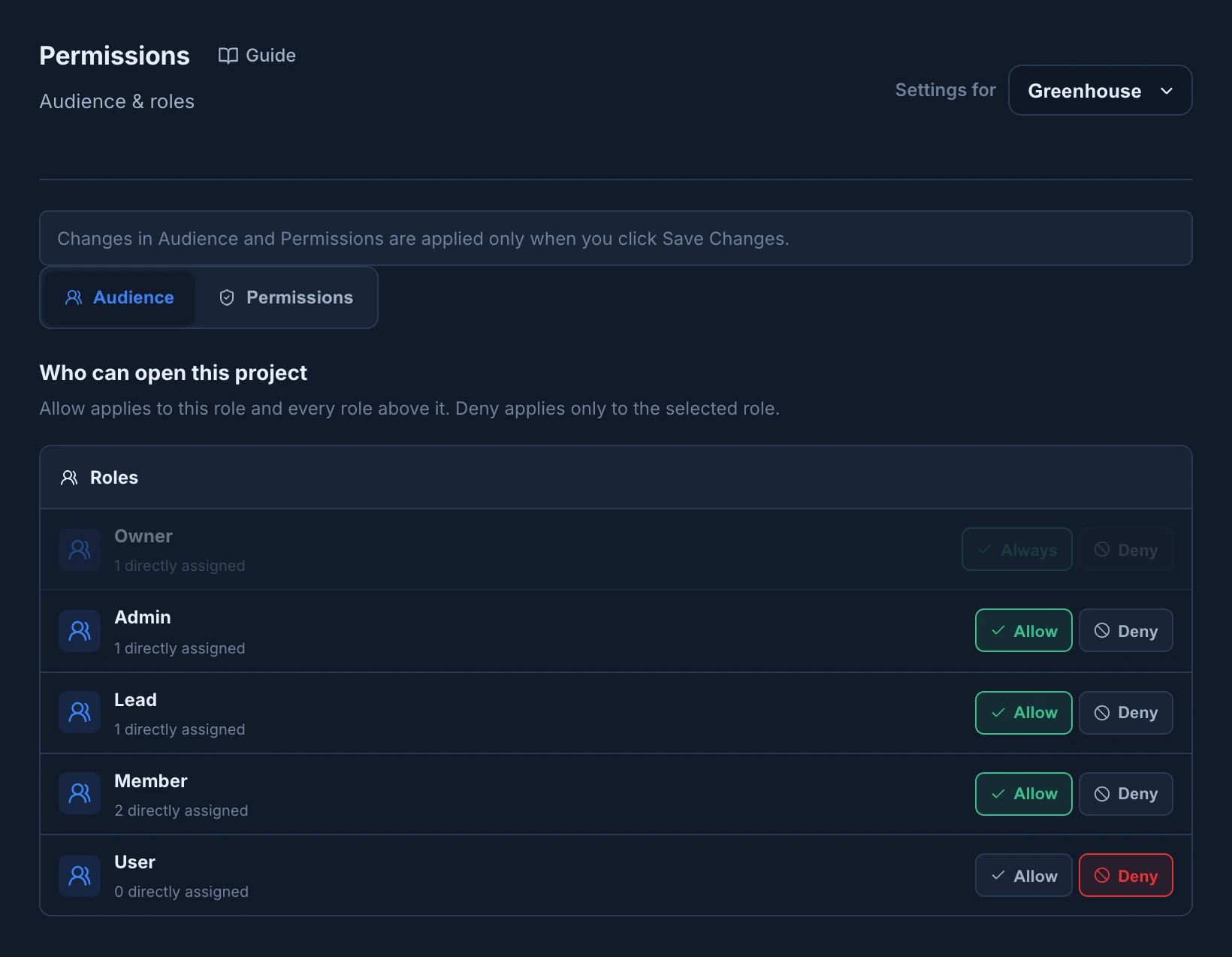
- Each role shows how many members have it, as directly assigned.
- A role shows as allowed only if it also has at least View in the project's Project permission. A role that is allowed but has No access there still can't open the project, and shows Deny.
- Roles at or above your own are locked: Roles at or above your own level are read-only.
- Nothing applies until you save: the page says Changes in Audience and Permissions are applied only when you click Save Changes.
A new project starts with each role's New project defaults. Changing a project's audience and levels needs the project permission Project set to Manage in that project. Without it you can look but not change: You can view this configuration, but you cannot change it.
Narrow access in a space
A space takes its audience and levels from its project. To change them, choose the space in Settings for:
- Audience, under Who can open this space: press Deny to keep a role out of this space, and Allow to give it back the project's access. Only the roles that can open the project are listed: a space can't let in a role its project leaves out.
- Permissions: set a role's levels inside this space only, higher or lower than in the project. Each permission says Inherited: and the project's level, or Customized in this space. Pick the project's level again to go back to inheriting it.
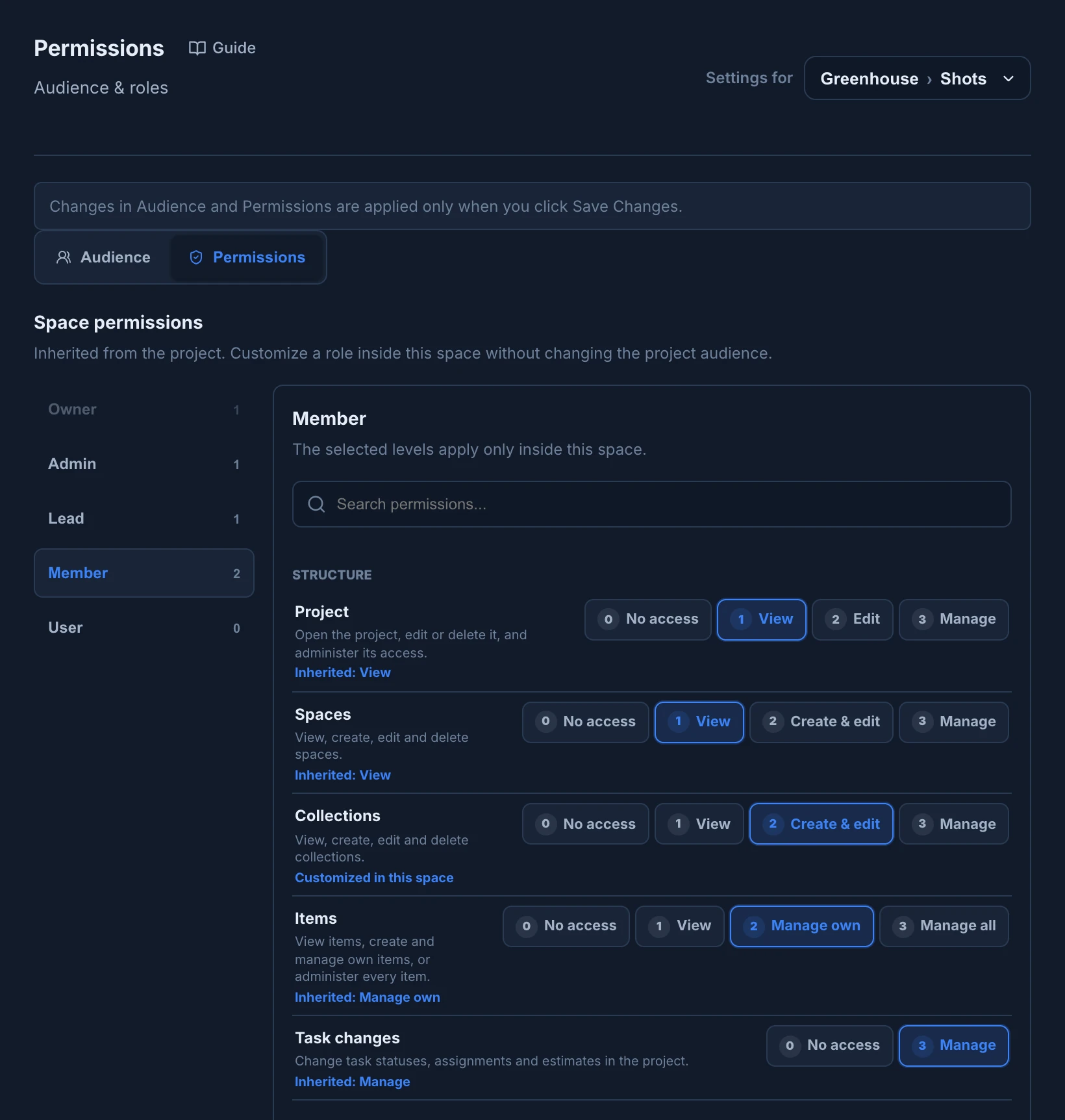
Collections use the permissions of their space. A collection's Permissions says Inherited from space, with Open space permissions to go there.
Studios created before permissions v2
A studio created before the current permissions shows Prepare permissions v2 at the top of Roles & permissions. Prepare draft copies today's access into a private draft you can adjust, roles, project audiences and space restrictions included, while the team keeps working with the old rules. Activate permissions v2 applies the whole draft at once, and can't be undone. Both buttons wait until you have saved your other changes. Only the Owner can prepare the draft.