
Appearance
Troubleshooting
Each problem below starts with the message or the symptom you see, then says what to do. They are grouped by where they happen: Desktop Helper, the render farm, Get files and the inputs of a stage, and Blender.
Desktop Helper
The badge says Install Helper, or "Animanager Helper could not be reached."
Animanager can't find a Helper on this computer.
- Check that the Helper runs: its icon is in the menu bar on macOS or the system tray on Windows. If not, open Animanager Helper from Applications or the Start menu.
- In Animanager, press Connect and continue, or reload the page.
- If it still fails, choose Open health check in the Helper's menu. If that page opens, the Helper runs and your browser is not letting Animanager reach it: see the next problem.
If the Helper is not installed yet, see Install and connect.
"Browser permission needed"
Your browser blocks Animanager from talking to apps on your computer. Allow this site to connect to your local network or to localhost in the browser's site permissions, or accept the prompt when the browser asks. Then press Connect and continue again.
Security software that blocks connections on your computer can do the same: allow Animanager Helper in it.
The badge says Login, or "Animanager Helper has no active session."
The Helper needs your Animanager session again, for example after it expired. Keep the Helper open, keep Animanager open in the browser, and press Connect and continue when Animanager asks. If Animanager does not ask, start any action that uses the Helper, such as Local files in the chat of a stage.
"The Helper did not respond in time."
The Helper is running but busy or stuck. Wait a moment and try again. If it keeps happening, choose Quit Animanager Helper in its menu, open it again and press Connect and continue.
The badge says Update, or "Update your Helper to continue"
Your Helper is older than Animanager needs. On Windows it updates itself: choose Install update and restart in the tray menu if an update is ready. On Mac, download the new version from Downloads → Local helper and replace the app. See Updates.
macOS says the Helper "is damaged and can't be opened"
The app is not damaged: macOS says that about unsigned apps. Follow Open the Helper on Mac.
Files go to the wrong folder
Open the Helper window with Show status, click the path next to Local files and choose the right folder. Files already in the old folder stay where they are: move them yourself if you need them there. See Local folder.
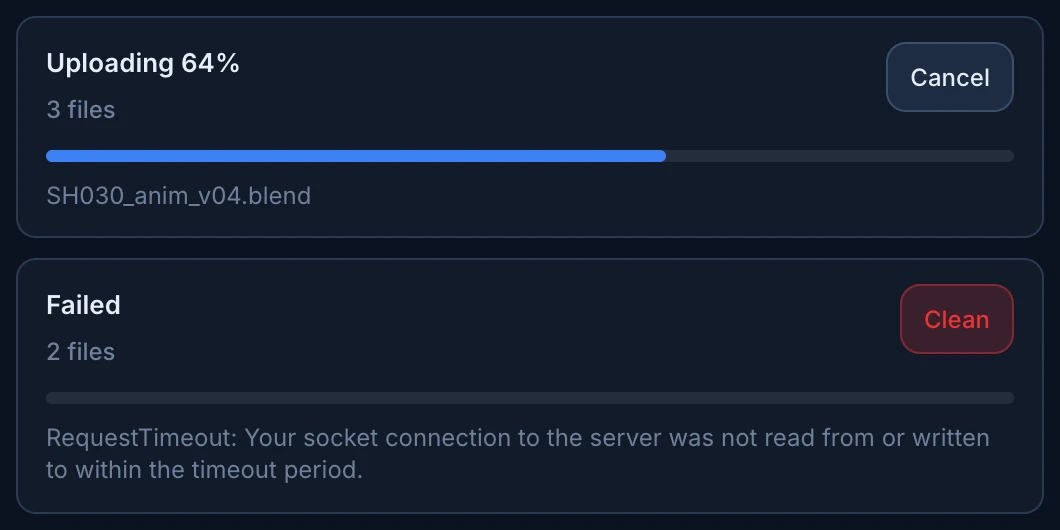
An upload failed
The revision card shows the error and, on your own revisions, three buttons:
- Fix revision resumes the upload where it stopped. Files already uploaded are not sent again.
- Replace work files publishes other files for that revision.
- Clean revision removes the failed revision as if it was never posted, after you confirm in the card. See Cancel a revision while it uploads.
Fix revision opens a list of the revision's files with their state (Verified, Uploaded, In progress, Failed or Pending) and Resume upload. If it says "This failed upload cannot be resumed. Clean it and upload work files again.", use Clean revision and publish again.
While the Helper can retry by itself, Transfers in its window says Retrying: it tries again after 10 seconds, then waits longer each time, up to 2 hours. A package that failed for good shows there as Failed, with the reason under it: Clean or Clean failed removes it from the Helper without touching your files.
To avoid failed uploads, publish right after Save for Animanager, and don't move, delete or edit the work files while the upload runs. If a simulation is still writing cache files, wait until it finishes.
"Local file changed during upload"
A file changed on your computer while it was uploading, so it could not be sent as it was when you published. Save for Animanager again if it is a .blend, then press Fix revision or Replace work files.
"Work files upload stalled" or "Waiting for Animanager Helper"
The Helper stopped sending. Check that it is running: its window shows the upload in Transfers. If the Helper was closed, open it: uploads resume where they stopped.
"Port 46321 is already in use, and it is not an Animanager helper."
Another app on your computer took the port the Helper uses. Quit that app, or restart the computer, and open the Helper again.
The Helper window says "Desktop bridge failed to load."
The Helper's window could not start. Quit the Helper and open it again. If it keeps happening, install the latest version over it.
A crash report opens when the Helper starts
Animanager Helper crash report means the Helper stopped by error the last time. Press Copy report and send it to support with what you were doing. In the Helper window, Copy last crash copies it again later, and Clear last crash hides it.
The disk is full
Free space before you download or publish again. In the Helper window, Local items lists the items on this computer, largest first: Delete removes the ones you no longer need, and Clear empties the cache. Deleting removes unpublished work in that folder, so publish first. A render node without enough space shows No disk space in the render farm and takes no work. See Render Farm.
The Helper won't delete an item
The Helper window says why:
- "Close Blender before deleting. A file from this item is open there.": close the file in Blender first. The same goes for Photoshop.
- "Wait for uploads to finish before deleting local files.": wait until Transfers says No active uploads.
- "The helper is busy with a download or publish. Try again when it finishes."
Windows says "installer integrity check has failed" when you uninstall
Uninstall from the Helper instead: choose Uninstall Animanager Helper... in its tray menu. It removes the Helper and keeps your Animanager folder and its files.
Windows asks to remove an old background service
"An earlier version installed a background service that is no longer used." appears once after updating from an old Helper. Press Remove and accept the administrator prompt. If it says "The old background service could not be removed.", ask whoever manages the computer to remove the service AnimanagerHelper.
Render farm
"Enrollment code is not valid." or "Paste the full enrollment code from Animanager"
The code was mistyped, cut short or already used. Codes work once and expire. In the Farm, press Enroll a machine, create a new code, copy it with Copy code and paste it whole in the Helper.
The machine renders for another studio
The Helper window says "This machine is enrolled in another studio's render farm." and the studio's name. The computer was enrolled in another farm too. If it shouldn't render for it, press Un-enroll next to that studio in Render farms.
A node shows "No disk space"
The node's disk filled up during a job. Free space on it: in its Helper window, Clear the Farm previews and Version cache, and delete the local items nobody needs. The node goes back to work by itself when it has 2 GB free.
"Blender 4.2 is not available in Asset Library / Software / Blender."
The node doesn't have the Blender version the file was saved with, and the studio hasn't uploaded it. Publish the portable Blender for each system in the Blender 4.2 item of the Asset Library. See Blender versions.
"GPU render requested but no usable Cycles GPU device was found."
The job asks for GPU and the node has no graphics card Blender can use. Switch the node off, or launch the render again with Device set to Default or CPU.
A chunk fails with a Blender error
Hover the error under the chunk's status in Job details to read the end of the log. A missing file, such as "OpenVDB: failed to open file files/caches/…", means the published revision doesn't have it: publish the cache with the revision and launch the render again. See Monitor and recover a job.
"This revision has no render settings snapshot yet"
The revision was published before the add-on recorded render settings. Open the file, press Save for Animanager, publish a new revision and launch the render from it.
"Could not get renders"
The Helper could not download the frames. Check that the Helper runs and try Get renders again. When it says some files "are not in the cloud yet because their batch is still uploading", wait until the node finishes uploading and download again.
Get files and inputs
"This stage continues from Layout. Use Get files instead."
You tried to create a blank file for a stage that has a Continuation input. Use Get files: it copies the source file as your starting work file.
A continuation did not update my work file
A continuation only creates your work file when you have none. If you have not edited the file since, Get files updates it and says "Reopen it in Blender to use the updated copy". If you have edited it, Get files keeps your changes and says, for example, "Layout v2 is available. Your local changes were kept."
- In Blender, the continuation input shows
v1 -> v2 publishedand a Bring changes button. It merges the source's changes into your file with the same reconciliation list. See Reconciliation in Blender. - To start over from the new source instead, move your work file out of the stage folder and run Get files again.
An input has no master
The row in the Get files window is greyed out and says why:
- Not started — no revision published yet: the source stage has not published. You can start now: the input is skipped.
- Master has no primary work file yet: the source revision has no work file. For a Blender link or append, set the input to Get files if you only need its files.
- Revision v8 is still uploading — available as soon as it finishes: wait for the upload.
- Master is still being indexed — try again in a moment: wait a moment and open the window again.
- Nothing to download — this master has no files in the selected sections: the revision has nothing in the categories chosen for this Get files input. Change them in the pipeline.
- The selected Main primary cannot be consumed by Blender: the source's main work file is not a
.blend. Ask the source stage to set a.blendas main. - You do not have access to this source: ask for access to the item it comes from.
- Downloads could not be verified — reopen this window to retry.
"Kept local versions"
Some files on your computer differ from the ones in Animanager, so Get files kept yours. When it says so, it also saved Animanager's copies next to them. Compare them, and keep the one you need.
"For this download, use your Helper."
A browser download of several files is limited to a 256 MB zip. Connect the Helper to download more, or press Choose fewer files.
"Consumptions could not be loaded"
The Get files window could not list the stage's inputs. Press Try again. If it keeps failing, check the Helper is connected.
An input was removed from the pipeline
The Get files window says "1 input was removed from the pipeline — Get files cleans them up locally", and in Blender the input says Removed from pipeline - Get files removes it. Run Get files to remove its downloaded files. What an append already copied into your file stays: Release (keep as yours) in Blender keeps it as your own data.
I cannot delete a revision
It is the pinned master of the stage: its edit menu shows Master cannot be deleted. Press Follow latest in the stage's master chip first. See Masters.
Continuation is greyed out
Another input of the same stage is already a Continuation. Change that input first.
Blender
"This .blend is not inside an Animanager task folder."
Save for Animanager only works on files inside a stage folder of the Helper. Open the stage folder with Local files in the chat of the stage, or bring the files with Get files, and work on the .blend there. A file you saved elsewhere can be moved into the stage folder.
"Could not reach Animanager helper"
The add-on talks to the Helper on the same computer. Open the Helper, check that its menu says Running on, and press the button again.
"Run Get files in Animanager to download the new revision."
The add-on only uses what the Helper already downloaded. In the chat of the stage, run Get files, then press Reload, Get or Update again in Blender.
"Animanager keeps managed collection names"
You renamed a collection the add-on manages, and it put the name back. Rename and organise freely inside your own stage collection, the blue one. See Collections and colours.
The 3D view says "Inputs: 1 missing, 2 outdated"
Some inputs need your attention. Click the button to open the Animanager panel, where each input says what to do. The X next to it hides it until Blender restarts. See Inputs.
A metadata value shows in red
The scene's value, such as the frame range, differs from the shot's in Animanager. Fix takes Animanager's value, Push sends yours to the item for everyone. See Metadata.
An append is out of date
The input in the sidebar shows applied v3 - v5 available.
- Replace brings the new version in and keeps your edits. Items changed on both sides are asked in the reconciliation list.
- Copy adds the new version as a separate collection, for example
Layout_updated001, without touching the current one.
An input you already merged with others shows merged v3 - v5 available and an Update button instead.
A linked master shows "v6 -> v8 available"
A newer master was published. Press Reload on the input, or Reload masters for every input, when you are ready. See Inside Blender.
"Reconcile unavailable"
Animanager can't compare the copies, so it won't merge them. The message says why:
- "… was published with an older helper." or "… was published without an asset manifest.": publish that stage again with the current Helper, then run Get files and reconcile.
- "… the asset manifest … could not be read from the server.": check the connection and compare again.
- "… no shared base revision is known …": there is no earlier revision both copies come from.
When you were replacing an append, the message offers a way out: Copy and the revision, to bring it in as a separate collection, or Open and the revision to bring the changes by hand, then Mark as brought in.
The sidebar says "EDITING LOCAL MASTER"
You opened a master file of another stage, not your own work file. Saving it only changes that copy on your computer: nobody else gets the change. Close it and open the work file in your own stage folder.