
Appearance
Generate video on the canvas
The canvas has a node for each kind of video job. Each takes its own inputs, shows what it will do as a badge in its header (such as IMAGE TO VIDEO or FIRST/LAST FRAME, from what is wired), and puts the finished clip on the board next to it.
Add one from AI Generation › Video in the toolbar, or from the right-click menu. Video takes minutes. It runs on the Animanager server, so closing the canvas doesn't stop it, and a notification tells you when it is ready.
Which node
| Node | Use it to | Inputs |
|---|---|---|
| Veo 3.1 | Make a clip from a prompt, from a first frame, or between two frames. | 1st and End frames, both optional |
| Seedance | Render a playblast or a still with a new look, keeping its timing. | START, END, VIDEO, up to seven LOOK images, three SKETCH guides, AUDIO |
| MiniMax H3 | The same job as Seedance, up to 4K. | START, END, VIDEO, LOOK images, AUDIO |
| P-Video | Draft fast and cheap, then render the final. | START, END, AUDIO |
| Kling Motion | Have a character perform acting you recorded. | CHARACTER image and MOTION video |
| Kling Edit | Change a clip with words: remove, add, relight, restyle. | VIDEO to edit and up to four reference images |
Wire inputs the same way as on an image node: Shift+drag from the input to the media, or select the media and Shift+click the input. A label next to each input names what is wired.
Veo 3.1
- Wire a first frame into 1st to animate it, and a last frame into End to move between the two. With neither, Veo makes the clip from the prompt.
- Choose the Model (Veo 3.1, Veo 3.1 Fast, Veo 3, Veo 3 Fast or Veo 2, which has no sound), the Aspect Ratio, the Duration (4, 6 or 8 seconds) and the Resolution.
- People sets who may appear: Allow all, Adults only or No people. Negative Prompt lists what to avoid, such as "blur, distorted hands".
- Generate Audio adds dialogue, effects and ambience. Create looping video, with only a first frame, ends the clip where it starts.
- Write the prompt, with dialogue in quotes, and press Generate Video.
Veo shows no cost on its button: check AI models and token costs first.
Seedance and MiniMax H3
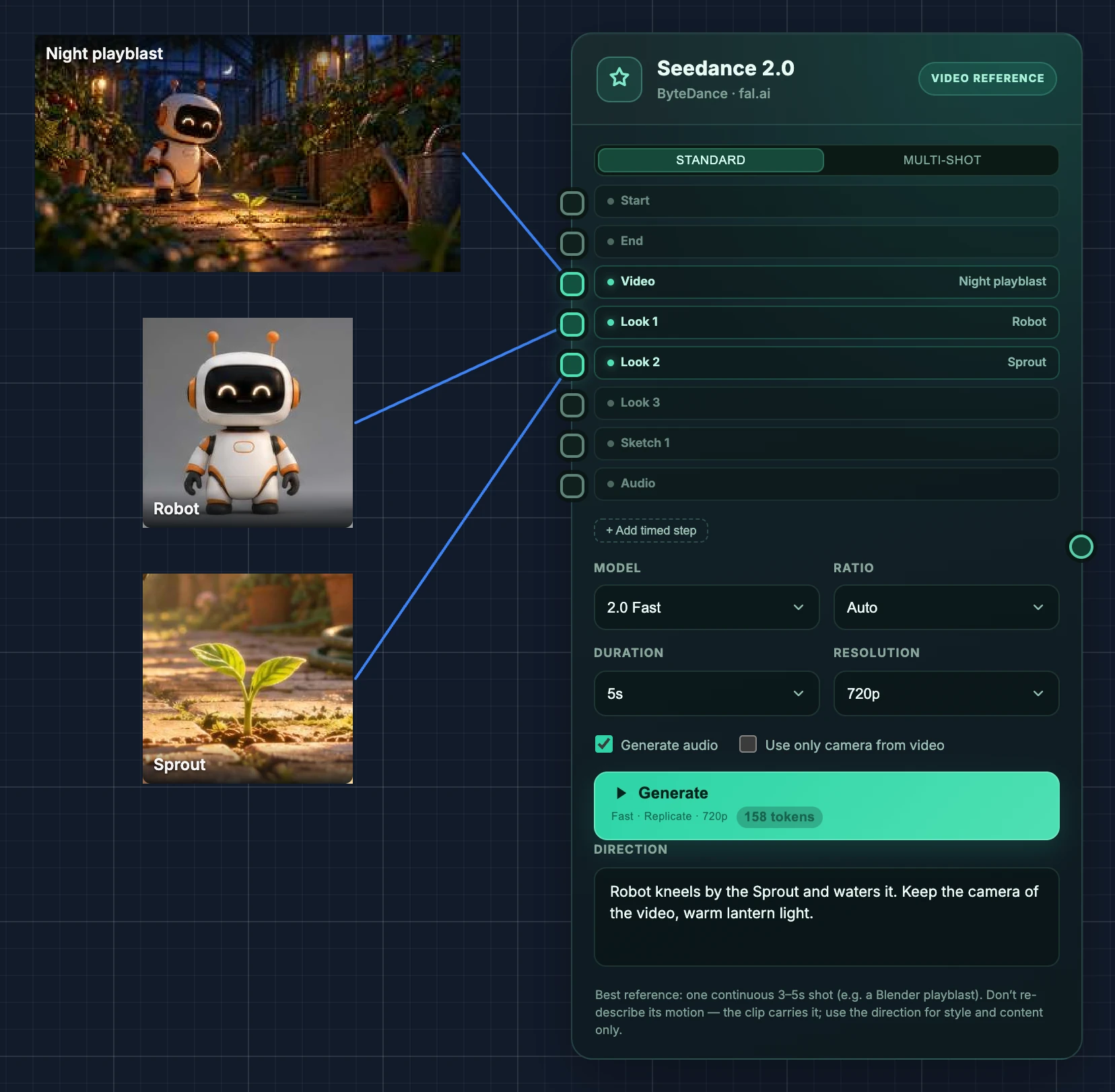
These two render a new clip from your own material: a Blender playblast of SH030 into VIDEO keeps its timing and camera, and the LOOK images give it the final look.
- Wire what you have: the playblast into VIDEO, a lit frame into START, the Robot's turnaround into the LOOK inputs. Seedance also takes rough SKETCH guides for pose and layout, which are never drawn in the result. Seedance takes nine images in all.
- Choose the model:
- Seedance: 2.0 Mini, the cheapest, 2.0 Fast (the default), 2.0 Standard, the only one at 1080p and 4K, or 2.5, up to 30 seconds.
- MiniMax: MiniMax H3, up to 4K and several minutes per clip, or MiniMax H3 Max, a five-second clip in seconds at 480P or 768P.
- Set the ratio, the Duration and the Resolution. Seedance can Generate audio.
- With a video wired, Use only camera from video keeps its camera move and nothing else.
- Write the Direction and press Generate.
The line under the prompt changes with what you wired and suggests how to write it, such as "3-second slow zoom in on the eyes".
Cite a reference by name
Type @ in the direction to pick a wired reference from a list with thumbnails (↑ ↓ and Enter), and its name is written in its place: "Robot walks to the Sprout". Animanager tells the model which input each name is, so the words in the prompt are all it needs. A reference needs a name first: double-click the image on the canvas (Name this reference) and type it, such as "Robot". An unnamed one shows in the list as Name this image first. The same name shows next to the node's input.
Timed steps
+ Add timed step describes what happens at a given second, up to eight steps: "0.0 s: the Robot looks down", "2.5 s: it kneels by the sprout". Each step can point to one of the wired images. Steps can replace the direction: with steps, the node generates without one. A step past the clip's duration, or pointing at an input you unwired, shows what to fix.
Multi-shot
Multi-shot rebuilds a playblast with several cuts shot by shot, each with its own reference:
- Wire the playblast into VIDEO.
- On the canvas, play the video and mark each cut with Cut here in its player.
- In the node, press Import cuts from VIDEO. Each shot gets a row, such as "SHOT 1 · OPENING", with its length.
- Wire a reference image into each SHOT input, or a start and an end image with Start + End. A shot without one follows the global direction.
- Write one Global art direction for all shots and press Generate.
A multi-shot clip has two to nine shots, each between 2 and 15 seconds. The video gives all the timing, so @ references are not used here. If you change the cuts, the node says Cuts changed — reimport required.
P-Video
P-Video is for quick tries. Draft renders at 24 fps for little; when you like it, Final renders at 48 fps.
- Wire a START image to animate it, END to finish on a frame, and AUDIO to time the clip to a sound. With audio, the duration follows the sound and the cost shows · audio length.
- Set the ratio (taken from the start image when there is one), the Duration from 1 to 20 seconds, the resolution and a Seed, to repeat a take.
- Enhance prompt, on by default, lets the provider rewrite your direction before rendering. Turn it off to keep your words exactly. Keep audio keeps the wired sound in the clip.
Kling Motion
Record the acting yourself, even on a phone, and Kling Motion has the character perform it.
- Wire a picture of the character into CHARACTER: its look wins. A sketch isn't accepted.
- Wire the recorded video into MOTION, between 3 and 30 seconds. The clip is as long as the motion video.
- Choose Standard or Pro, and Facing: the character keeps the direction it faces in the image (up to 10 seconds) or in the video (up to 30). Keep original sound keeps your recording's sound.
- Write a Direction, such as "in the greenhouse, morning light", and press Generate.
Kling Edit
- Wire the clip to change into VIDEO, between 3 and 10 seconds.
- Wire up to four images to use in the edit, and refer to them as
<<<image_1>>>to<<<image_4>>>. - Write the Edit instruction: "change daytime to dusk", "add <<<image_1>>> on the table".
- Choose Standard or Pro and press Edit video.
The edited clip keeps the length of the original and lands next to the node, connected to it.
Results
A video result is a placeholder first, like an image, with its progress and the time left. A run that fails says why and is not charged. The finished clip is ordinary canvas video: play it, mark cuts in it, take a frame from it, or wire it into the next node. See Generate images on the canvas for the states, and Find and reuse generations for the list of everything generated.