
Appearance
Track time and estimates
Every stage has two numbers: the hours estimated for it and the hours spent on it. The estimate is set by a producer or a lead. The time spent adds up from the time logged with each revision. Animanager shows both in the Grid, under the chat of each stage, on the Timeline and in Replan.
Time in the Grid
The clock and the target buttons at the top of the Tree show and hide the hours in the Grid:
- The clock (Show time spent) shows the hours spent.
- The target (Show estimations) shows the estimates.
They change only your view, and Animanager remembers them for you. On a phone the Grid shows no hours.
With both on, each stage cell shows the hours spent above the estimate. The item column shows the totals of the item, and the row of a project or a space shows the totals of the items you can see in it, after your filters and search.
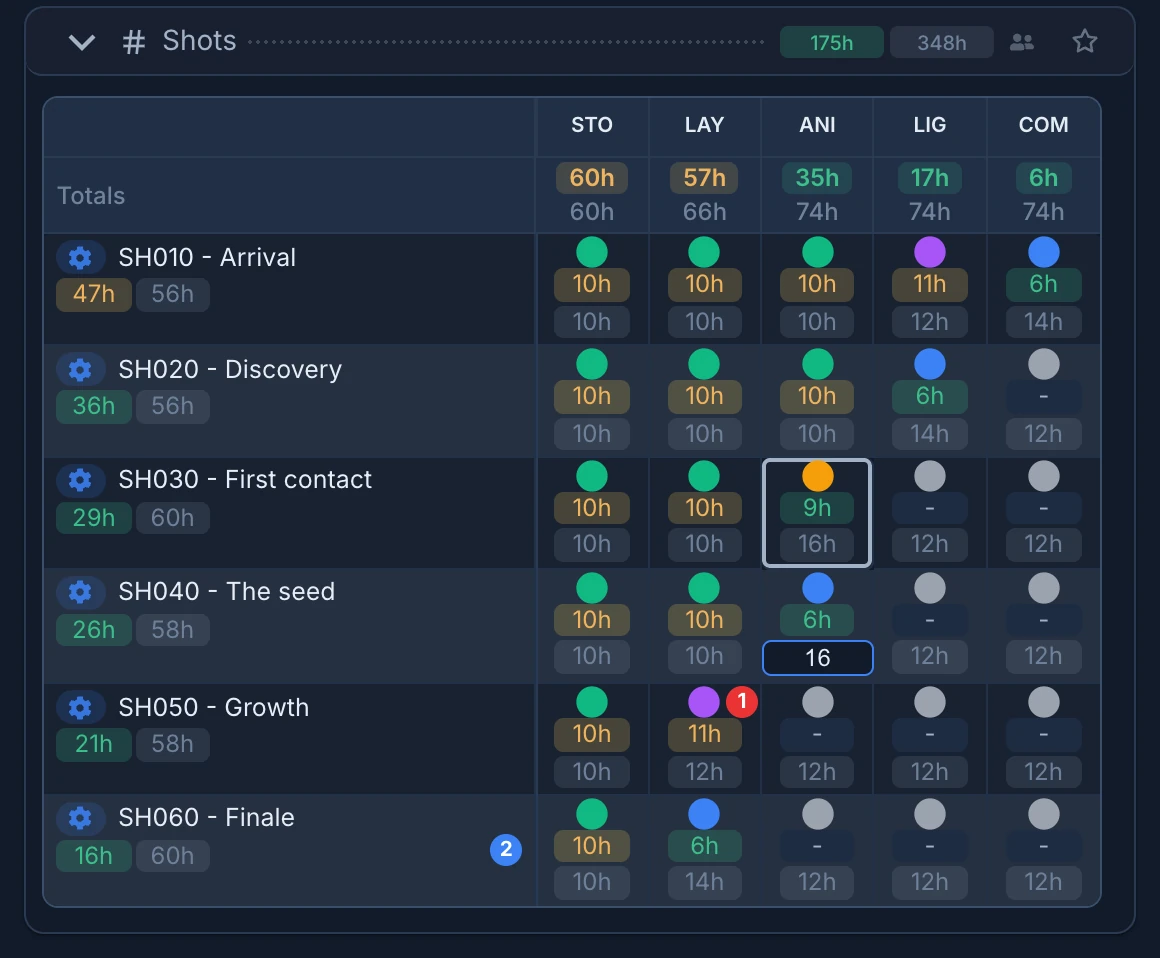
The colour of the hours spent says how close they are to the estimate:
| Colour | Hours spent |
|---|---|
| Green | Under 80% of the estimate. |
| Amber | Between 80% and 100% of the estimate. |
| Red | Over the estimate, or any time on a stage with no estimate. |
In the flat Grid (not grouped by collection), the Totals row on top adds up each stage column: the hours spent above, the estimate below. Point at a total to read it in full, for example Animation - Spent: 35h, Est: 74h.
Change an estimate
- Turn on Show estimations.
- Click the estimate of a stage cell, under the hours spent. It shows
-when there is none. - Type the hours, for example
16or7.5. A comma works as a decimal point too, and the value is rounded to one decimal. - Press Enter, or click somewhere else, to save it. Esc leaves it as it was.
Estimates are shared: the new value reaches everyone's Grid, the stage's budget bar, the Timeline and Replan. To set the estimates of all the stages of an item at once, use its Stats.
The budget under a stage's chat
The chat of a stage ends with its budget bar: the estimate, the hours worked on its revisions and what is left.

- Budget is the stage's estimate. Without one it says auto: point at it to read how it is worked out from the average of the other items of the collection.
- Worked on revisions adds up the time logged with the stage's revisions. When it passes the budget, the extra hours show in red as +Xh.
- On the right, Xh available, No budget, or the hours over budget in red.
- The bar has one stretch per revision, in the colour of its status, and a marker for each change to the Feedback or Done status. Point at a stretch to see the revision, its status, its author, its media and its uploads. Click it to jump to that revision in the chat.
- Point at the bar to read the hours worked of the budget, and from when the feedback reserve starts.
- All stages opens the whole item: every stage day by day, with zoom and Compress weekends. Scroll with the wheel, Shift + wheel to move sideways, or drag. Click a revision to review it.
The chat of an item and the chat of a space show a budget bar for everything inside them.
The feedback reserve
Part of every budget is kept for feedback rounds. The share is the project's Feedback Buffer, 20% unless you change it in the project's Settings → General (right-click the project in the Tree and choose Settings, see Set up a project in Settings). For a 16-hour stage, the last 3.2 hours are the reserve. Point at the budget bar to see where it starts. Replan plans with the budget minus the reserve. See Let Replan schedule the work.
Estimates from the pace of other shots
The Stats section of an item works out estimates from how fast the team has worked on similar shots. Right-click the item and choose Configure Item (or click its gear in the Grid), then open Stats (Pace & estimates).
- The top row lists the item's stages with their hours spent and their estimates. Click an estimate to change it, as in the Grid.
- Item duration is the length of the shot in seconds. Animanager reads it from the video of the item's Blocking or Spline revisions. When there is none, it counts 30 seconds.
- Set Estimates sets every stage's estimate from the average pace of the collection and the item duration.
- The table has one row per stage of the item, in pipeline order, and compares paces, in seconds of finished shot per day of work: Item (this item so far), Pace estimate (with its current estimates), Collection avg and Space avg. A value faster than the collection average shows in green, a slower one in orange. Blocking and Spline share the Animation pace in one merged cell. Stages without a pace, such as Music, SFX or Release, show a dash.
- Its last column, Deadline, sets each stage's deadline. See Set deadlines.
The averages only count items with a Blocking or Spline video and hours spent on stages already finished. A collection of a few finished shots, such as SEQ01 of Greenhouse, is enough to estimate the shots of SEQ02 from it.
Export the hours
Export Stats (.csv), in the right-click menu of a project, a space or an item, downloads the hours worked as three CSV files: pre-production, production and post-production.
- Right-click a project, a space or an item and choose Export Stats (.csv).
- First work date and Last work date show the first and last day with time logged.
- Set Production start date and Production end date, inside that range. Work before the start counts as pre-production, and work after the end as post-production.
- Press Export 3 CSVs.
The export covers what you can see in the Tree: your filters and your search apply. When nothing visible has time logged, it says so and downloads nothing.
Related
- Publish a revision: logging time with a revision.
- Plan the team on the Timeline
- Configure items and recurring work