
Appearance
Follow costs in Finances
Finances works out what each project costs. You enter the studio's payrolls and invoices, and Animanager spreads them over the hours the team logged on each project: a person's month of salary goes to the projects they worked on that month, in proportion to their hours.
It has five tabs: Projects, Payrolls, Invoices, ICAA and Amortizations.
Who can open it
- Finances is a module Animanager turns on for each studio. Contact Animanager support if your studio needs it. See Turn modules on and off.
- Then the Finances tab shows in the header for the owner and for roles with Finances module set to Use, in Roles & permissions → Studio access → Modules. Every other role starts without it.
- Inside, everyone with access sees and changes everything: there are no levels.
The figures are confidential. Give the permission only to the people who handle the studio's accounts.
Choose the dates
From and To, at the top, set the period every tab looks at, up to 60 months. The quick ranges are This month, Last month, This quarter, Last quarter, This year and Last year. Finances opens on the current year.
The dates are part of the page's address, so a bookmark or a link opens the same period. The ICAA tab is the exception: it always looks at the last 60 months.
Payrolls
Payrolls holds each person's payroll, month by month. The people are the studio's members and external workers.
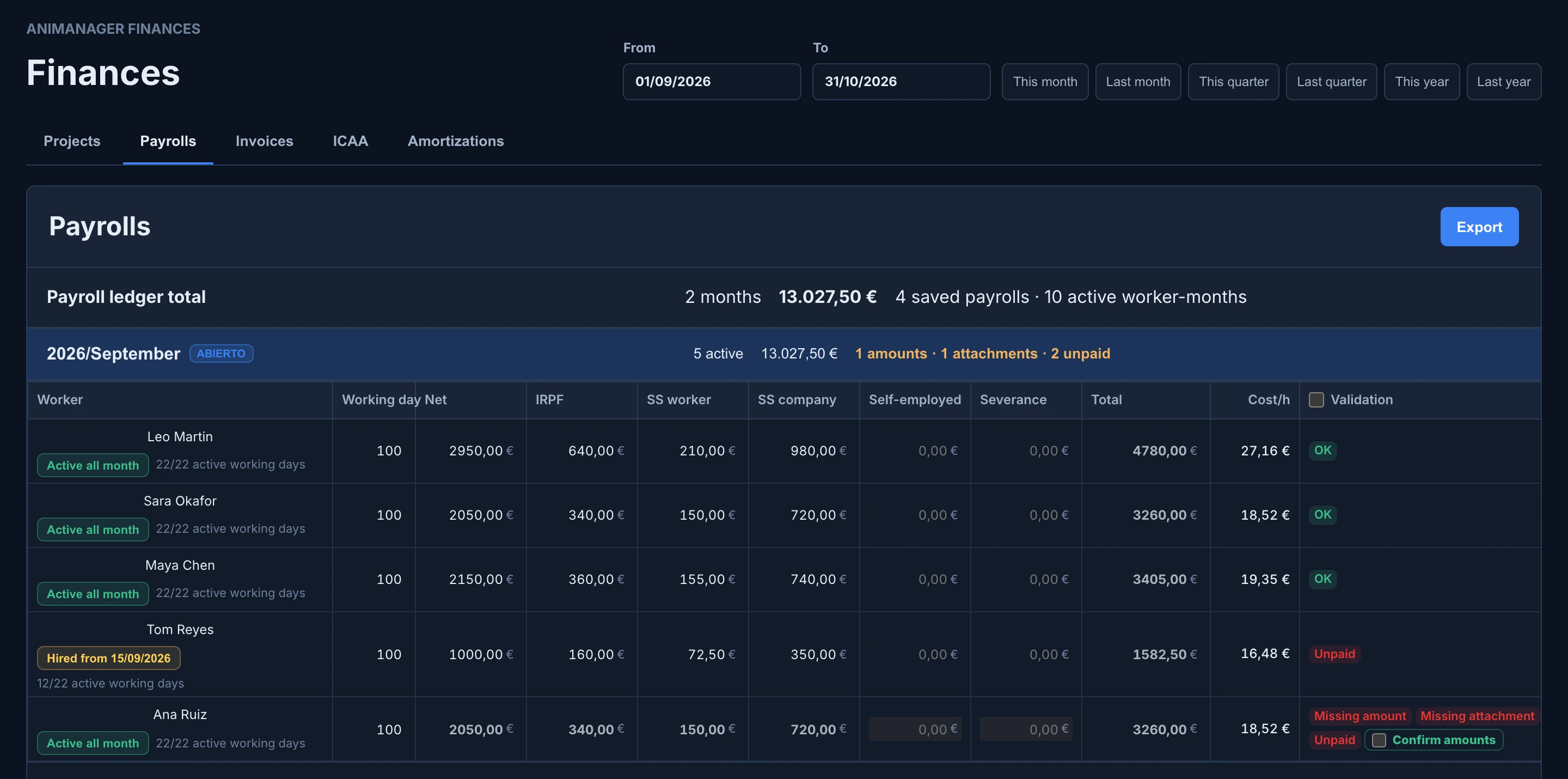
- Open a month. The current one opens on its own. Its header shows how many people are active, the total, marked (projected) for the current and future months, and what is missing.
- For each person, enter Net, IRPF, SS worker, SS company, Self-employed and Severance. A value is saved when you leave the cell or press Enter. You can type
1.234,56or a sum such as=100/2. - An empty cell shows last month's value in grey. Press Confirm all pending amounts to keep those values.
- Set Working day: 100% for full time, 50% for half time, above 100% for overtime.
- Press Attach to upload the payslips. Animanager reads them with AI, matches each page to its person, and fills in the amounts that are still empty. Check them in the Review payrolls window and press Import selected.
- Tick Paid when it's paid.
Validation says what each row lacks: Missing amount, Missing attachment, Unpaid, or OK. These warnings appear for past months, and for the current month from the 20th. A month with nothing missing says Complete.
Good to know:
- The chip under each name says whether the person was active all month, such as Active all month or Hired from 15/09/2026. Click it to record a hire or a leave with its date. It applies from that date on, until another change.
- Cost/h is the month's cost over the person's working hours: active weekdays × 8 hours × Working day.
- Right-click a month's header to Copy values, Paste values into another month, or download that month's payslips as a ZIP. Paste replaces what is there, with no undo.
- Vacation registers vacation days for a person, a full or a half day. They count as paid time, not as project hours.
- Export downloads the payrolls of the period as a CSV.
Invoices
Invoices holds the studio's other costs: software, hardware, services, freelancers, rent, travel.
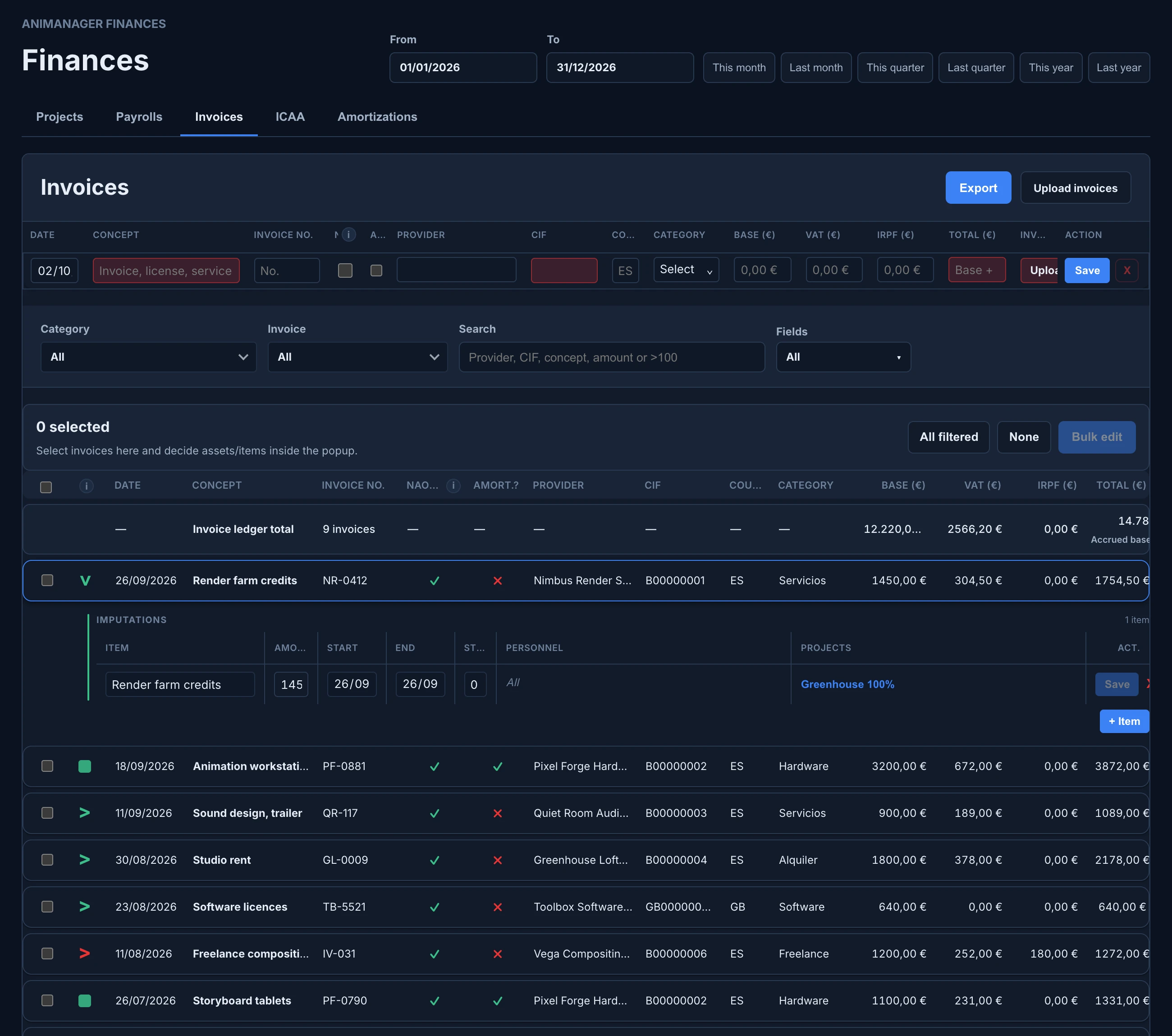
- Press Upload invoices and choose PDFs or images. Animanager reads each one with AI. A PDF with several invoices becomes one row each, and an amount in another currency is converted to euros.
- Check each row. Missing data turns red: the concept, the provider's tax ID, the total, the file, or the person for a Freelance invoice.
- Press Save, or Save all. Animanager warns if an invoice with the same number and provider already exists.
You can also type an invoice in the Enter invoice row. If you leave Total empty, it is Base + VAT - IRPF.
Where each invoice goes
Expand an invoice with the button at the left of its row. A green button means it's set up, a red one that something is missing.
- Deductible invoice: in Imputations, split it into items. Each item goes to Structure (the studio's overheads), to Personnel (people, and from them to the projects they worked on) or straight to Projects by percentage, over the dates you set. An invoice you never set up counts as 100% structure.
- Amortizable invoice: tick Amortizable? for a purchase that lasts years, such as a computer. Split it into assets, each with its years and the date it went into service, and set where each period of its life goes.
Select several invoices and press Bulk edit to change their category, years or destination at once.
The search box finds by provider, tax ID, concept or amount: >100 and <500 filter amounts, -word leaves out, and "words in quotes" finds a phrase. Fields chooses where it looks, and the filters show Complete or Incomplete invoices only.
Projects
Projects shows what each project cost in the period.
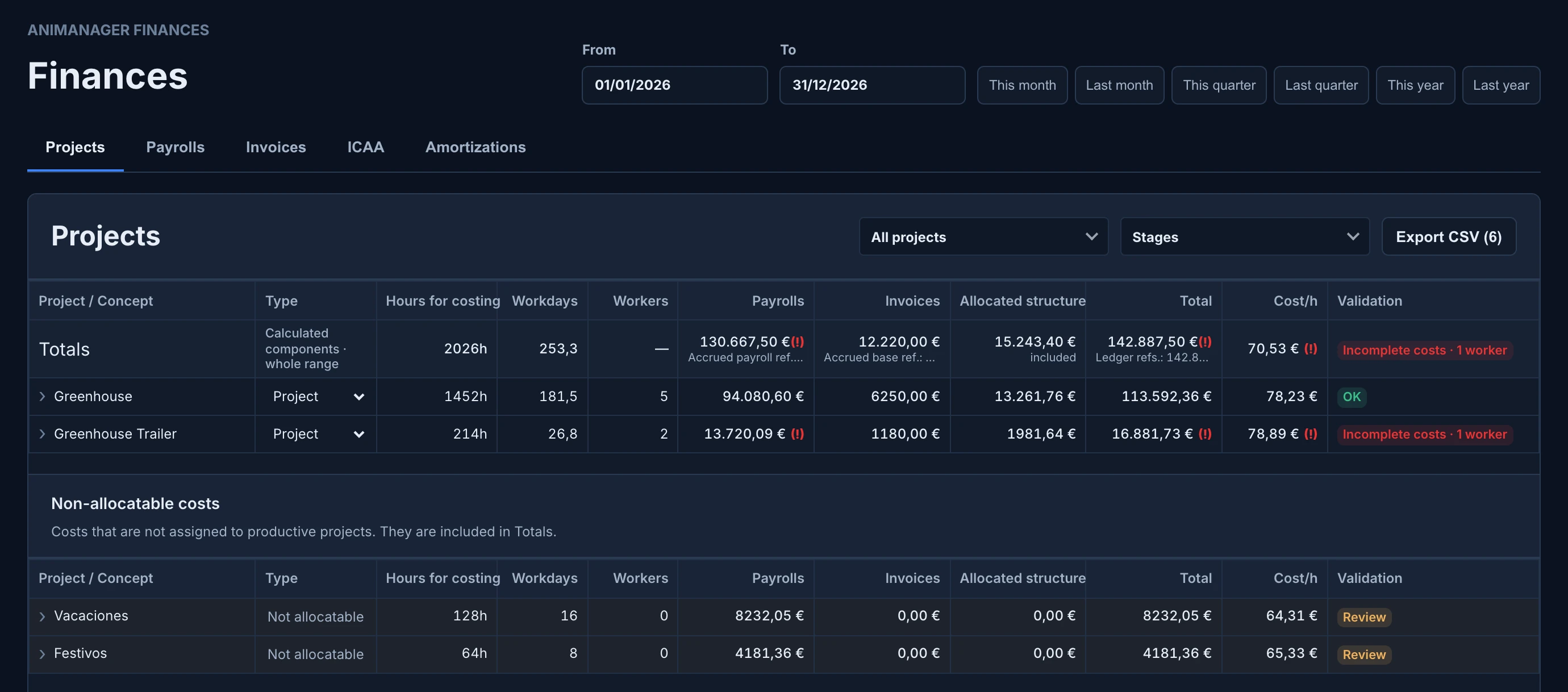
For each project: the Hours for costing, the Workdays (hours ÷ 8), the Workers, its share of Payrolls and Invoices, the Allocated structure, the Total and the Cost/h.
- Set each project's Type:
- Project: a production, which gets costs.
- Structure: the studio's own work, such as training or internal tools. Its costs are shared among the productions by their hours.
- Ignore: left out.
- Look at Validation. Incomplete costs means some people logged hours in months that have no payroll, so their time is left out of the totals. Point to the (!) for the months. Add the payroll, or choose Covered by… to stretch an existing payroll or freelance invoice over that month, then press Save and recalculate.
- Expand a project with › to see its costs by person and by invoice, with View invoice for each one.
- Check the Totals row. OK means the breakdown matches the payrolls and invoices of the period.
Below the projects, Finances lists the costs that don't go to a production: vacations, sick leave, holidays, invoices with no destination and the Cost of uncomputed hours: paid time with no hours logged. Expand a person in that row to send a share of it to projects or to structure, by period.
Export CSV downloads the table with every breakdown. Filter it first by project or by stage.
Amortizations
Amortizations lists the amortizable assets and what each period charges, up to today.
- View by groups the charges by Month, Quarter or Year.
- Filter by years of life or by project.
- Check compares each period with the one before: a ✓ when the accumulated amount adds up, or a ⚠ with the invoices that explain the difference. The copy button copies the invoice number, to paste into the search of Invoices.
- Export CSV downloads the report, and Download invoices the attached documents, by year.
ICAA
ICAA prepares the cost report for the Spanish short-film grants of the ICAA (Instituto de la Cinematografía y de las Artes Audiovisuales). It is in Spanish, like the official forms.
- Choose the project.
- Fill in Sección 0 · Datos de la solicitud, the details of the film and the production company, and press Guardar Sección 0.
- In Mapeo de capítulos por fase, say which chapter of the ICAA budget each invoice category, each stage and, when needed, each person goes to, in pre-production, production and post-production.
- Check Coste por capítulos, assign what is under Pendientes de clasificar and read the warnings.
- Press Exportar Excel ICAA for the spreadsheet in the ICAA's format.