
Appearance
Review a shot
Review mode opens the images and videos of a revision in a large player. You step through it frame by frame, draw and write your notes on the exact frame, and compare it with an earlier version or another stage.
Open Review mode
- Open the chat of the stage.
- Click the image or video of a revision post. Review mode opens over the page on that revision.
- To see another version, use the ‹ and › arrows next to Rev: in the header, or the ↑ and ↓ keys, or pick it in Rev:.
You can also open it from:
- View feedback (or View client feedback) on a feedback post. Review mode opens on the version, the file and the frame of that feedback, paused, with the drawing tools out and Transform picked.
- Feedback in the Feed, the chat of the Timeline and the chat next to a canvas.
- Open this revision in the Data view of a stage. See Attach data tables and chart them.
The header shows where the revision lives: project, space, collection, item and stage. Rev: lists the latest 50 revisions of the stage, newest first, each as its version and date, such as v3 - 9/24/2026.
When the stage has two or more revisions, a bar next to Rev: shows the revision you are on, such as v3 · Mark Jackson · 9/24/2026, and where it sits, such as 3 / 5, counting from the oldest. ‹ or ↑ goes to the older revision and › or ↓ to the newer one. At the oldest or the newest the arrow is greyed out. While comparing, they change A:.
Review mode opens on the newest revision that has images or videos. If someone publishes a new revision while you are watching, Review mode moves to it.
On a phone there is no Review mode: tapping an image or video of a revision opens it in a simple full-screen viewer, without frame stepping or drawing tools.
What it shows
| File | What you see |
|---|---|
| Video | The player, with the frame counter and the timeline. It plays on its own and loops when you open it or switch to it, except when you arrive on the frame of a feedback. |
| Image, animated GIF | The image, with the zoom tools. No timeline. |
| Data table (CSV) | The table, as in the chat. See Attach data tables and chart them. |
| Text or Word document | The document in an editor the team writes in together. Switch to script mode lays it out as a screenplay, and Download as Markdown saves it. |
| PDF, audio and anything else | A card with the file name, its type and Download. There is no PDF viewer or audio player here. |
When a revision has several files, their thumbnails sit under the player. Click one, or use ← and →, to switch. Hover a thumbnail to see its file name. Feedback names the file it was drawn on, such as Video 1 or Image 2.
If a file stops loading because its link has expired, Review mode asks for a new one by itself.
Frame-based feedback
The counter under a video shows the time, the frame rate and the frame you are on, such as F:125. It starts at frame 0.
- Play the video, or drag along the timeline, to the moment you want to comment.
- Pause (Space) and step one frame at a time with Previous frame and Next frame, or with , and .. Stepping a frame pauses the video.
- Use -1 second (J) and +1 second to jump a second, and 1x to change the playback speed: 0.25x, 0.5x, 1x or 2x. Go to start (Home) and Go to end (End) land on the first and the last frame.
- Turn on Feedback and draw or write your note. See Draw feedback on the frame.
The volume button opens a slider; click the speaker in it to mute (M).
Feedback markers sit under the timeline on every frame that has feedback, sent or still in your draft. Hover one to read Feedback on frame 60, and click it to jump there. They show the feedback of the messages loaded in the chat: scroll up the chat to load older ones.
In your notes, give the frame number rather than the time: it points to one exact frame.
Frame rate
Review mode takes the frame rate from the file when it was published with one. Otherwise it uses the frame rate of earlier feedback on that file, and if there is none it measures the video while it plays. Until then it counts at 25 fps.
Draw over the frame
Press Feedback in the header, or B. The drawing tools appear in the header and the notes panel opens as Feedback as your name. Draw, write your notes and press Send feedback.

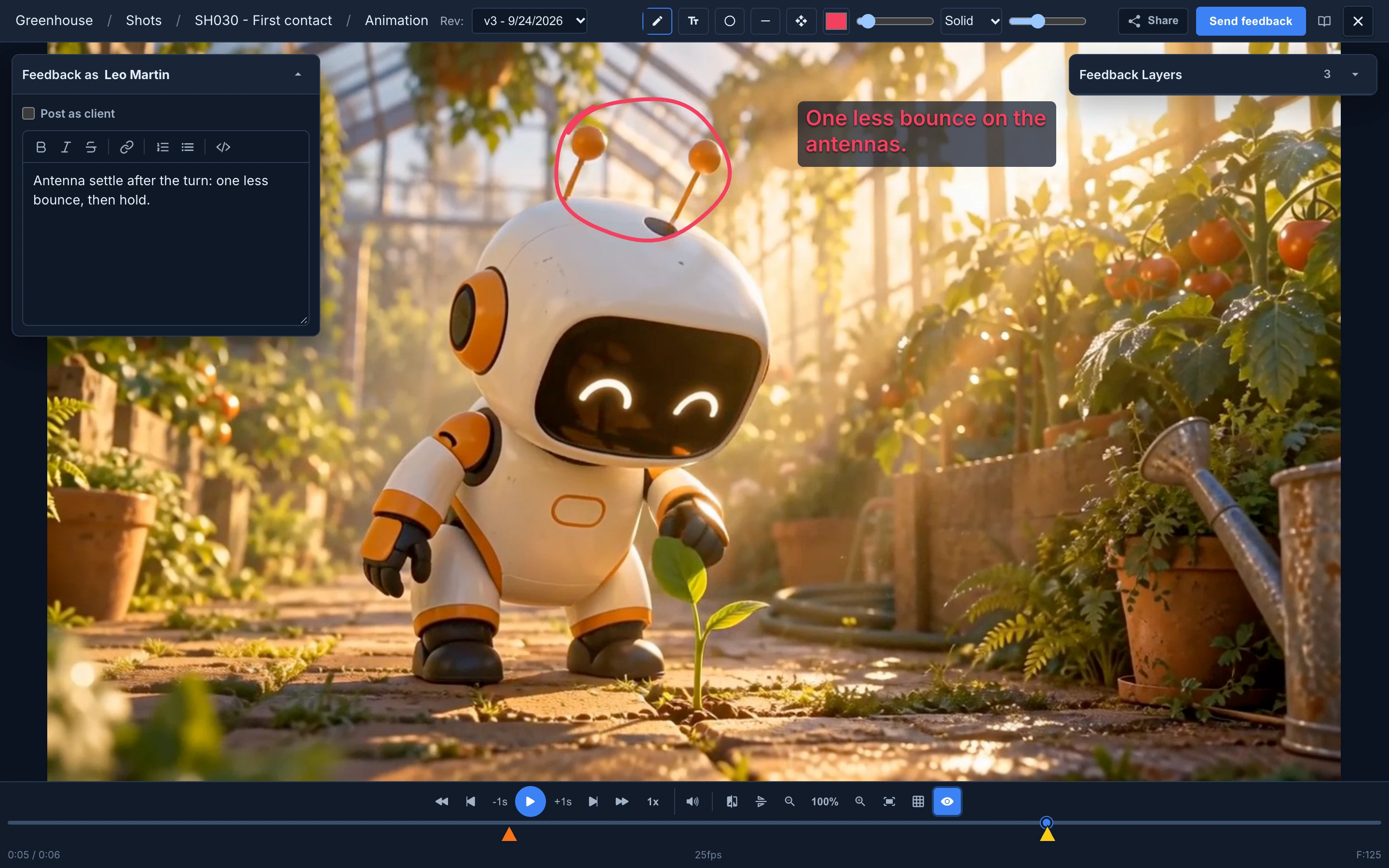
Your feedback is posted in the chat of the stage with its drawings, and the stage moves to the Feedback status. The studio needs a status named Feedback for this.
Every tool, the Feedback Layers panel, pasted references, Post as client and what is kept when you close are in Draw feedback on the frame.
Show annotations and Hide annotations, the eye button under the player, show or hide the drawings of feedback already sent. They always show while the drawing tools are out.
Add visual references
An @here reference in the chat points to the exact version, image and frame you stopped on in Review mode.
- In Review mode, stop on the frame you want to point at.
- Close Review mode. It remembers where you stopped.
- In the chat of that stage, type
@and choose here. It shows the version you stopped on, such as v3. - Send your message.
The reference reads like a path, such as Greenhouse › Shots › SH030 - First contact › Animation › v3 › f125. Anyone who can see that stage can click it to go there. It does not give access to anyone who doesn't have it.
Opening Review mode on another stage forgets the place you stopped on before.
Compare revisions
- Press the compare button under the player, or C. A: is the version you are reviewing and B: the one you compare it with.
- Choose another version in B: if you need one.
- To compare with another stage, such as the Layout of the same shot or another shot, type in item + stage and pick the stage. B: then lists its revisions.
- Press compare again to go from Wipe to Split, and once more to turn compare off.
- Wipe lays the two versions on top of each other. Drag the handle of the divider to reveal one or the other.
- Split puts them side by side.
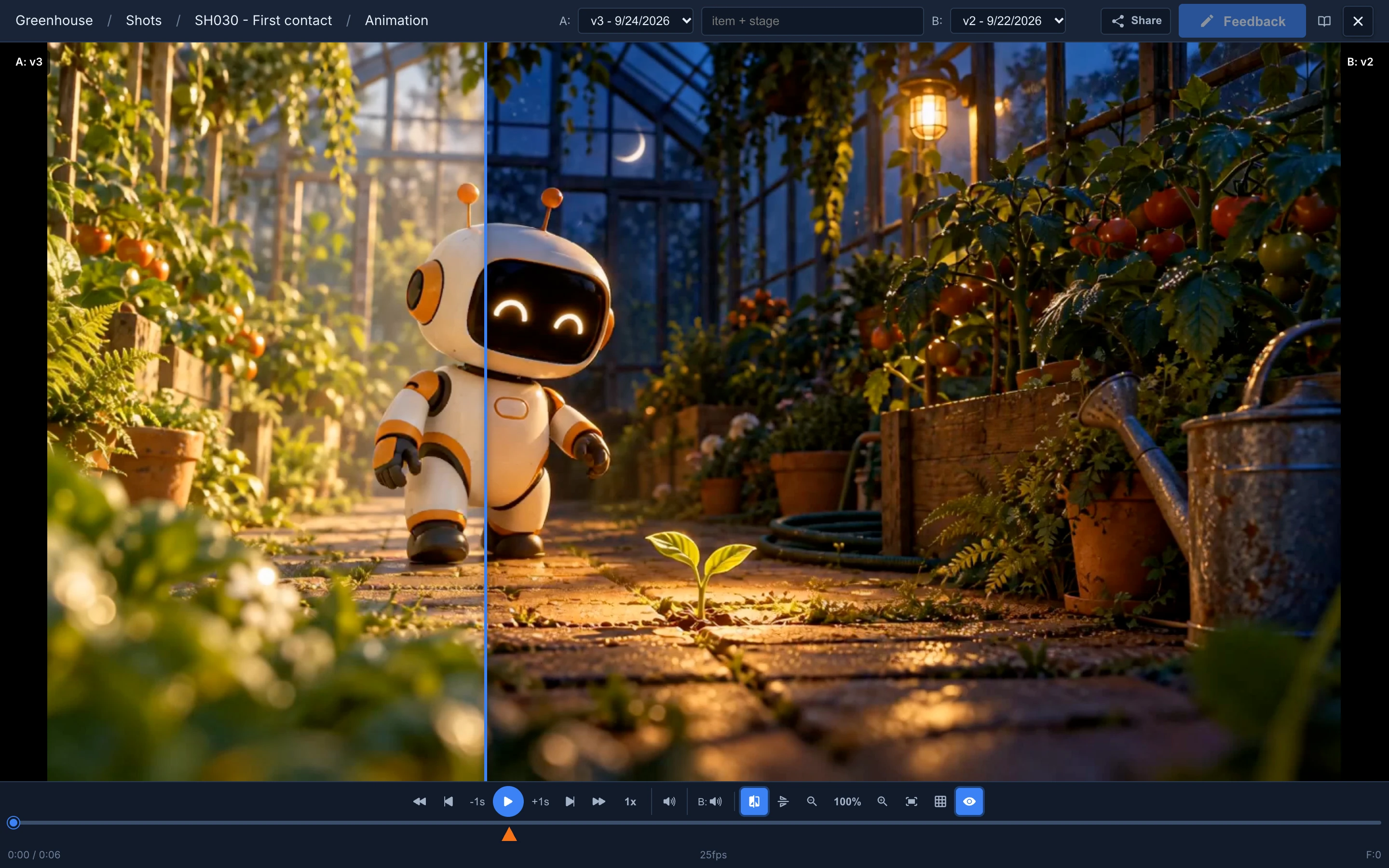
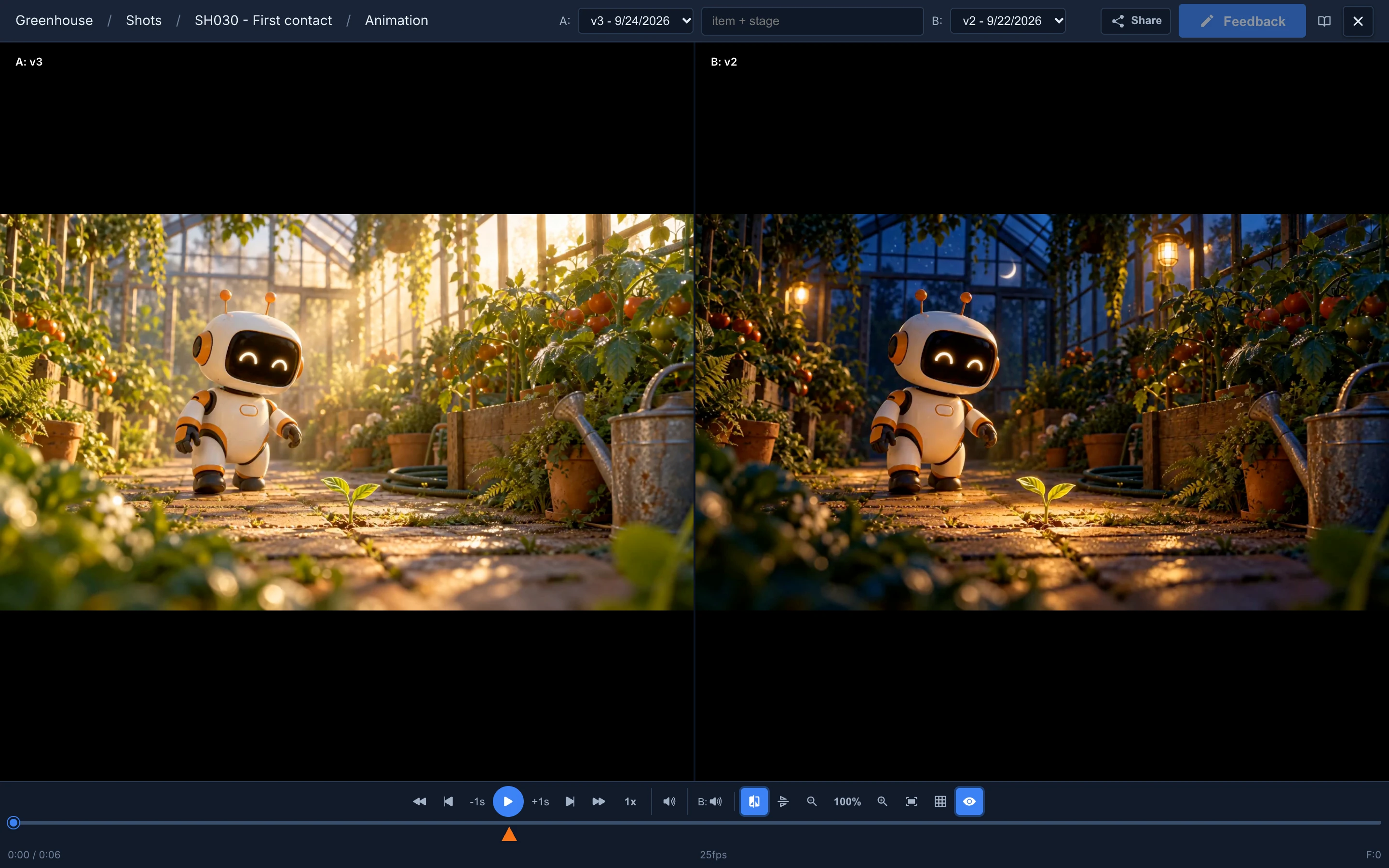
B: is picked for you: the newest other version with the same kind of file, a video for a video and an image for an image. If that version has none, it takes any file.
Compare with another stage
Type part of the item and the stage in item + stage, such as layout. The results show the item and the stage, with the project and the space under them. Pick one and B: lists its revisions. The x in the field clears it and goes back to the stage you are reviewing.
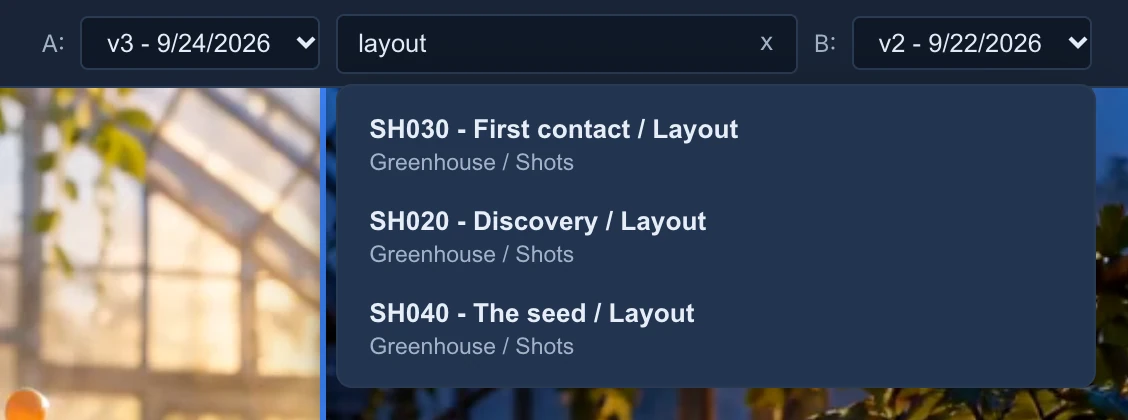
When the stage you picked has nothing to show, B: says so: No revisions in stage, No other revisions or Could not load revisions.
Play both
Both videos play, pause, step and jump together. The second video keeps its sound: lower B: under the player, the volume of the second one, to hear only the first.
While comparing, notes, zoom, flip and the drawings of sent feedback are off: notes need a single version. C does nothing while the drawing tools are out; press compare under the player instead.
Useful viewing tools
These tools change only your view. The uploaded media is never modified.
- Zoom: the mouse wheel zooms in and out at the pointer, and Zoom in and Zoom out zoom by steps, from 10% to 1000%. Click the percentage (Reset zoom) or Fit to view to go back to 100%. Double-click switches between 100% and 200%.
- Move around: drag a zoomed image. Drag with the middle mouse button to move at any zoom, even while you draw.
- Zoom goes back to 100% when you change version or file.
- Flip horizontal (H) mirrors the frame, to check a drawing or a pose.
- Grid overlay (G) cycles through Thirds, Center and Safe area, drawn over the picture itself. Center draws a cross. Safe area draws the edge of the frame and two inner frames, 5% and 10% in from the edges.
- Description in the header shows what the artist wrote when publishing the revision. See Description.
- Metadata in the header shows the revision's pipeline data, such as its frame range and resolution, when the stage records them. See Metadata.
- E downloads the image or video you are looking at, as it was uploaded.
- F fills the screen.
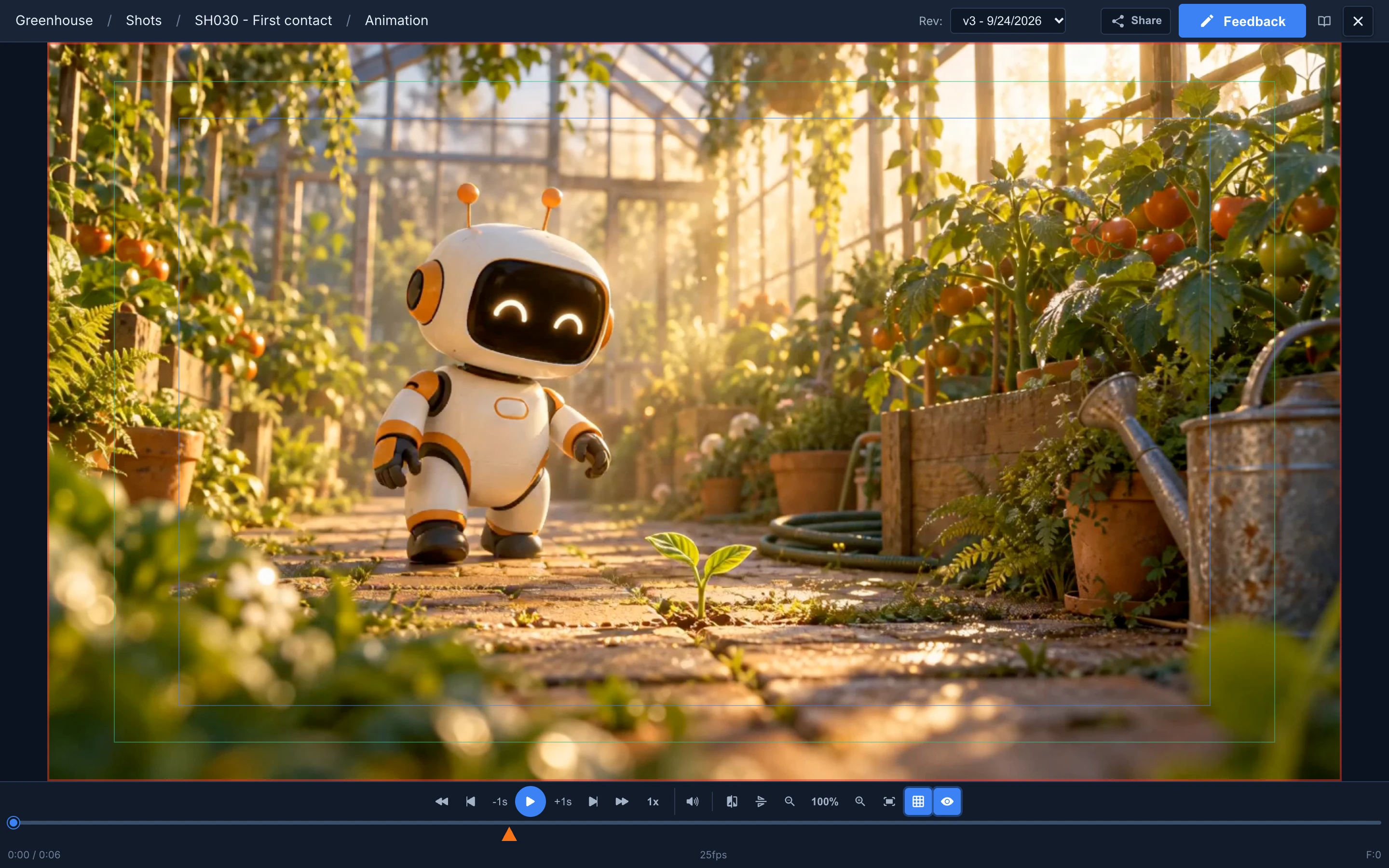
On a narrow window, More options (⋮) under a video holds Compare, Flip, Grid, Notes and Annotations. Images keep every button.
Description
The Description button shows a card at the bottom left of the player, titled Description · v3 for version 3. It has the artist's name and picture, when the revision was published and everything they wrote with it, with its line breaks and links you can click. It changes with the version you pick. The button only appears when the revision has text. The card stays in the corner of the player, away from the picture, even when you zoom, pan or compare. In fullscreen it gets a bit wider so long texts are easier to read.
The card is open the first time and your browser remembers whether you closed it. While you write feedback the card steps aside so it doesn't cover the feedback box. People reviewing from a client review link never see it.
Metadata
The Metadata button shows a card at the bottom right of the player, titled Metadata · v3 for version 3. It lists the frame range, the resolution, the frame rate, the resolution percentage and the stage's own fields. A field nobody filled shows —.
The card says where the values come from: As published, saved with that revision, or Current task values when the revision didn't record them. Your browser remembers whether the card was open.
Keyboard shortcuts
Press ? in Review mode to see the main ones.
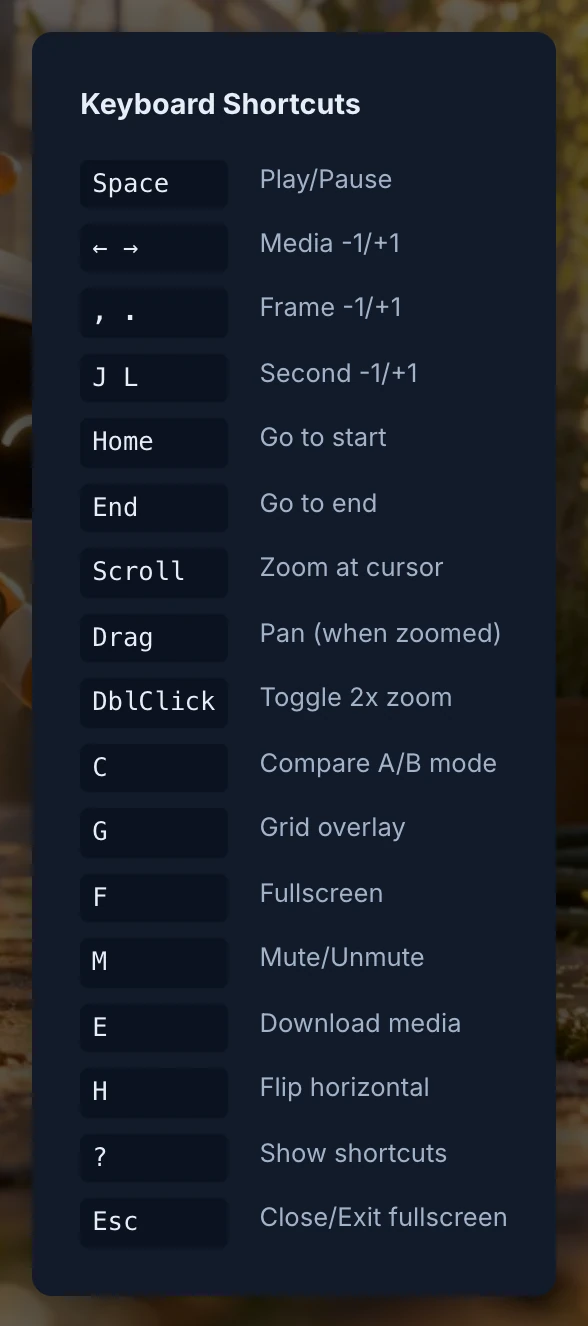
| Key | What it does |
|---|---|
| Space | Play or pause |
| , and . | One frame back or forward. Hold to keep stepping |
| ← and → | One frame back or forward. With several images or videos in the revision, the previous or next one |
| ↑ and ↓ | The previous (older) or next (newer) revision of the stage. While comparing, it changes A: |
| J | One second back |
| L | One second forward, when the drawing tools can't open (while comparing). Otherwise the Line tool |
| Home and End | Go to the start or the end |
| C | Compare: Wipe, Split, off |
| G | Grid overlay |
| H | Flip horizontal |
| F | Full screen |
| M | Mute or unmute |
| E | Download the media |
| B, T, S, L | Feedback with the Pencil, Text, Circle or Line tool |
| ? | Show or hide the list of shortcuts |
| Esc | Close Review mode |
Use the letters without Caps Lock: J, L, H, C, G, E, F and M only answer to lower case.
Esc closes Review mode at once, even with a menu or the drawing tools open. Your drawing stays as a draft for next time; the text of your notes does not. The undo, redo and eyedropper keys of the drawing tools are in Keyboard shortcuts.
Share a review link
A review link lets a client open one revision without an account. Press Share in the header, choose how long the link lasts or a password, and press Create link. Until a revision has loaded, Share is greyed out.
Everyone sees Share, but only people whose role has External reviews set to Create can create or list links.
See Invite a client to review for every option and how to revoke a link.