
Appearance
Follow a sequence in the editor
Import space/collection brings every item of a space or a collection onto the timeline at once, one clip per item, back to back. Each clip plays the master video of the stage you choose. The sequence stays in step with production: a new revision, a new shot or a removed one shows up in the edit without you adding clips by hand.
This is the quickest way to watch where a whole sequence stands, such as the six shots of the Greenhouse Shots space with whatever stage each one has reached.
Import a sequence
- In the editor, press Import space/collection.
- Choose the Project and the Space.
- In Import (whole space or one collection), keep Whole space or pick one collection.
- In Stage (master video of…), choose which stage each item plays:
- Most advanced: the rightmost stage of each item that has a playable video. SH010 can play its Compositing while SH060 still plays its Layout.
- A stage by name, such as Animation, to compare one stage across the sequence.
- In Ignore stages (never used, not even as fallback), tick the stages that must never play, such as a Storyboard of stills.
- Press Continue. The preview lists each item with its stage and its duration, and the items it will skip, with the reason: No usable stages or No playable video.
- Press Import 5 clips.
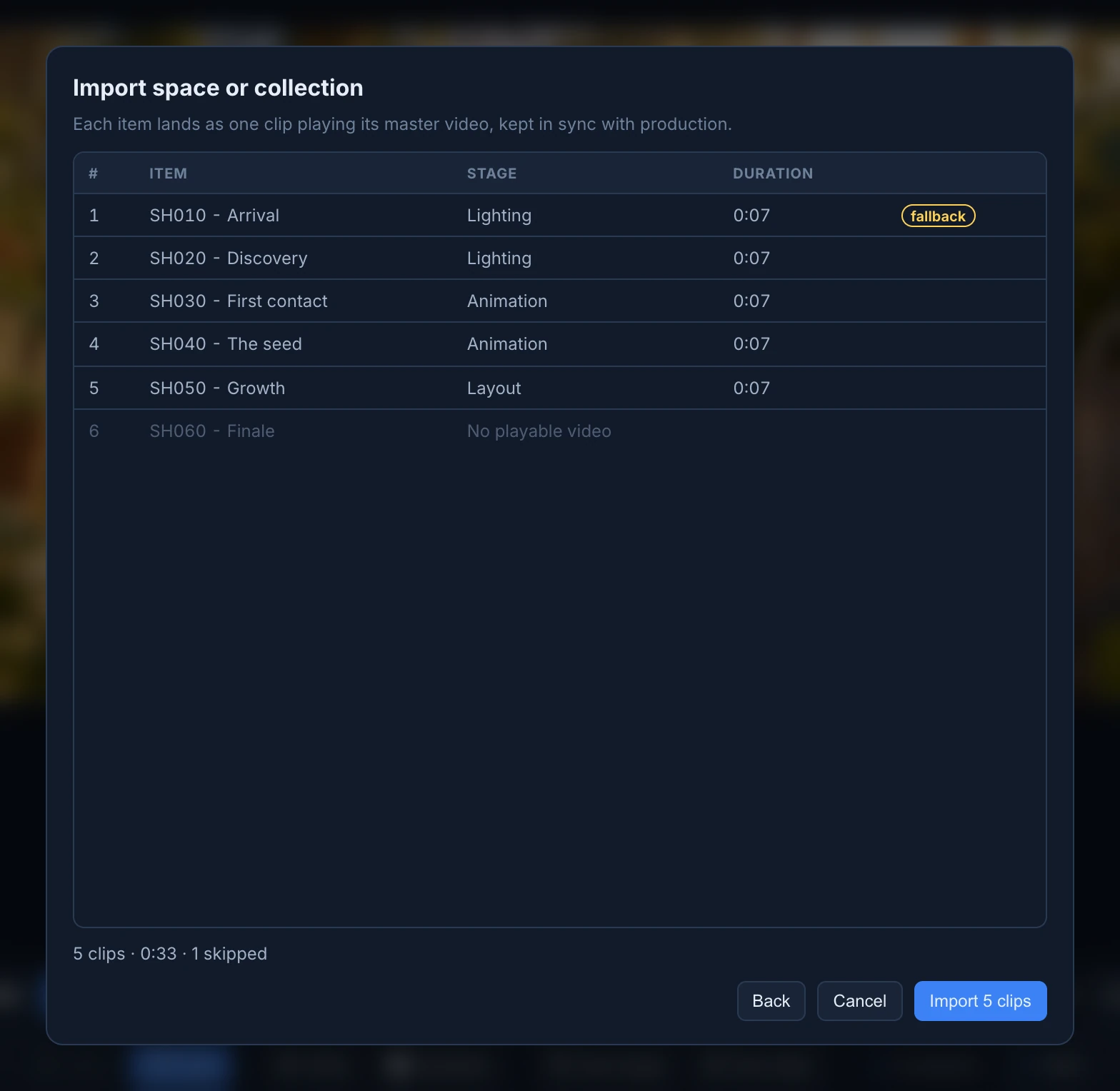
The sequence lands on a new lane, starting at the beginning of the timeline.
When a stage has no video
A master without a video falls back to the newest revision of the same stage that has one, then to the stage before. The preview marks those items fallback, and its tooltip says which stage or revision plays instead.
Keep it in step
Each imported sequence is listed under Imported sequences on the left, with its number of clips.
- The sync button turns syncing on or off. With sync on, the sequence follows production: a new revision of a master swaps its clip's media, a new item adds a clip, and a removed item removes its clip. The editor checks when the project opens, when you come back to the tab and whenever a revision is published.
- With sync off, the sequence keeps its clips as they are. A changes badge tells you that the source has new, removed or updated shots: turn sync on to bring them in.
- Sync now checks straight away.
Your own edits are kept:
- The sequence keeps its clips back to back on its lane: when a take gets longer, the clips after it move along.
- Trimming, cutting or changing the revision of an imported clip pauses sync for that clip alone. Its icon on the timeline says Sync paused. Manual edits kept. It keeps its place in the sequence with your length. Drag a paused clip to another lane and it leaves the sequence: sync no longer touches it.
- Volume, speed and framing changes don't pause sync.
- Deleting the last clip of an item leaves that item out of the sequence for good, until you restore it.
- A duplicate of an imported clip is an ordinary clip: it doesn't follow the sequence.
Right-click an imported clip, or use its properties panel, for Pause sync, Re-sync clip (back to the sequence's timing and media, dropping your edits to it, after you confirm) and Sync group now. The caption of the sequence counts the clips that are paused and the items left out.
Change or remove a sequence
The … menu of a sequence (Group options) has:
- Edit…: the same choices as the import. Keep current item list freezes the items the sequence has now instead of following the space.
- Set start time…: moves the whole sequence to start at a given second.
- Restore 2 excluded items: brings back items whose clips you deleted.
- Remove group, keep clips: the clips stay as ordinary clips and stop following production.
- Remove group and clips, after you confirm.
Like the rest of the timeline, these changes are saved with Save changes. See Cut an edit in the video editor.