
Appearance
Core concepts
Animanager organizes every production the same way, from the studio down to the stage of a shot. Once you know these few words, every screen reads the same: the Tree, the Grid, the chat, the feed, the Timeline, search and permissions.
The production hierarchy
- Studio
- Project
- Space
- Collectionoptional
- Item
- Stage
| Level | What it is |
|---|---|
| Studio | Your company or team. It holds the members, roles, modules, statuses and projects. |
| Project | A production, such as a short film, a series or a campaign, with its own audience and permissions. |
| Space | A part of a project: a sequence, an episode, a department or a group of assets. |
| Collection | An optional group of related items inside a space. |
| Item | A unit of work: a shot, an asset, an episode or a deliverable. |
| Stage | A step of the work on an item, such as Storyboard, Animation, Lighting or Compositing. |
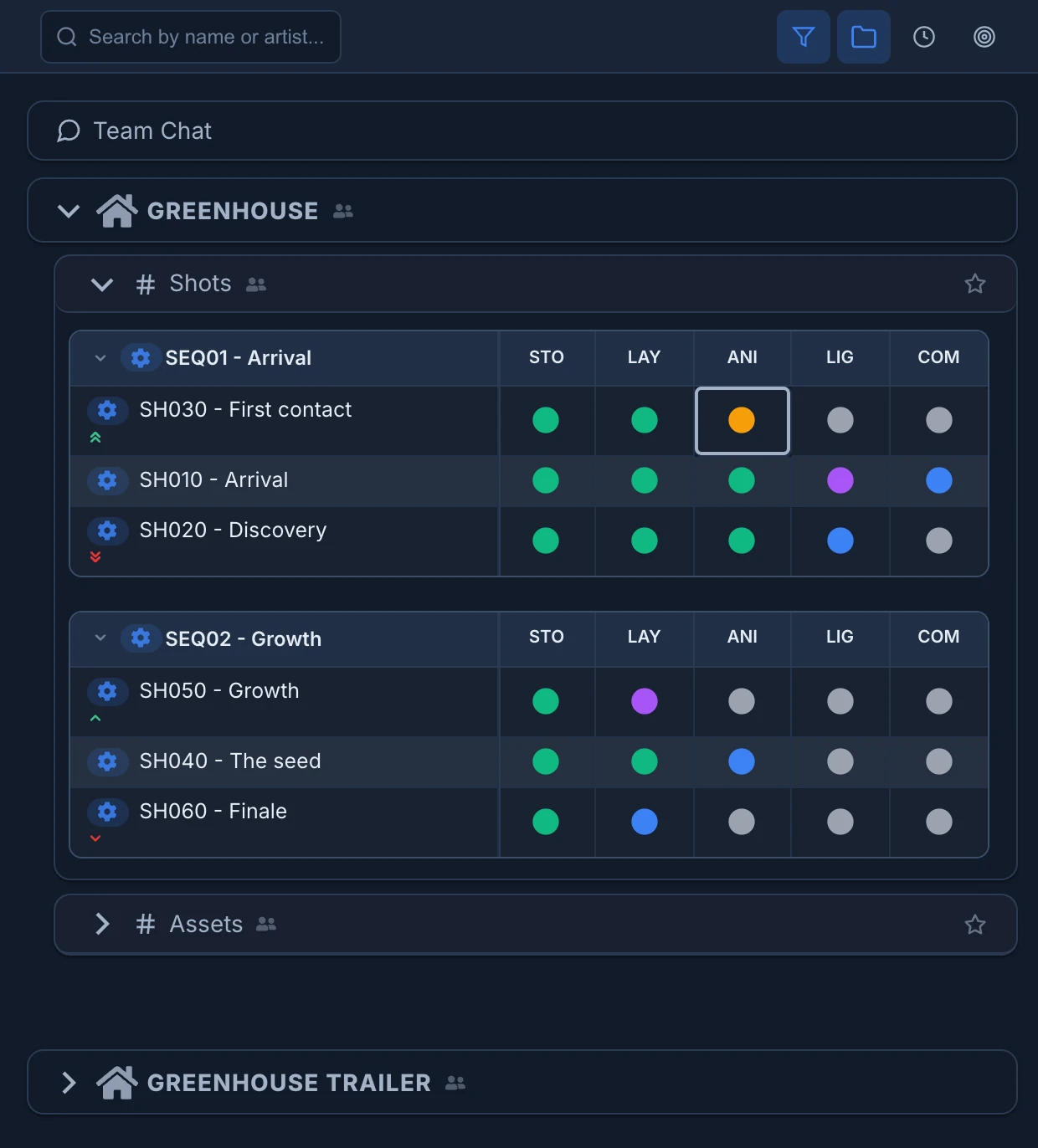
Studios name their spaces, items and stages as they like. The hierarchy stays the same whatever they hold. See Organize projects, spaces and items to build it, and Set up stages and workflows for the stages.
Stages, revisions and statuses
The work happens on stages. Each stage of an item has:
- a status, such as In progress, Waiting for approval or Approved, from the statuses of the studio;
- a chat, where the team talks about that stage;
- revisions: each new version of the work, with its media, its work files, its status and the time spent. Revisions are numbered v1, v2, v3;
- an estimate: the hours the stage should take. The time logged with its revisions is compared with it in the Grid and in the budget bar under its chat. See Track time and estimates.
In the chat of a stage you post Feedback (notes, and optionally a new status, without a new version) or a Revision (a new version). The chats of a project, a space or an item take plain messages. See Give feedback in the chat and Publish a revision.
Stages can pass their work to each other: when a stage publishes, the stages that use it as an input can get its files. See Connect stages: inputs and masters. The pipeline can also carry technical data such as the frame range and resolution of each shot. See Pipeline metadata.
Most items are production work that goes through stages. An item can also be recurring work, such as dailies, that repeats on the Timeline for the people you choose. See Configure items and recurring work.
Canvases
Items have a canvas: a board where the team gathers references and generates images and video with AI, next to the production. See Generate images and video on the canvas.
Permissions and availability
What you see depends on three things:
- the modules your studio has on, such as the Timeline or the video editor;
- the projects and spaces your role or you can access;
- the level your role or you have on each kind of resource, such as viewing, posting or managing.
Feature not visible?
Ask a studio administrator whether the module and your permission are on. Most modules are switched in Settings → Studio → Features; a few are turned on by Animanager. See Turn modules on and off and Roles and permissions. Content you can't access never reaches your screen.