
Appearance
Publish a revision
A revision is a numbered version of the work of a stage: v1, v2, v3. It carries the media reviewers watch, the work files the next person needs, the status it leaves the stage in and the time it took.
Publish a revision
- Select the stage in the tree. Check the breadcrumb at the top of the chat: the revision goes to that stage.
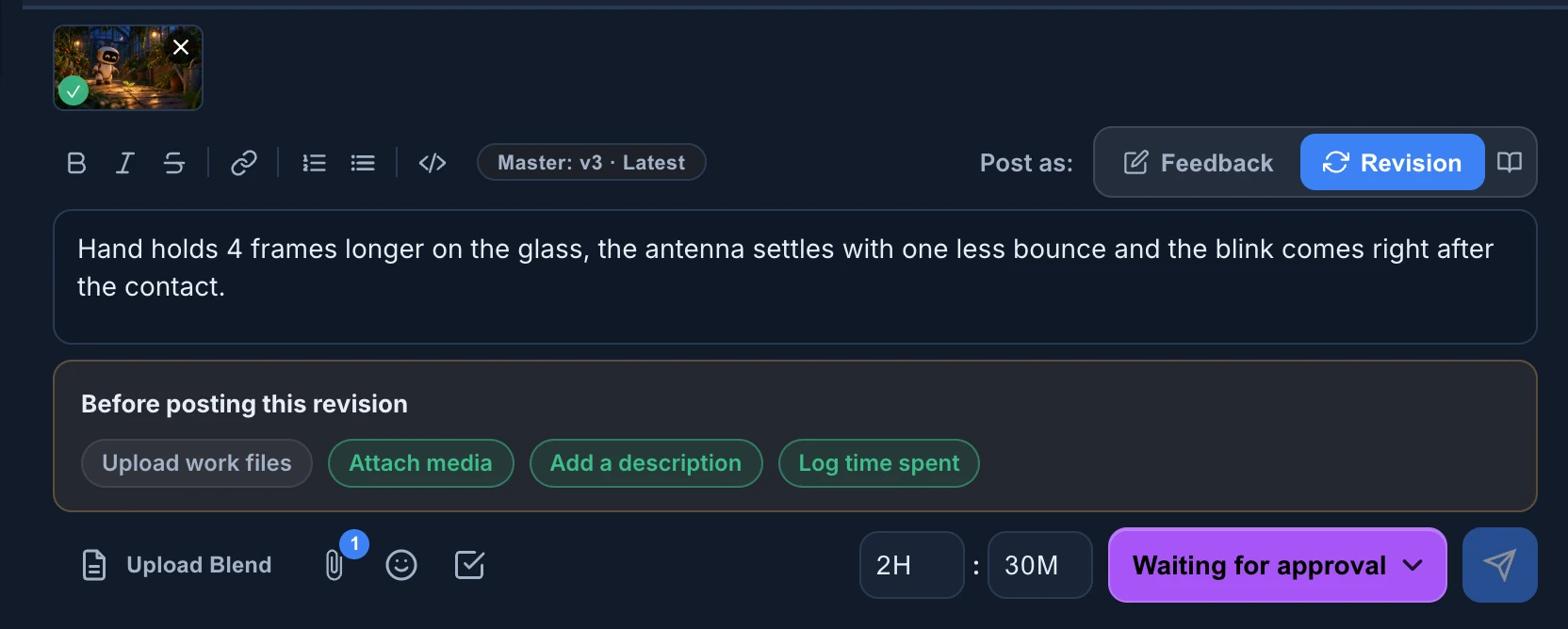
- In Post as:, choose Revision.
- Add the work files with Upload files (studios with the Files and helper module). When the stage accepts one type of work file, the button names it, for example Upload Blend.
- With the Desktop Helper running, it checks the stage's folder on your computer and lists the Files to publish. Press Stage selected files.
- Without it, Upload work files opens: Choose files or Choose folder, up to 512 MB per file. This upload does not check Blender links or external files.
- Add the media to review with Attach files, or drop the files on the composer.
- Write what changed.
- Set the time you spent, in hours and minutes, and the status the stage should be in after this revision.
- Press the send button.
For a Blender file, press Save for Animanager in Blender before step 3. See Save in Blender and publish the revision.
A few things to know while you prepare it:
- Enter doesn't send a revision or a feedback: it starts a new line. Press the send button.
- Paste a picture with Ctrl/⌘ + V to attach it. Videos can have up to 4 GB, audio up to 200 MB and other files up to 100 MB. See Files and system requirements.
- What you write, attach and choose is kept as a draft of that stage in this browser for seven days, so you can leave the stage and come back to it.
- A link to Animanager pasted in the text becomes a link to that place.
If no work file has changed since the last revision that had file changes, Animanager asks first: "No work file has changed since v3. Publish anyway?". Usually the work was not saved. Press Cancel, save and try again, or Publish anyway when you only mean to change the media, the text or the status.
If the status you choose is named WFA, Lead or Client and the item has pinned messages, Review pinned notes before posting opens first. Mark each pinned message Read, then press Confirm Revision.
Revision files and attachments
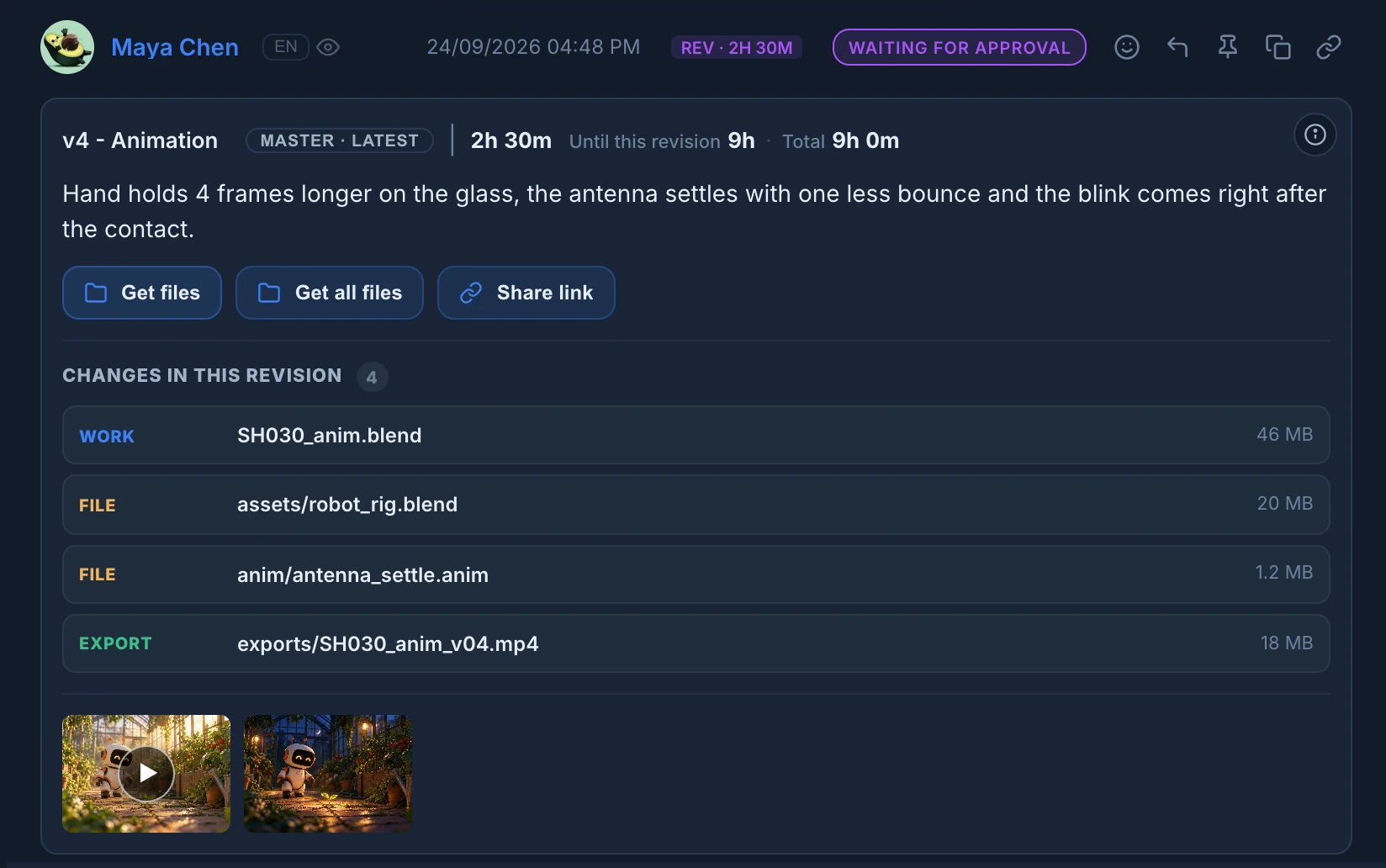
A published revision shows as a card in the thread:
- The version and the stage, such as v4 - Animation, and its master badge.
- The time of this revision, Until this revision (the stage's time up to it) and Total (the stage's time today).
- What you wrote, then Get files, Get all files and Share link.
- Changes in this revision: the work files, other files and exports this revision added or changed, with their size. Long lists end with the number of files not shown.
- The media. Click one to open it in Review mode.
The Revision technical info button at the top right of the card lists the Blender, add-on and Helper versions that published it, the inputs it used, and for Blender files the Asset changes: what was changed, added, removed or renamed compared with the previous revision and with the files it came from. From Inputs used you can pin the exact versions it used as masters again. See Go back to the inputs of a good revision.
A revision with work files also has two buttons for its Blender data:
- Asset changes compares this revision with another one you choose in Compare with, or lists everything it holds with No base (list contents).
- History shows the history of its assets across revisions, including the decisions of a reconciliation.
A CSV attached to a revision shows as a table. See Attach data tables and chart them.
Revision versions
Each revision gets the next number of its stage. Earlier versions stay in the thread and in Review mode, where you pick one in Rev: and set two side by side. See Compare revisions.
Publish a new revision when the work changed. Edit a revision only to correct it.
Status
The status you choose becomes the status of the stage, in the tree and in the Grid. The composer starts on the stage's current status. Choose the one that should be true once the revision is out, such as a status that asks for approval.
Each studio names its own statuses and colors. To change the status without a new version, post feedback. See Give feedback in the chat.
Time entry
Set the time in the two menus next to the status: hours from 0 to 8 and minutes in steps of 5, so up to 8 hours 55 minutes per revision. When your role can log time, a revision needs some.
The time adds to the stage's time spent, which the Grid shows next to the stage's estimate, and to the budget bar under the chat. Enter the time this revision took, not the total since the stage started. See Track time and estimates.
Workflow type and stage
A stage can ask every revision for a work file, media and a description. The composer lists what the revision needs under Before posting this revision, with Log time spent when you log time, and turns each one green when it is done. It does not send until they all are.
An administrator sets these rules in Settings → Studio → Workflows & pipeline → Stage options: Working file types limits the work files the stage accepts (empty accepts any), and Revision requirements turns on Working file, Media and Description. The work file is asked for only when the studio has the Files and helper module on. See Stages and workflows.
Edit or correct a revision
Only the author can edit or delete a revision. People who can moderate revisions can also edit or delete the ones Anibot published.
- Press Edit message on the revision.
- In Edit Revision, change the text, the Status or the Time. Under Attachments, Add files, remove them, or drag them to change their order.
- Press Save changes.
Delete removes the revision after you confirm. When the media or the work files changed, publish a new revision instead, so reviewers keep the history.
Deleting a revision also removes its time from the stage, its share links and its history. The stage goes back to the status of the post before it. A pinned master can't be deleted until the stage follows its latest revision again. If you delete the latest revision, the next one published takes its number again. Deleting an older one leaves a gap: numbers never move.
The work files of a revision can't be changed from Edit Revision. Publish a new revision instead.
Cancel a revision while it uploads
Posted the wrong files, or far more than you meant to? While a revision's work files are pending, waiting for the Helper, being prepared, checked or uploaded, its card shows Cancel revision. Only the person who posted the revision sees it.
Cancel revision asks inside the card: Keep uploading goes on, Cancel revision confirms. Then:
- The Helper stops at once and doesn't try again, also when the upload runs on another computer or the Helper is closed.
- The revision goes away as if it was never posted: its message, its version and its notifications.
- The stage goes back to the status it had before, unless someone changed it since.
- The next revision takes the same number. It counts every file as its own change, compared with the last revision that finished.
The files that had already finished uploading stop counting in the studio's storage at once. They are kept for 7 days, so publishing them again doesn't send the same bytes twice, and then deleted. A revision whose work files finished uploading can't be canceled: delete it instead.
When the work files didn't finish uploading
If the upload of a revision's work files stops, its card says so, with the progress and the file it was on. The author sees three buttons:
- Fix revision shows each file with its progress and status, and Resume upload continues where it stopped. Files already uploaded are not sent again.
- Replace work files publishes other files for that revision.
- Clean revision removes the failed revision, after you confirm in the card, the same way as Cancel revision.
See Troubleshooting for the messages you may see.
Download work files
Get files downloads the files of this revision into the stage's folder on your computer, with the Desktop Helper. Get all files lets you choose among the files published in every revision of the stage. Both need the Files and helper module. See Get files.
A revision that changed no files says so: "This revision changed no files. The current ones are from v3." Get v3 gets the files of that revision. Its own Get files is disabled, with the same explanation.
Share link creates a download link for people outside the studio. See Share files by link.
With the Render farm module on, Launch render on a revision with a Blender file sends it to the studio's farm. See Render Farm.
Masters
The revision that later stages receive is the stage's master: the latest revision, unless someone pins another with Mark as master. The card of the master says Master · Latest or Master · Pinned. See Masters.