
Appearance
Enhance, cut out, add sound and make 3D
AI Generation › Utilities holds the nodes that work on media already on the canvas: a frame to clean up before the client sees it, a take to upscale for delivery, a prop to cut out, a clip that needs sound.
Enhance / Upscale
The Enhance node cleans or enlarges the image or video wired into its MEDIA input. Pick an Engine:
| Group | Engine | For | What it does |
|---|---|---|---|
| Cleanup | SCUNet · denoise | Images | Removes noise and compression artifacts, same size. |
| Cleanup | Nano Banana 2 · AI clean, Nano Banana Pro · AI clean | Images | Redraws the image clean, at 1K, 2K or 4K. |
| Upscale | Real-ESRGAN · fast | Images | Quick 2× or 4× enlargement. |
| Upscale | Topaz · faithful | Images and video | Enlarges without inventing detail. |
| Upscale | SeedVR2 · generative | Images and video | Enlarges and adds detail, up to 2160p (4K). |
| Upscale | ByteDance · AIGC video | Video | Upscales AI video, up to 4K. |
| ffmpeg scripts | Deband · smooth gradients | Images and video | Smooths stepped skies and gradients. Free. |
The next two rows depend on the engine: the size (Upscale 1×, 2× or 4×, Output size, or Target resolution) and, for engines that allow it, Cleanup: Light · keep texture, Standard or Strong · erase artifacts. A setting that doesn't apply is greyed out and says why.
Press Enhance. Images cost per image and video per second. Deband shows Free · runs on the server. The result lands next to the node, connected to it, and its details say how it was made, such as "Topaz · 2× upscale · cleanup: strong".
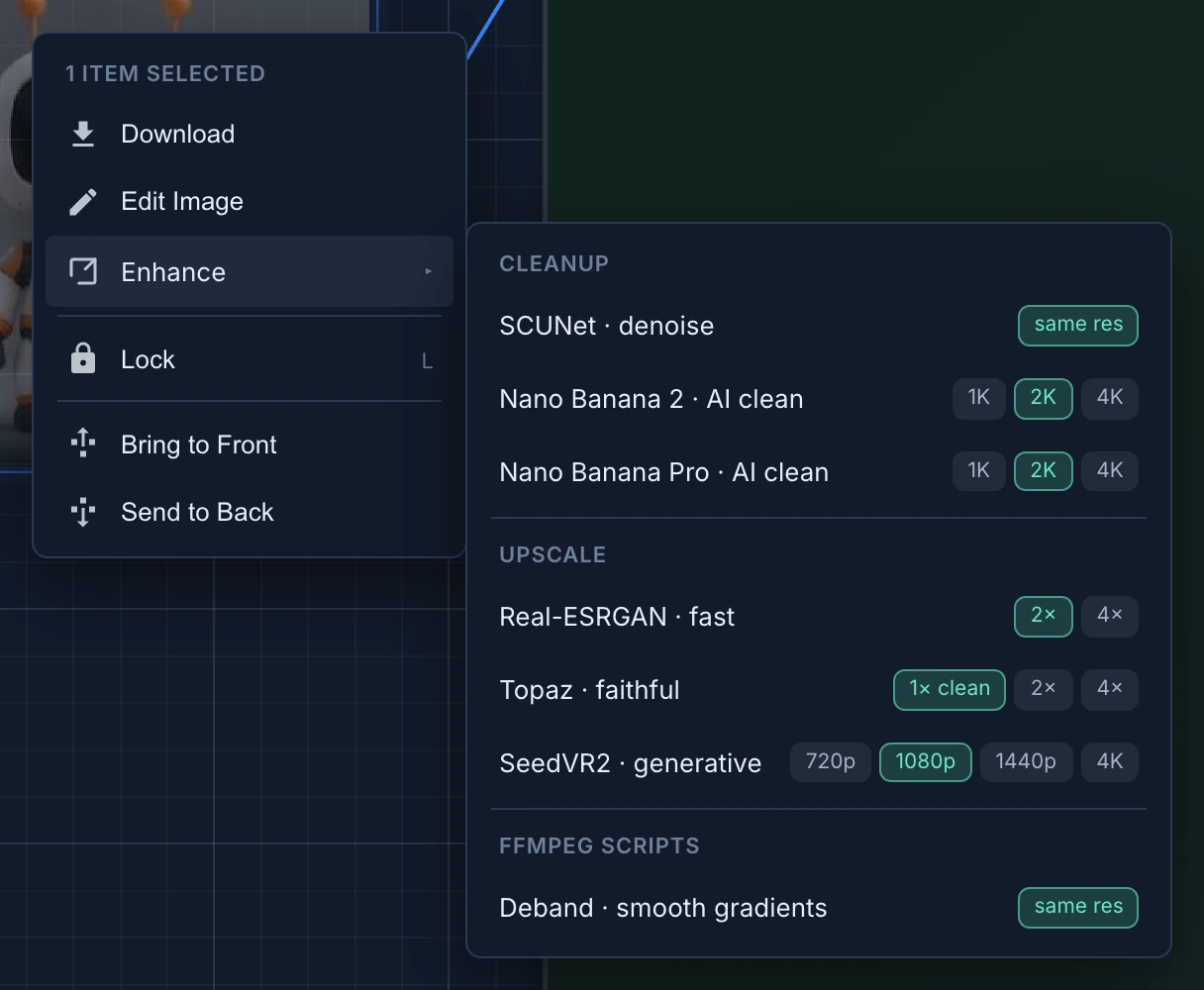
Without a node: right-click an image or a video and open Enhance. It lists the engines that fit, each with its price in its tooltip. Click one to run it at its usual size, the highlighted chip, or click another size chip next to it.
Background remover
Wire one or more images into the BG Remover node and press Remove BG. Each image comes back with its background cut out, ready to drop on another plate. Find it under Utilities in the toolbar, or as BG Remover in the right-click menu.
SFX / Foley
SFX / Foley makes a soundtrack that follows the motion of a clip.
- Wire the video into VIDEO. The sound is as long as the clip.
- Describe the sound world in Sound direction, not the picture: "soft metal footsteps on wet tiles, a sprinkler hissing, distant birds".
- List what to leave out in Avoid (optional), such as "music, voices".
- Press Generate sound.
The result is a copy of the clip with the new sound, which replaces the old one.
Image to 3D
Image to 3D, in the toolbar only, turns a wired image into a 3D model. Choose the model, Trellis 2 (Best Quality), Trellis 1 (Legacy) or Hunyuan3D-2, and press Generate 3D. A clean picture of one object on a plain background, such as the watering can, works best.
These nodes also run on the server, are charged to the studio's tokens, and are not charged when they fail. See Choose a model and see what it costs.