
Appearance
Your account and preferences
My account holds what is yours rather than the studio's: your name and avatar, your notification sounds, your language and your theme. Every member has it, whatever their role.
Open your account
Open the profile menu with your avatar at the right of the header and choose Account. Settings opens on My account → Profile, with Notifications and Preferences below it in the side menu.
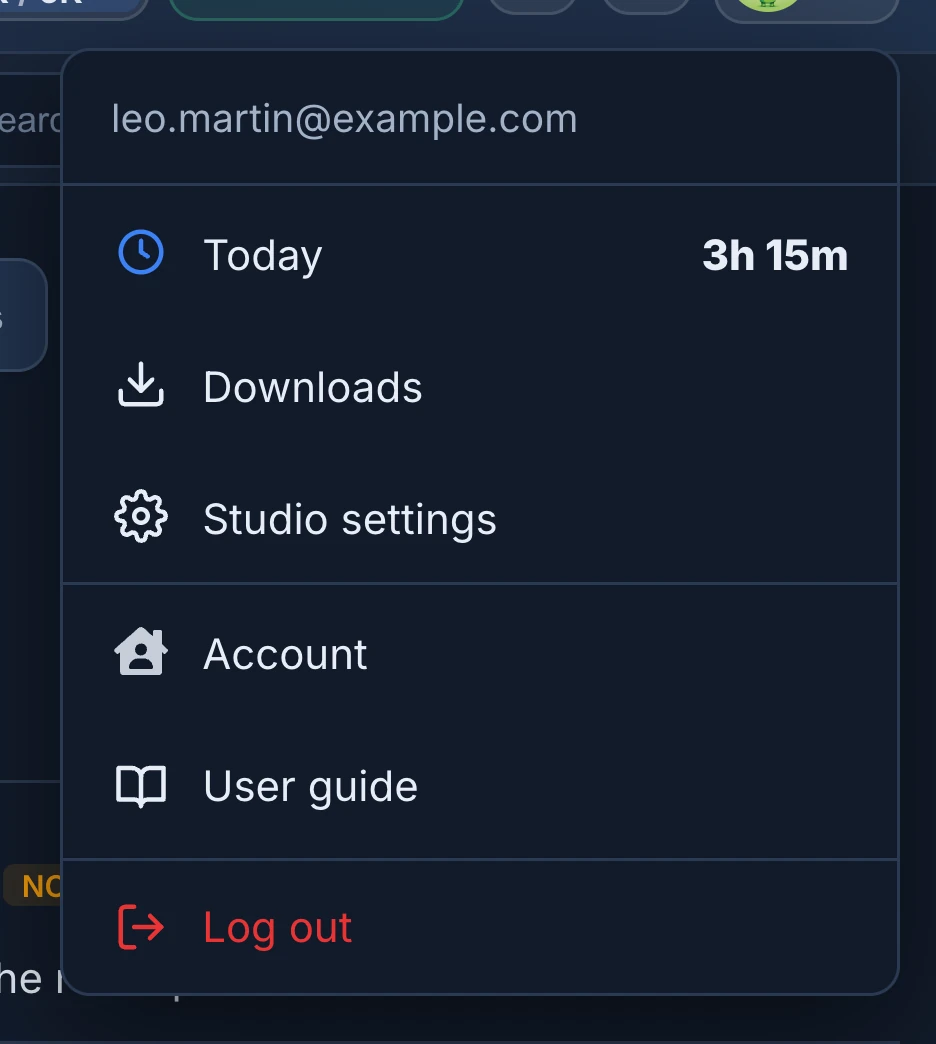
The profile menu also has:
- your email, the address you sign in with;
- Today, with the hours you logged today. Click it to see them on the Timeline. See Log time and review it;
- Downloads, when the studio uses Files and helper: the Blender addon, the Desktop Helper and the AI clients. See Work locally with Desktop Helper;
- Studio settings, when you can change the studio's settings or its roles. See The Settings page;
- User guide, which opens this guide in a new tab;
- Log out.
Changes to Profile, Notifications and Language wait in the save bar: press Save changes, or Discard to drop them. See Save your changes.
Profile
- Change avatar picks an image from your computer. You see it at once, and it is kept when you save. Animanager makes it small, 150 pixels at most, and doesn't crop it: a square picture looks best.
- Name is how the rest of the studio sees you. It can't be empty.
- Email shows the address you sign in with. It can't be changed here.
Your name and avatar are the same in every studio you belong to.
You sign in to Animanager with your Google account, so there is no Animanager password to change. Your email, password and two-step verification are those of your Google account.
Notifications
Under Sound notifications, choose which notifications play a sound. All three are on until you change them:
- Messages: all new messages.
- Mentions: @mentions and replies.
- @everyone: @everyone mentions.
Which messages count as a mention, when each sound plays and the notifications of your browser are in Notifications, sounds and badges.
The feed has its own filters, which also mute sounds for what they hide: see Filter the feed.
Preferences
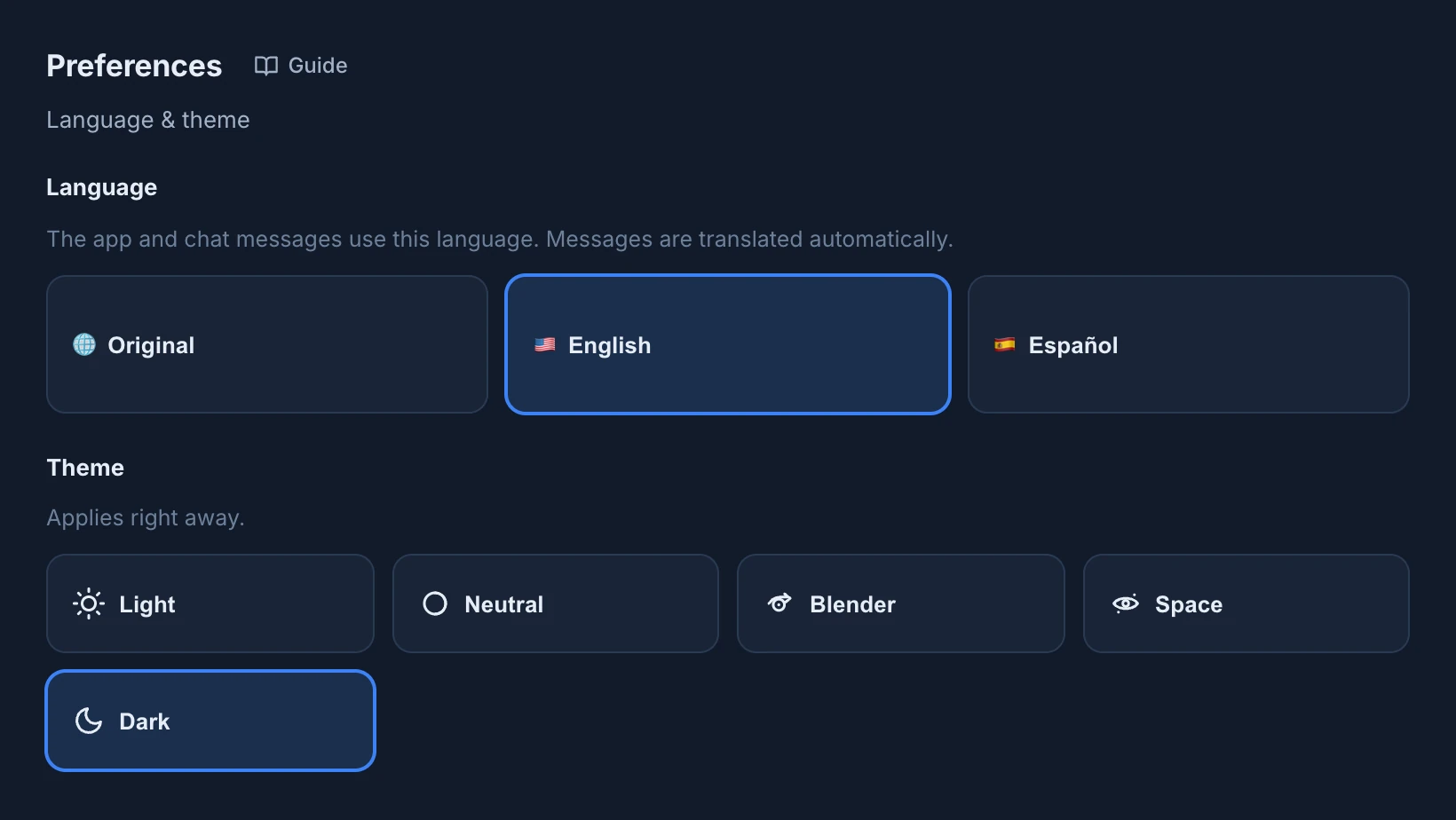
Language sets the language you read Animanager in. It starts on English:
- English or Español: the app uses that language where it is translated, and some screens stay in English. When the studio has the Translations module on, chat messages are shown translated into it.
- Original: the app is in English, and chat messages are shown as they were written.
The language button on a translated message switches between them for the current session. See Automatic translations.
Theme changes the look of the app: Light, Neutral, Blender, Space or Dark. It applies right away, without Save changes, and is kept in this browser: another computer or browser starts on Dark until you choose there too.
On a phone
The phone layout has no header, so it has its own Settings tab at the bottom:
- Sound Notifications, the same three sounds. They are saved as soon as you switch them.
- Enable Desktop Notifications, while your browser doesn't show Animanager's notifications yet.
- Log Out.
Your name, avatar, language and theme are changed from a computer.
Leave a studio or delete your account
There is no button to leave a studio: ask someone who manages its members to archive you. See Manage members. To have your account and your personal information deleted, press Make a privacy request on the support page: see Contact support.
Cookies and analytics
The first time you open animanager.com, a banner asks about optional cookies. Accept and Reject are equally easy, and Preferences lets you choose each category:
- Analytics: PostHog, hosted in the EU, recognises your visits to the website and the app and links them to your account and studio, so we can see which parts of Animanager are used and for how long. If you refuse, visits are only counted anonymously and nothing is stored in your browser.
- Marketing: the Meta Pixel on the public pages, and the campaign that brought you, to measure our ads. With it, Meta is also told when you create your account, create a studio, start a trial or subscribe, with your email only in hashed form. It is never told which app screens you open. Refusing or withdrawing it stops all of this for your account.
Analytics never records your screen, what you type, the names of your projects or files, or the address of a shared link. App screens are recorded by their name only, such as Timeline or Settings.
Change your choice at any time with Cookie settings at the bottom of the website and the legal pages. Your choice applies to both animanager.com and www.animanager.com. The Privacy Policy lists every cookie.