
Appearance
Review a studio's work from a link
A studio can send you a link to one version of its work. You watch it, draw on the frame and send notes. You don't need an Animanager account, and you don't take a seat in the studio.
If the studio sent you files to download instead, see Download files a studio shared with you.
Join the review
- Open the link the studio sent you. If it asks for a password, type it and press Open review.
- In Join the review, under the name of the version, type Your name, up to 120 characters, and press Continue as guest. The studio sees your notes with this name.
- Or press Log in with Google to use your Animanager account instead. See With an Animanager account.
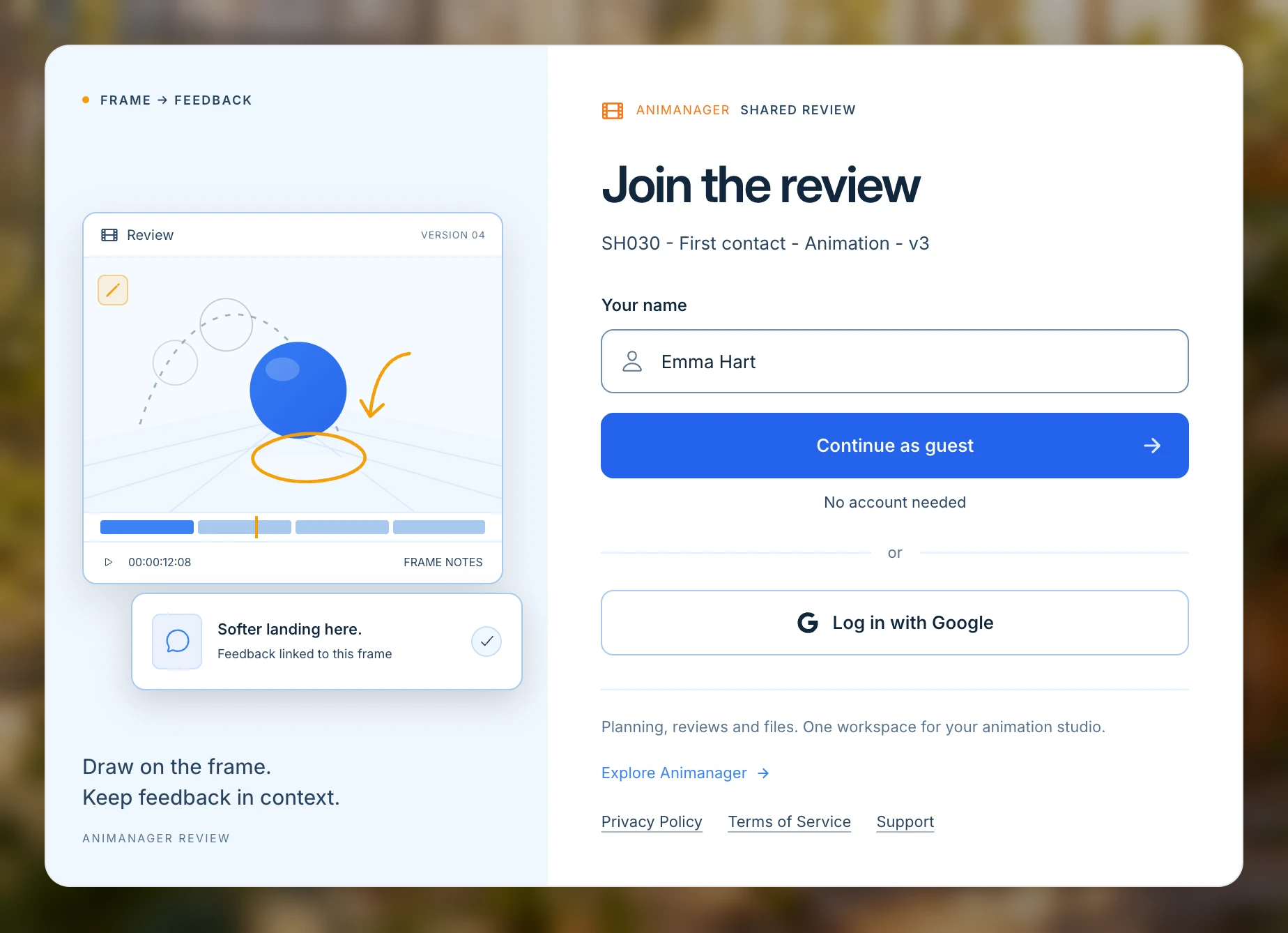
A short tour then shows where everything is: Write your feedback, Draw over the media, Drop text where it matters, Feedback on any frame (on a video) or Feedback on every image (with several images), and Send it when you are done. Press Next, Skip to close it, and Got it at the end. It shows once in each browser.
Leave your feedback
The notes panel opens by itself on the left, titled Feedback as and your name, with the drawing tools at the top right.
- Play the video and pause on the frame you want to talk about. The frame number shows at the right end of the player bar, such as F:100. Use , and . to move one frame at a time.
- Draw on the frame with Pencil, Text, Circle or Line, and move what you drew with Transform. The toolbar also sets the color, the line width and the line style.
- Write your notes in the panel. You can use bold, lists and links.
- Press Send feedback. Your notes and drawings reach the studio together, and "Feedback published" confirms it.

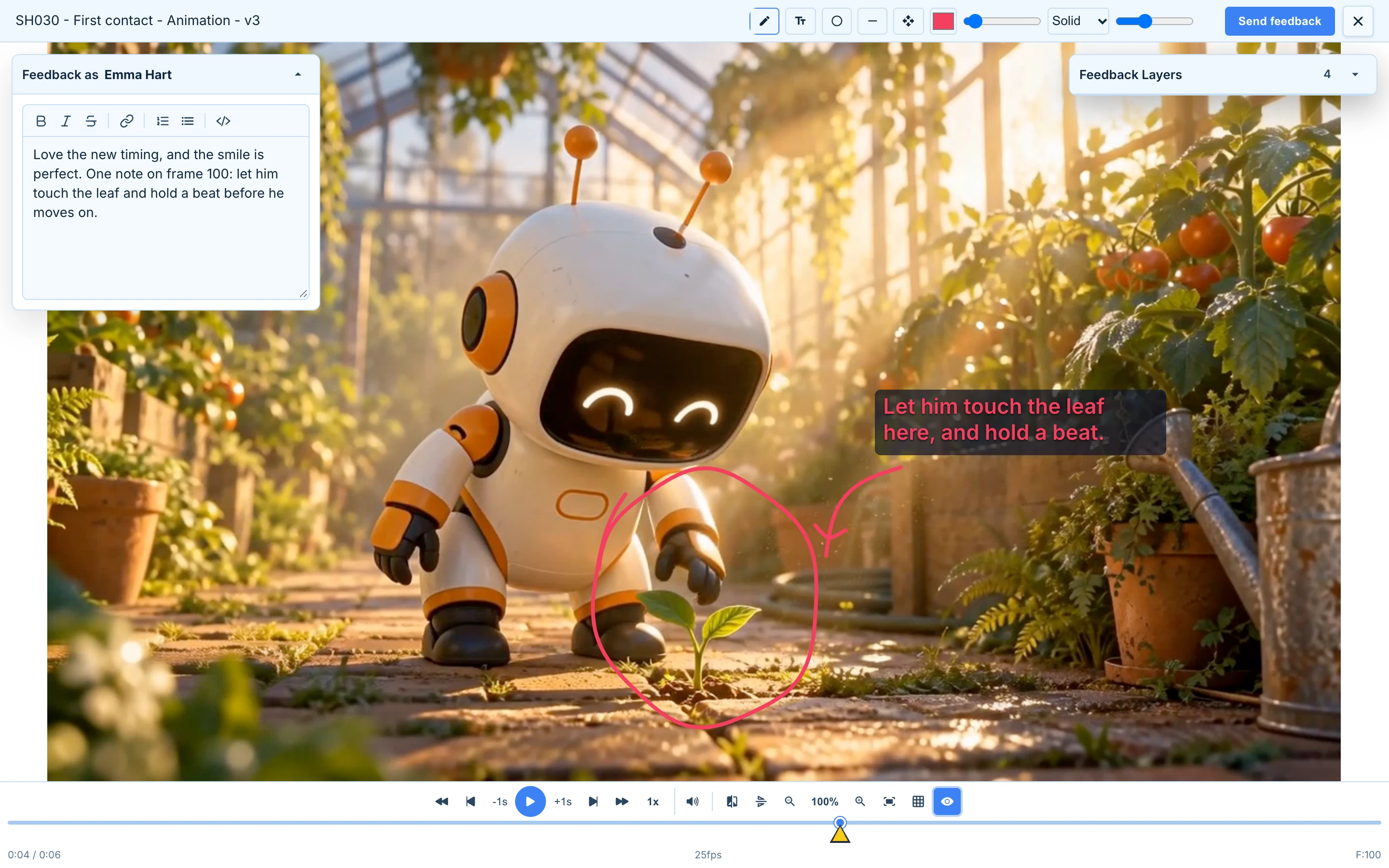
On a video, each drawing stays on the frame you drew it on, so you can comment on several moments in one go: the markers under the timeline show where. Notes alone are enough: you don't have to draw.
To send more notes, press Feedback in the header, or B, and repeat. You can send as many times as you like.
What you draw is kept in your browser until you send it, even if you reload the page. The text of your notes is not, so send before you leave. Draw feedback on the frame explains every tool.
Watch and download
The player works as it does for the studio:
| Key | What it does |
|---|---|
| Space | Play or pause |
| , and . | One frame back or forward |
| ← and → | One frame back or forward. With several images or videos, the previous or next one |
| J | One second back |
| Home and End | The start or the end |
| G | A grid over the picture: thirds, center, safe area |
| H | Mirror the picture |
| F | Full screen |
| M | Sound on or off |
| E | Download the image or video you are looking at |
| B, T, S, L | Draw with the Pencil, Text, Circle or Line |
| ? | The list of keys |
The mouse wheel zooms, and dragging moves a zoomed picture. Files that aren't images or videos, such as a PDF, show a Download link.
The links to the video last an hour. If it stops loading after a long session, reload the page: your drawing is kept.
Esc, with nothing else open, and the × at the top right leave the review. Open the link again to come back.
What you can see
- Only the version the studio shared. You can't browse the rest of the studio or the project, or other versions.
- Only your own earlier notes on this link, never the studio's or other guests'.
- Notes work on images and videos.
- If the studio shared the link without feedback, it opens straight on the media, with no name to type and no Feedback button.
Your browser keeps you signed in to the link for 24 hours. After that you type your name again, and the notes you sent before no longer show on the link. The studio still has them.
The review page is always light, whatever theme you use in Animanager.
With an Animanager account
Log in with Google signs your notes with the name of your Animanager account. After signing in you come back to the review, if you do it within half an hour; a password link asks for its password again.
With an account, the link knows you on every visit and every device, so your earlier notes keep showing after 24 hours. Opening a review link never makes you a member of the studio.
If the link doesn't open
| Message | What to do |
|---|---|
| This link has expired | The studio set an end date. Ask the sender for a new link. |
| This link was revoked | The studio turned it off. Ask the sender for a new link. |
| Review link not found | Check that you copied the whole link. |
| Review unavailable | The studio removed that version. Ask the sender. |
| Review server unavailable | Try again in a moment. |
| Incorrect password | Check the password with the sender. |
Back on these pages takes you to the Animanager home page.