
Appearance
Reuse characters and sets as assets
An asset is a folder of a canvas that the whole studio can reuse: a character sheet, a location, a prop, or a generator already wired to its references. You place a copy of it on any canvas and keep working from there. In the Greenhouse studio, the Robot's turnaround, the greenhouse set, the sprout and the watering can are assets every shot can use.
Make an asset
- On the canvas, put everything that belongs to the asset in one folder: images, videos, files, generators and the wires between them.
- Select only that folder, right-click it and choose Set as Asset.
- The asset takes the name of the folder, and the folder opens. A frame now surrounds its contents, named "ASSET - Robot": everything inside that frame is the asset.
To rename the asset, rename that frame. What you add to or remove from the frame changes the asset too, for the next copy anyone places. The frame can't be deleted while the folder is an asset.
Place an asset on a canvas
From the toolbar:
- Open Add in the toolbar and choose Asset.
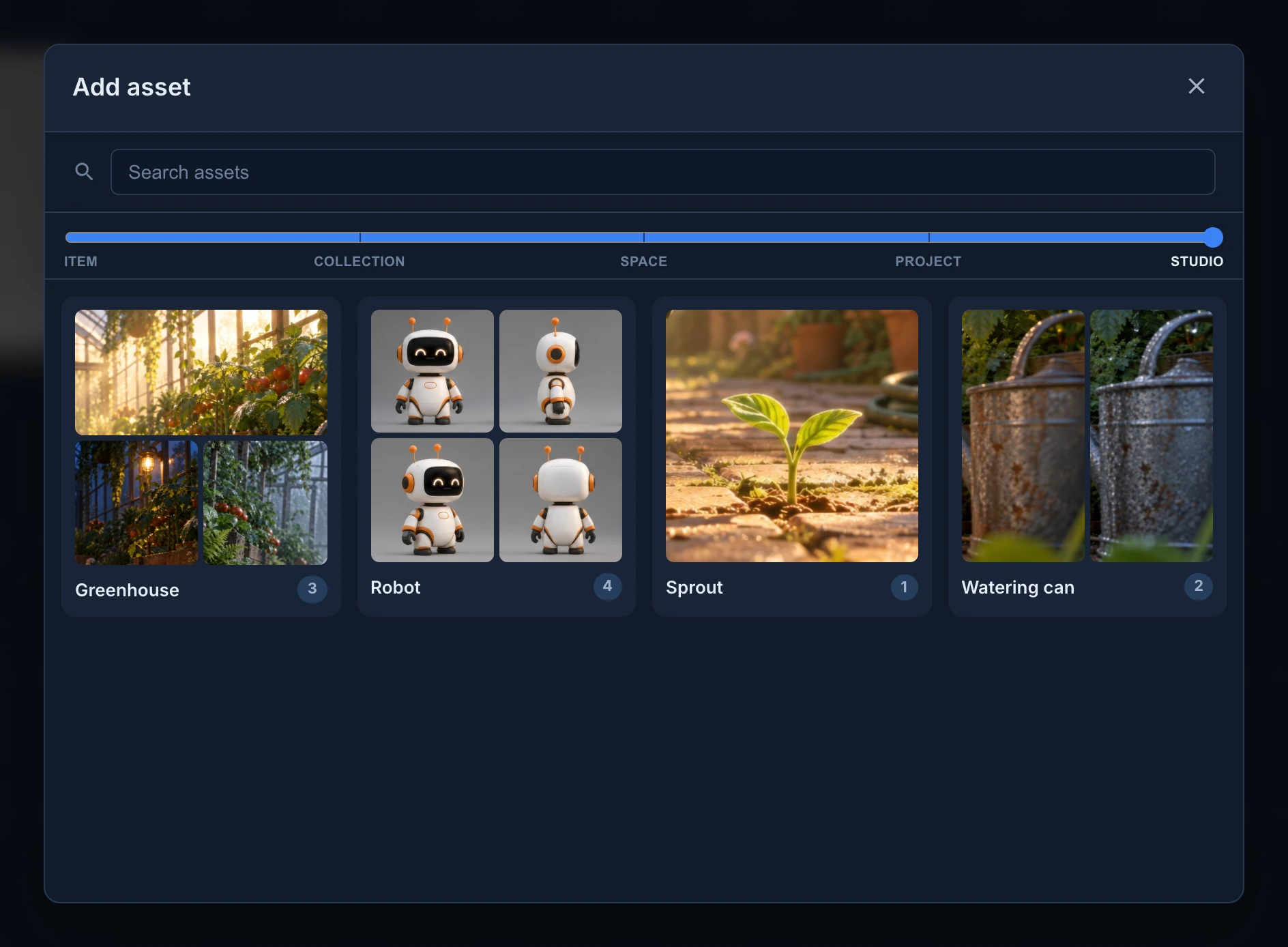
- In Add asset, type in Search assets to find it, and click it. A copy lands in the middle of your view, in the folder you are in.
From the Assets panel: open Assets from the tab at the right edge of the canvas window and drag a card onto the board. The copy lands where you let go.
On the canvas of an item, the slider under the search box chooses how far from this item the listed assets may have been made: Item, Collection, Space, Project or Studio. On SH030, Space lists what was made on any shot of the Shots space. Animanager remembers the slider for each studio. When nothing shows, the dialog says so and suggests widening it.
Each card shows up to four of the asset's pictures and how many members it has.
What a copy is
A placed asset is a copy: its frame, media, generators, folders and wires, laid out as they were made, with nothing linked back.
- Later changes to the original don't reach the copies, and changes to a copy don't reach the original.
- The media are the same files, not new uploads, and placing an asset spends no tokens.
- A generator in the copy keeps its wires and prompt. Change the prompt and press Generate to make this shot's version.
To change the original, right-click its card in the Assets panel and choose Edit original. The canvas where it was made opens on its folder.
Assets made before frames
An asset made before assets had a frame is placed as a blue frame of its pictures, which does follow the original. The first time someone opens its folder, it becomes a frame asset like the others.
Retire an asset
- In the Assets panel, right-click the card and choose Deactivate asset, or
- on its canvas, right-click the folder or the frame and choose Unset as Asset.
Both ask first. The asset leaves the list and can't be placed any more. Copies already placed stay where they are. The frame goes away, and nothing inside it is deleted: the images, prompts and wires stay in the folder.
Before you delete the folder of an asset, the confirmation reminds you: "This folder is an asset."
Placing an asset needs permission to edit the canvas you place it on. Agents connected by MCP can list and place assets too. See MCP tools.