
Appearance
Buy token packs and follow usage
AI generations are paid with tokens. Tokens belong to the studio: every member spends from the same balance, and so do the studios billed on the same account. One token is worth 0.01 €.
Where tokens come from
- Welcome tokens, once per person: the first of your studios that uses AI or opens Billing gets them. Studios on Pro always get their own.
- Token packs you buy. They never expire and don't need a subscription.
- Plan tokens, when the plan includes them. They renew every billing period, and what is left is not carried over.
- Courtesy tokens, when Animanager gives your studio a courtesy. They renew every month with the plan tokens.
Plan and courtesy tokens are spent first, then purchased ones. How many welcome tokens a studio gets, and what each pack costs, is in AI models and token costs.
The balance
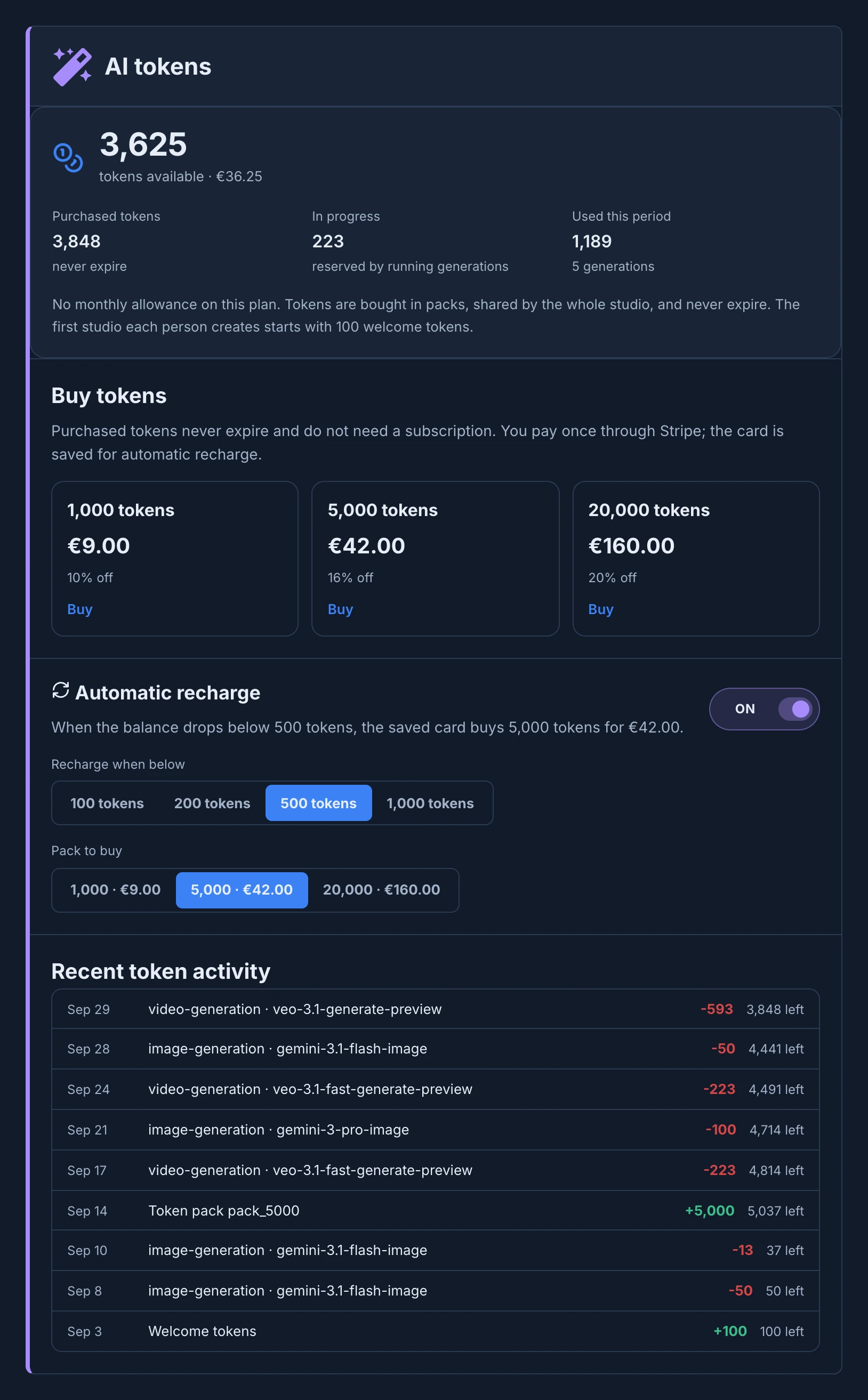
Settings → Studio → Billing → AI tokens opens on the balance: the tokens available and what they are worth in euros. Below it:
- Plan tokens: what is left of this period's allowance, when the plan has one.
- Purchased tokens: what is left of the packs bought. They never expire.
- In progress: tokens set aside by generations that are running. A generation sets aside its cost when it starts, and the balance takes the real cost when it ends.
- Used this period: the tokens spent this billing period, and in how many generations.
A note under the balance says when something is different:
- The balance is negative because a generation cost more than its reservation. New generations are blocked until you buy a pack.
- AI tokens are unlimited for this studio (courtesy from Animanager). Generations spend nothing, and the balance waits for when the courtesy ends.
- Tokens are not enforced yet: generations do not consume this balance for now.
Buy a pack
- Open Settings → Studio → Billing and go to AI tokens. From anywhere, members who manage billing can also click the usage pill in the header and choose Manage billing, then scroll to AI tokens.
- Under Buy tokens, press Buy on a pack. Each pack shows its tokens, its price and its discount, such as 20% off on the largest.
- Pay in the checkout that opens, ticking the box that asks for the tokens right away. The tokens are added to Purchased tokens, the card is saved for automatic recharge, and the invoice joins the studio's invoices.
If Buy tokens says Token packs and automatic recharge open when payments launch., online payment isn't open for your studio yet.
Recharge automatically
- In AI tokens, under Automatic recharge, choose Recharge when below: 100, 200, 500 or 1,000 tokens. It starts on 200.
- Choose the Pack to buy.
- Turn Automatic recharge on. It then reads When the balance drops below your line, the saved card buys the pack, and its price.
To change the line or the pack while it is on, choose them and press Save recharge settings, which appears once you change something.
When a generation leaves the balance below the line, Animanager buys the pack with the card saved when you bought your first pack. It shows as automatic recharge in the activity. If a recharge fails, the section says Last automatic recharge failed: and why, such as No saved card on file for automatic recharge.: buy one pack by hand first.
Every pack is a charge
Each pack you buy, and each automatic recharge, is charged to the studio's card with its own invoice, plus VAT. Automatic recharge charges the card without asking.
Prices and activity
- Token prices lists what each generation costs, in groups: Images, per image, Video, per second of output, Enhance and upscale, Audio, per run, 3D, per model and Other. What a generator's button shows is what leaves the balance. The same prices are in AI models and token costs.
- Recent token activity lists the latest movements, newest first, each with its date, the tokens added or spent, and the balance left: Welcome tokens, Token pack, a pack bought by automatic recharge, each generation with its model, the plan allowance and courtesy changes, and adjustments made by Animanager.
When tokens run out
A generation that costs more than the balance doesn't start: Not enough AI tokens for this generation. Buy a token pack in Billing to continue.
Studios that are not on a paid plan also have a limit on how fast each person can start generations: 120 a minute and 2,880 an hour. Above it, Animanager says Too many AI generations at once., how many you have started, and how long to wait.
Follow usage
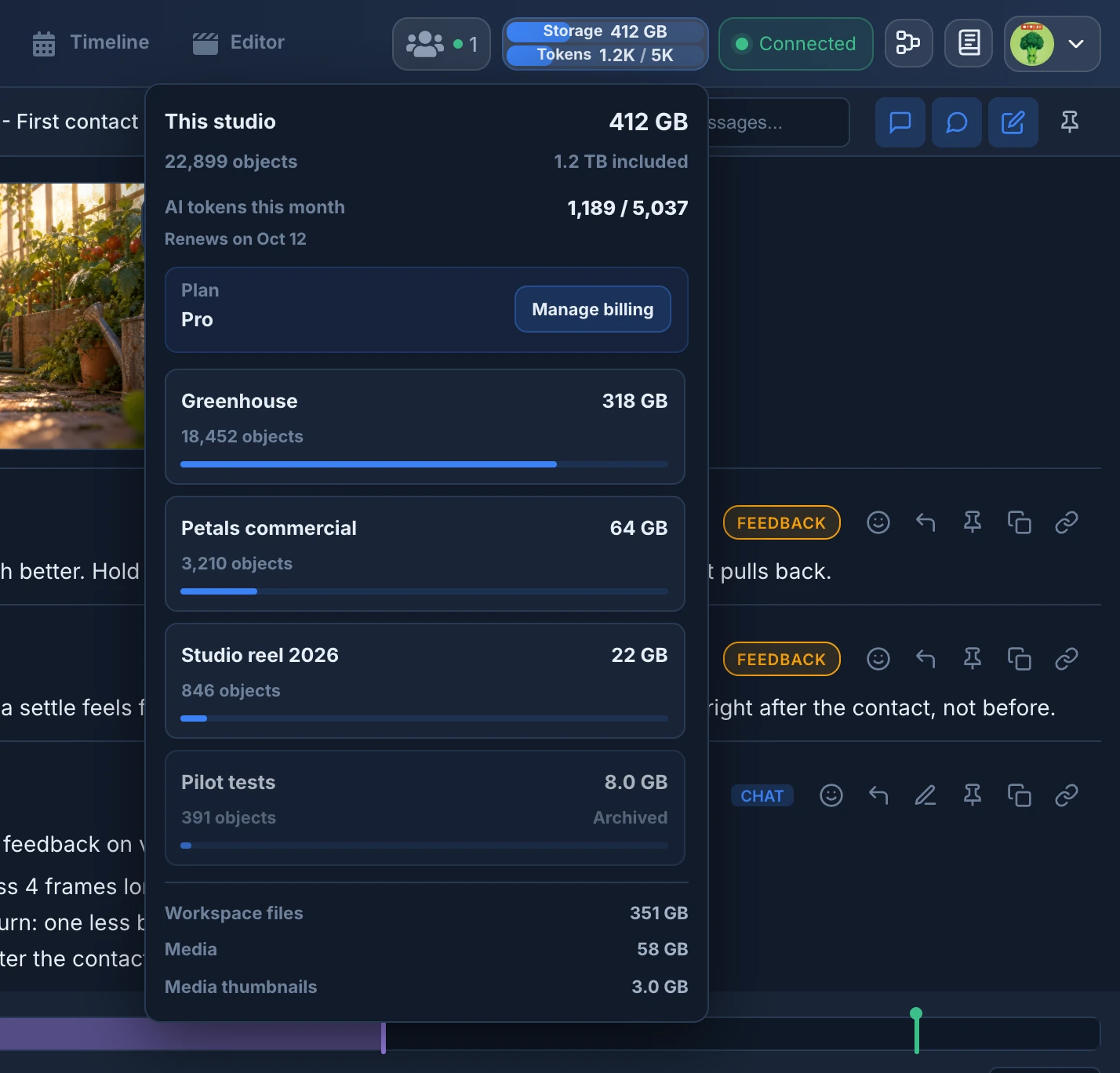
- In the header, the usage pill has a Storage row and a Tokens row: the tokens the studio used this period and its limit, which is what it used plus what it has left. The Tokens row turns amber from 90%. A studio with unlimited tokens shows Unlimited ∞. Every member sees it.
- Hover the Tokens row for the exact numbers, a warning such as Running low or No tokens left, the renewal date, and Shared by every studio billed on this account when that applies.
- Click the pill for the details: the storage of this studio and of each of its projects, the AI tokens of this period, and, for members who manage billing, the Plan with Manage billing.
- In Billing, AI tokens shows the balance and the activity, as above.
- On a canvas, the token pill in the toolbar shows what was spent on that canvas, deleted results included. Click it to see the same for the item, collection, space and project of the canvas.
The period is the billing period of the studio: a month, or a year on yearly billing, even where the header says this month.
Billing, tokens included, needs the studio permission Billing. Members without it see the usage pill but not Billing.