
Appearance
Write messages
The composer at the bottom of the chat panel writes every message: chat, feedback and revisions. This page covers what goes into a message. For feedback, statuses, mentions and replies, see Give feedback in the chat.
Send, new line
| Where | Enter | Shift + Enter | Send |
|---|---|---|---|
| Chat message | Sends | New line | Enter or the send button |
| Feedback or revision | New line | New line | The send button |
| Any message on a phone or tablet | New line | New line | The send button |
Inside a code block, Enter adds a line; Ctrl/⌘ + Enter sends a chat message from there. ↑ in an empty message box edits your last chat message.
When your role can only read the conversation, the box says "You can view this conversation but cannot post here".
Format the text
The toolbar of the message box has Bold (Ctrl/⌘ + B), Italic (Ctrl/⌘ + I), Strikethrough, Link, Heading, Numbered list, Bullet list and Code.
- Link asks for the address (
https://...). Enter applies it and Esc closes it; on a link, Remove takes it off. An address you type or paste becomes a link by itself. - Heading turns the line into a heading: the same font, bold and almost the size of the text. It is the only way to make one:
#or##typed at the start of a line stays as you wrote it, and a title you paste comes in as bold text. The button stays lit while the caret is in a heading; press it again for normal text. - Code on a few words of one line marks them as code. On several lines, or on an empty line, it starts a code block.
In a code block, @, # and / are plain characters, and what you paste stays exactly as it was.
The message looks the same in the chat, the Feed and Review mode: headings, lists with their bullets or numbers, and every other format.
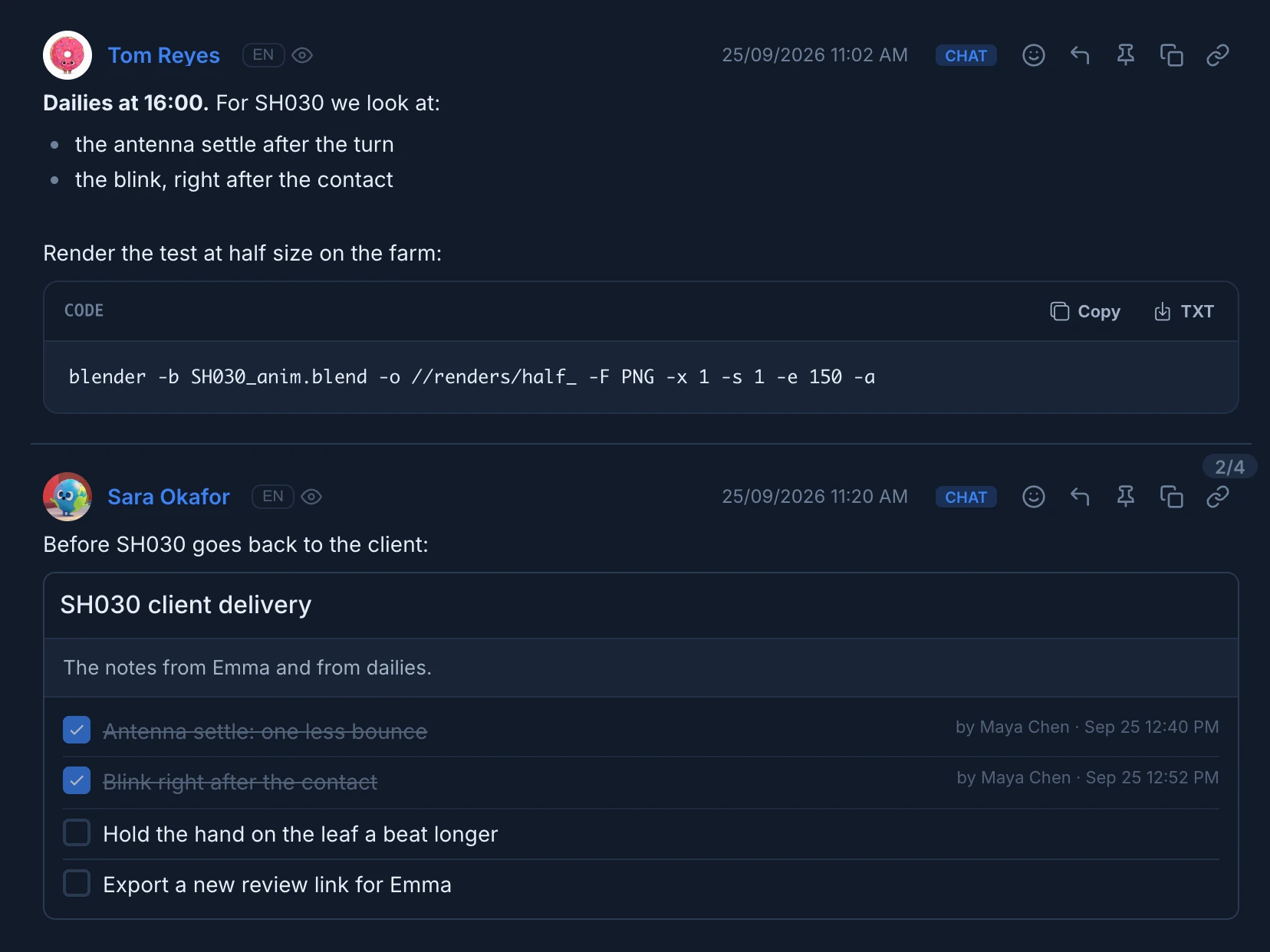
In the conversation, a code block has Copy and TXT, which downloads it as a text file. A long block shows its first lines and Show all to unfold it.
Attach files
- Attach files (the paperclip) picks files from your computer. Its badge counts what is attached.
- Drag files onto the message box: "Drop files here to attach".
- Paste an image you copied: it is attached as a picture.
Images, videos, sound, PDF, Office documents, text, CSV, Markdown, JSON, code files and zip or rar archives can be attached. A video can be up to 4 GB, a sound up to 200 MB and any other file up to 100 MB; images are made smaller before they upload. A file too big is refused with its size and the limit.
Each file shows its upload as it goes, then a tick, or a warning if it failed. The message waits for its files to finish before it is sent.
In the conversation, images and videos show as pictures (a video with ▶), sound gets a player, PDFs and archives show a tile with their type, and other files show as a link with a paperclip.
A revision attaches its work files differently. See Publish a revision.
GIFs and emoji
- Add GIF opens a search of animated GIFs, with the trending ones first. Pick one to add it; the × removes it. GIFs go in chat messages only, not in feedback or revisions.
- Insert emoji puts an emoji where the cursor is. Its tabs are Frequent, Smileys, Gestures, Hearts, Party, Objects, Animals, Nature, Food, Travel and Symbols.
Checklists
A checklist turns a message into a list of things to do that anyone in the conversation can tick off.
- Press Add checklist (the box with a tick).
- Type a title in Checklist title....
- Type the first item in Add item... and press Enter for the next one. Backspace in an empty item deletes it, and
#links a shot or a stage in an item. - Write a line of text for the message too, and send it.
Hide checklist folds it away without losing it, and its badge counts the items.
In the conversation, the checklist shows its title, its description and how many items are done, such as 2/4. Click the box of an item to tick it: it is crossed out with who ticked it and when, such as "by Maya Chen · Sep 25 12:40 PM". Anyone who can see the message can tick and untick.
Reuse a checklist
Typing a title also searches the checklists already in the studio, marked Task checklist or Project checklist. Pick one, then choose in Link type:
- Create Copy: a list of its own, starting with the same items.
- Create Instance: the same list, kept in step. Ticking an item in one place ticks it in the other.
A linked checklist shows Linked in the conversation; Make Copy turns it into a list of its own. To start a new checklist with the title you typed, press Enter when nothing matches.
Ask Anibot for a function
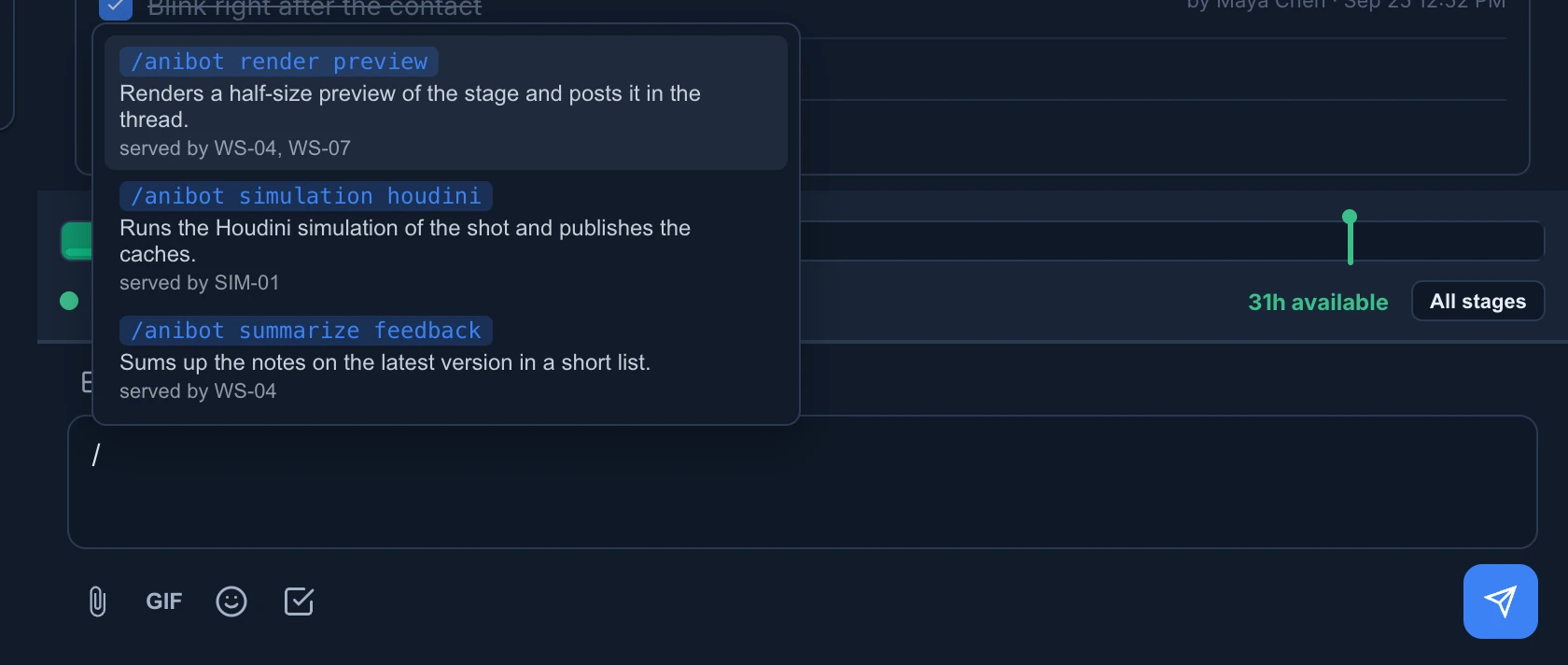
Machines connected to the studio, such as a render node or an artist's computer running an agent, can offer functions: a preview render, a simulation, a summary. Type / at the start of a message to see the ones online right now.
- Type
/, and a word to narrow the list if it's long. ↑, ↓ and Enter pick one, Esc closes the list. - The message box now starts with the function, such as
/anibot render preview. Add what you need after it. - Send. A machine that serves the function takes the request and answers in the thread as Anibot.
Your replies in that thread reach the machine working on it. If no machine takes the request within ten minutes, Anibot says so in the thread. If you name a function nobody offers, Anibot answers with the ones online. When no machine is connected, the list says No Anibot functions online.
See What an agent can and can't do.
Drafts
What you write and don't send stays in that conversation: the text, the post type, the status, the time, the mentions, the GIF, the checklist and the files already uploaded. Open another conversation, reload the page or come back tomorrow, and it is there.
Drafts live in this browser, for 7 days, for up to 50 conversations.