
Appearance
Give feedback in the chat
Every studio, project, space, item and stage has its own conversation in the chat panel. On a stage, the conversation is where the team publishes revisions and leaves feedback on them, next to the work.
How to write, format, attach files and add checklists is in Write messages.
Chat, feedback, and revisions
The chat panel shows the conversation of what you select in the tree. The breadcrumb at the top says where you are, and where a new message goes. Each part of it is a button: click Shots to go up to the conversation of the space.
| Post type | Where | Use it for |
|---|---|---|
| Chat | Team Chat, a project, a space or an item | Conversation and coordination |
| Feedback | A stage | Notes on the work, and changing the stage's status |
| Revision | A stage | Publishing a new version of the work. See Publish a revision |
On a stage, the composer shows Post as: with Feedback and Revision. Everywhere else it posts chat messages. In the thread, a chat message is tagged CHAT, feedback NOTE and a revision REV with its time, and feedback and revisions show the status they set.
The buttons at the top right of the panel show or hide each type: Toggle chat messages, Toggle comment messages (feedback) and Toggle revision messages. Show only pinned messages keeps only pinned messages. These filters apply to every conversation you open until you reload the page, and only to the messages already loaded: scroll up to load older ones.
Media opens every image, video and file posted in the conversation. See Media of a conversation.
Feedback
- Select the stage in the tree.
- In Post as:, choose Feedback.
- Write your note. Type
@to mention someone and#to link another shot or stage. - In the status menu next to the send button, choose the status the stage should have, or leave the current one.
- Add files with Attach files, or a checklist with Add checklist, if you need them.
- Press the send button. In a note, Enter starts a new line.
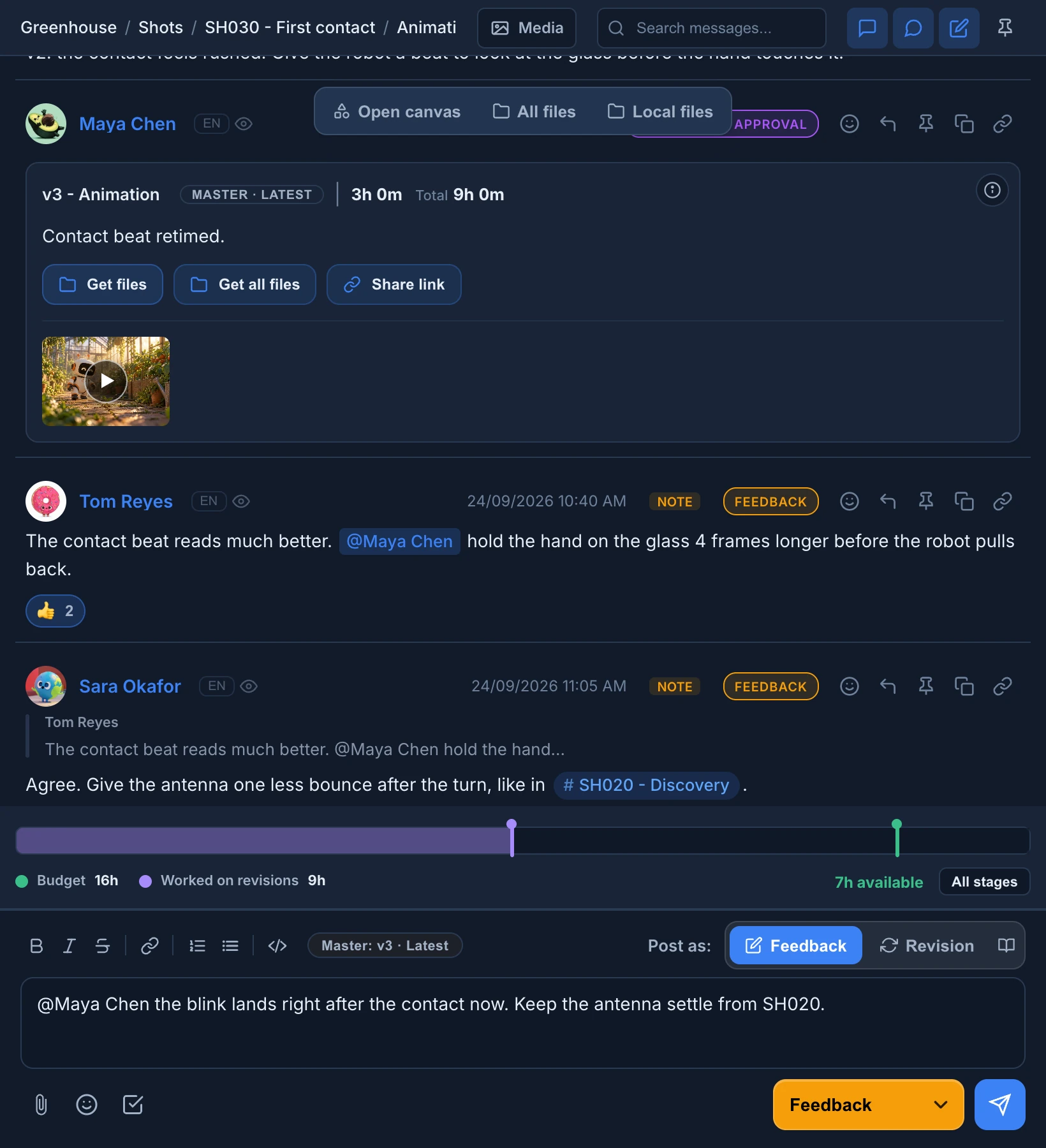
A note needs text, a file or a new status. To change only the status, pick it and send without text: the thread shows a line such as "Leo Martin changed the status of Animation to Approved".
The status menu shows only for roles that can change the status of tasks (Task changes). Without it, notes keep the stage's status.
While a revision is open in Review mode, feedback can point at the exact version and frame you are looking at: type @here. Whoever opens that link lands on the same frame.
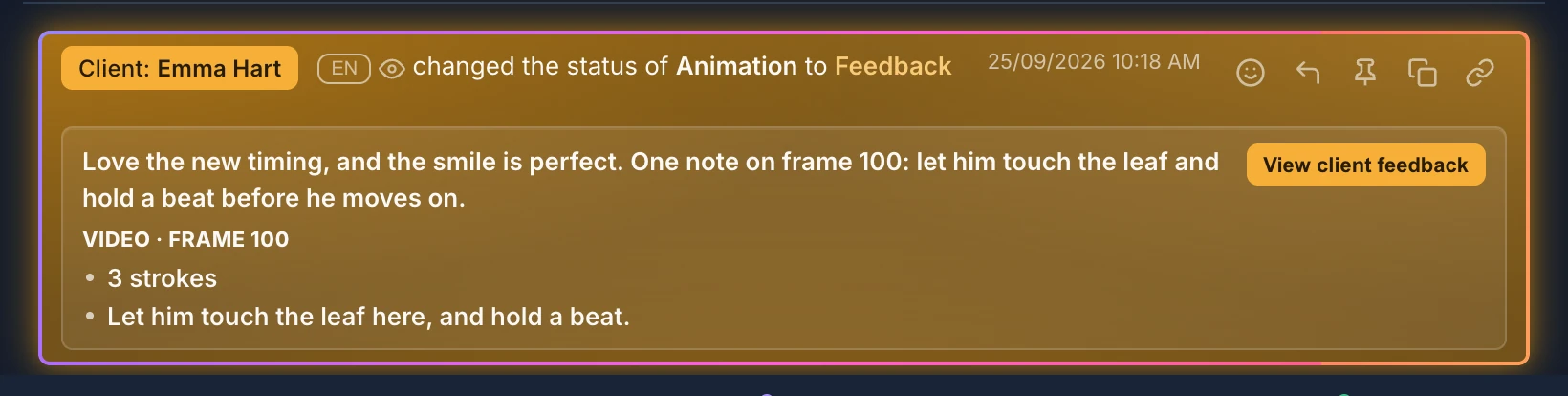
Feedback drawn on the frame in Review mode shows as a line with the notes, the frames drawn on and View feedback. See Draw feedback on the frame. Feedback a client sent from a review link is marked Client with their name:
Chat
Outside a stage, the composer posts chat messages. Press Enter to send and Shift + Enter for a new line. Besides text and links, a chat message can carry files, images and videos, a GIF (Add GIF), emoji (Insert emoji) and a checklist (Add checklist). See Write messages.
The conversation of an item also shows the messages of its stages, each with a from stage: banner. Click the banner to open that stage at that message.
Revisions
A revision publishes a new version of the work of a stage, with its media, work files, status and time. See Publish a revision.
Click an image or video of a revision to open it in Review mode.
Read the conversation
- The conversation opens at the newest message, or at the message a link points to. Older messages load as you scroll up; if they don't, press Load older messages.
- Several chat messages from the same person within five minutes stack under one name. Hover one of them to see its actions.
- Messages you haven't read are tinted. A message counts as read once at least half of it has been on screen for half a second, with the window in front. The tint then fades.
- Above the composer, "Maya Chen is typing" tells you someone is writing in this conversation. With more people it reads "Maya Chen and Tom Reyes are typing", and with many, "Several users are typing".
- Links to other sites show a preview card with the site, the title, a description and a picture, up to three per message. Links to images or videos, links inside code and messages with a GIF have none.
- Images and videos of a chat message open in a viewer over the page. ← and → move between the pictures of that message, and Esc closes it. Text and Markdown files open formatted in a new window.
Media of a conversation
Media, at the top of the panel, opens every picture, video, sound and file posted in the conversation, newest first. It has tabs, each with its count: All, Revisions, Attachments and GIFs. Each tile shows the file name, where it came from (such as Revision 3 or Attachment) and the date.
Click an image, a video or a sound to preview it there; other files open in a new tab. When Media is narrow, its label shrinks to an icon.
Message actions
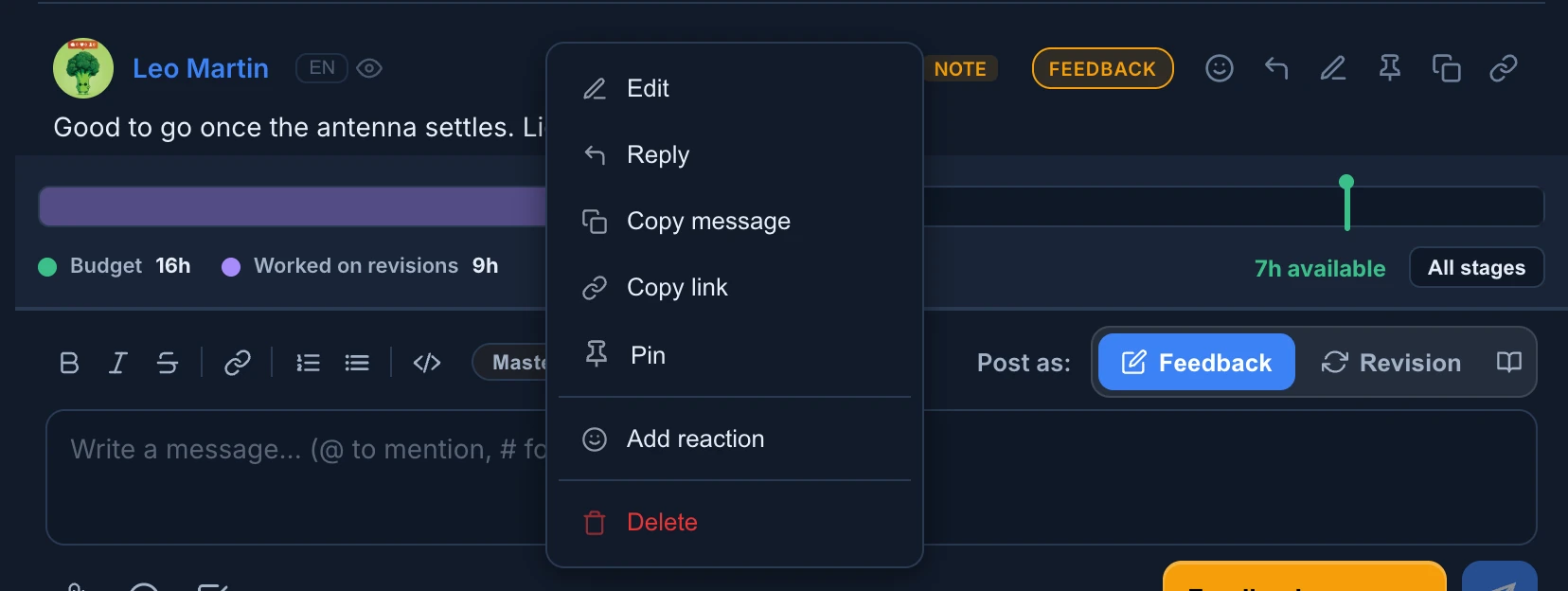
Each message has its actions in its header, next to the time and the status: Add reaction, Reply, Edit message (your own messages), Pin, Copy message and Copy link to message. When the chat panel is narrow, they are behind More options.
Right-click a message for the same actions in a menu, plus Delete on your own messages.
- Only the author can edit or delete a message. People who can moderate a type of message can also edit or delete the ones Anibot posted.
- A chat message is edited in place: Enter saves and Esc cancels. Delete is there too, after a confirmation. Feedback and revisions open Edit Comment or Edit Revision, where you can also change the status, the time and the files. See Edit or correct a revision.
- In an empty message box, ↑ edits your last chat message.
- Pinning needs the right to moderate that type of message. A pinned message shows a Pinned tag; click it to unpin.
- Hover the eye icon next to an author's name to see who has read the message, and when: Seen by, with each name and "Today at 10:31".
Reactions
Add reaction opens a picker with tabs: Frequent, Smileys, Gestures, Hearts, Party, Objects, Animals, Nature, Food, Travel and Symbols. Click an emoji to add it, and click it again under the message to take your reaction back. Hover a reaction to see who reacted.
Reacting needs the right to take part in that conversation (Interact). With View only, reactions show but can't be clicked.
Reply
Reply quotes the original message above yours and notifies its author. Click the quote to jump to the original. Cancel reply drops it.
In the chat of a stage, replying to a note or a revision takes you to the conversation of the item and replies there as a chat message, because a stage only takes feedback and revisions.
Automatic translations
When the studio has the Translations module on, messages are translated between English and Spanish. The module starts off. An administrator turns it on in Settings → Studio → Features (see Turn modules on and off).
- Your Language in Settings → My account → Preferences sets the version you read: Original, English or Español.
- The small button next to each author's name (ORIG, EN or ES) switches every message to the next language, until you reload the page.
- The translation never replaces the original. ORIG shows messages as they were written.
Check the original before you act on a translated note where the exact wording matters.
Mentions, @everyone, and replies
Type @ and part of a name, then pick the person from the list.
- A mention notifies that person, when they can open the conversation. A mention never gives access to it.
@everyonenotifies every member who can open the conversation. It appears in the list only for roles with @everyone mentions set to Use. Keep it for news the whole team needs.- Reply quotes the original message above yours and notifies its author.
- Your unread mentions show as a badge on the studio's icon, on the left edge of the window. See Notifications, sounds and badges.
Reference other projects with #
Type # and part of a name to link a project, space, item or stage.
- Type
#followed by part of the name. Join words with+to find names that have all of them, such assh030+layout. - Pick the result. Each shows its type (Project, Space, Item or Task for a stage) and where it is, so check it when names repeat.
- Send the message.
The reference shows as a link with # that opens that conversation. It points at the channel itself, so it keeps working if the name changes. Pasting a link to an Animanager channel turns it into a reference too. People who can't open that channel can't follow the link.
Search and direct links
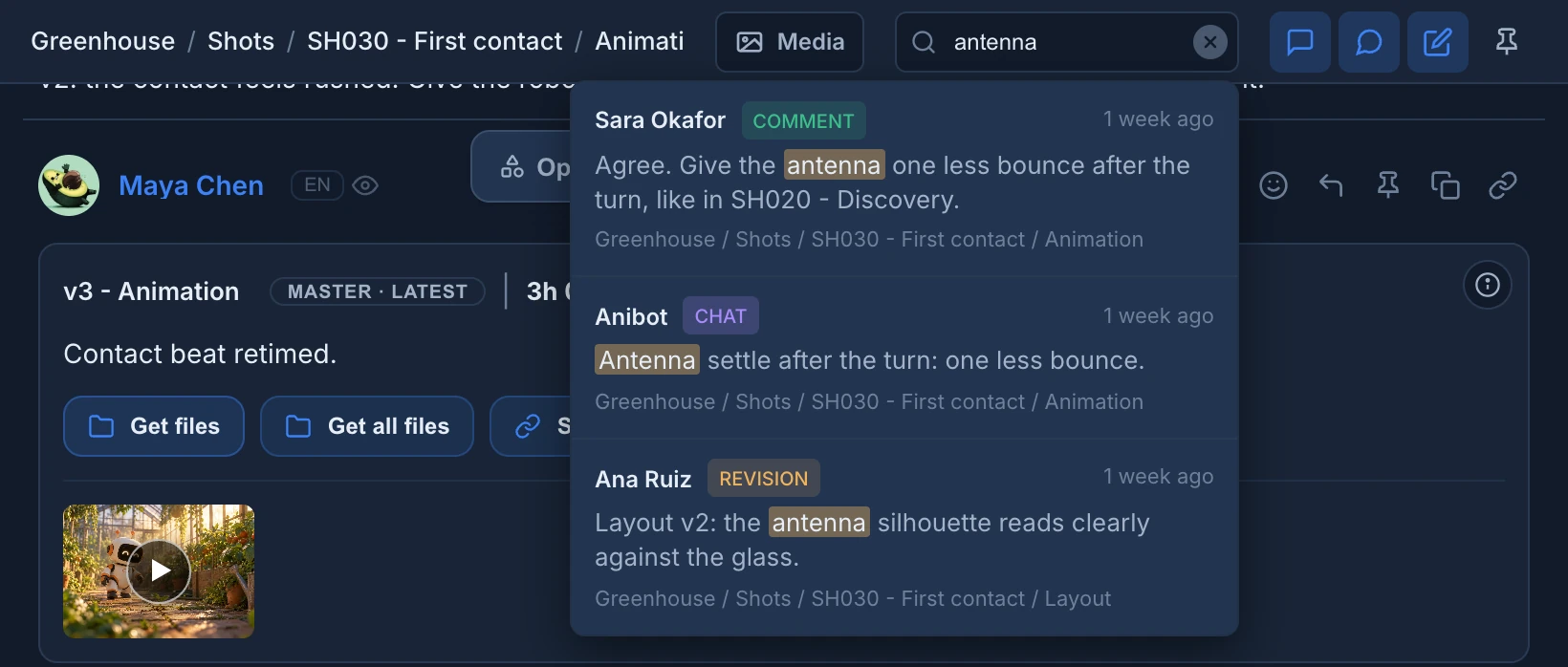
Type at least 3 letters in Search messages... at the top of the panel. The search covers the whole conversation, not only the messages loaded on screen:
- On a stage or an item, every stage of the item.
- On a space or a project, everything inside it.
- In Team Chat, Team Chat only.
Each result shows its author, its type and its date, and results from a stage also show where they were posted. Click one to open that conversation at that message. Esc closes the results, and the x clears the search. On a phone, or when the chat panel is very narrow, the search field is hidden.
Copy link to message copies a link that opens the conversation and highlights that message. The link gives no access: only people who can open the conversation can follow it.
Who can do what
What you can do in a conversation depends on your role. See Roles and permissions.
| Permission | Level | What it allows here |
|---|---|---|
| Project and space chat, Team Chat | View | Read the conversation. The composer says "You can view this conversation but cannot post here". |
| Interact | Write chat messages and react. | |
| Moderate | Pin, and edit or delete Anibot's messages. | |
| Comments | Interact, Moderate | The same for feedback. Without Interact, Feedback is greyed out. |
| Revisions | Interact, Moderate | The same for revisions. Without Interact, Revision is greyed out. |
| Task changes | Manage | The status menu. |
| Time entry changes | Log own time | The time of a revision. |
| @everyone mentions | Use | @everyone. |
The bar under a conversation
A bar under the conversation of a stage, an item or a space shows how its hours are going: the budget, the hours worked on revisions and the hours left, stage by stage. All stages opens the whole item. Click a part of the bar to go to that stage or that revision. See Plan the team on the Timeline.
Buttons over the conversation
On an item or a stage, buttons float over the top of the conversation when the studio has the module for them:
- Open canvas opens the item's canvas in a new window. See Generate images and video on the canvas.
- All files, Local files and Prepare files work with the stage's files on your computer. See Work locally with Desktop Helper.
They are hidden when the chat panel is narrow and on a phone.
On a phone
On a phone the chat is the Chat tab at the bottom. Opening a card in the Feed tab switches to it.
- Enter always starts a new line: send with the button.
- Images and videos of a revision open in a simple viewer: there is no Review mode on a phone.
- The search and the buttons over the conversation are hidden, and each message's actions are behind More options.
If the chat cannot load
If you see Part of the app could not load, a required part of the app failed to load. This message does not confirm that a new version is available. Copy any draft text shown on the error screen before pressing Refresh Page. If the error returns, use Copy Report to share its details with support.