
Appearance
Log time and review it
Animanager counts the time spent on each stage from what the team logs. That time feeds the stage's budget, the Worked view of the Timeline, the Timesheet, Stats and the project costs of Finances.
Where time comes from
- Revisions. When you publish a revision, you set how long it took in the two menus next to the status: hours from 0 to 8 and minutes in steps of 5. If your role can log time, a revision needs some. This is how most time gets in. See Publish a revision.
- Time entries. Hours on a stage, an item, a space or a project with no revision: added by the studio owner on the Timeline, by you with Add Hours on your Timesheet, or imported from an old spreadsheet.
The role permission Time entry changes, per project, decides who logs time: No changes, Log own time or Manage all. See Roles and permissions.
Today, in the profile menu, shows the time you have logged today, and takes you to the Worked view.
The Worked view
On the Timeline, press Worked in the toolbar, next to Scheduled. The rows are the same people, and the days show the time each one logged instead of the plan.
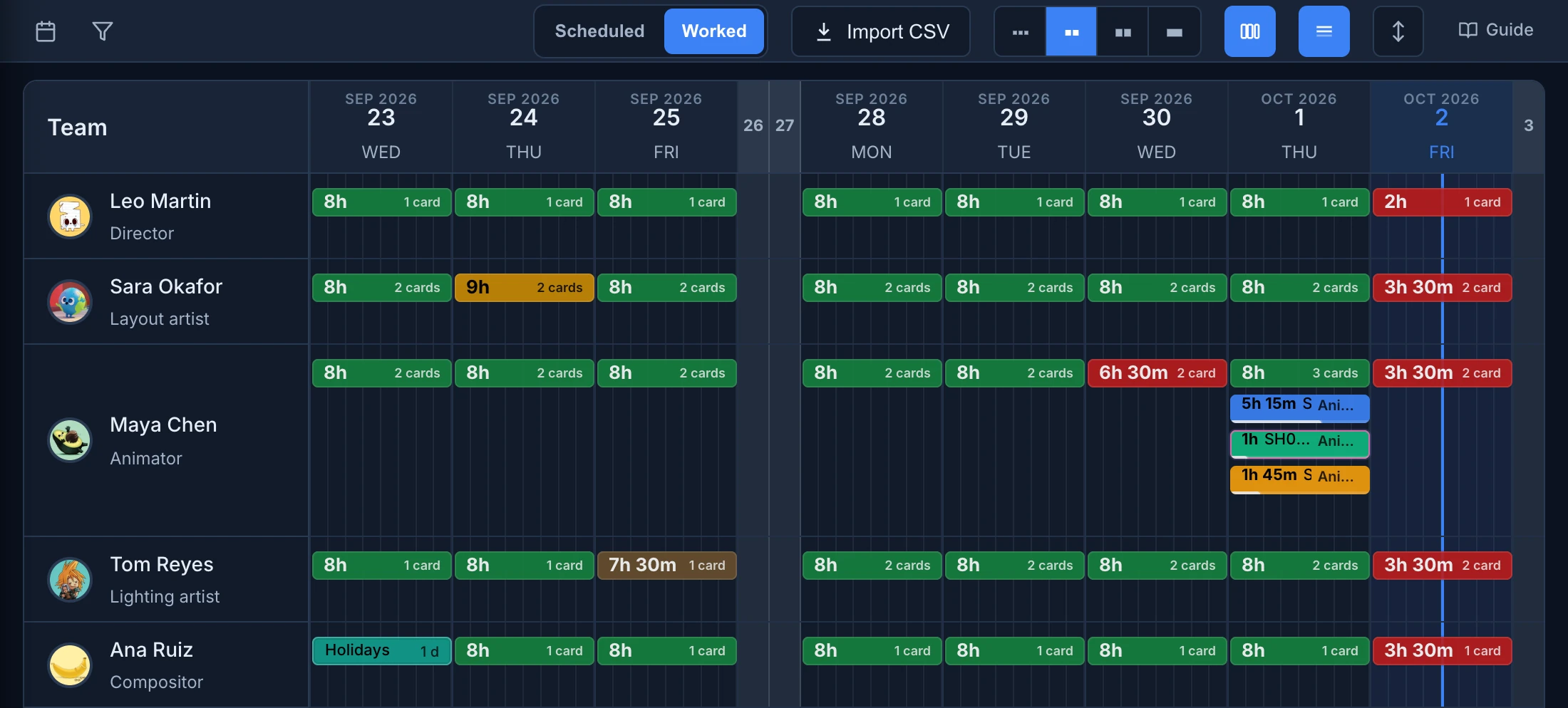
- Each person's day starts as one Day total card with the time and the number of cards, for example 7h 30m and 3 cards. Click it to open the day into one card per stage, and again to close it.
- A stage card adds up the revisions of that stage that day. Each time entry is a card of its own with a pink outline.
- A card shows the time, the item and the stage, and fills up to 8 hours. Point to it for the project, space, collection, item, stage and status.
- The colour of a Day total says how the day went: green when it meets the day's target, turning red as it falls short (fully red at an hour under) and yellow as it goes over (fully yellow at an hour over).
- The target is 8 hours. For the studio owner, it follows each person's working day in Finances: 4 hours for someone at 50%. Months where the person is not active in payroll have no colour.
- The Worked view shows the time of the whole studio to anyone who can open the Timeline.
In Worked, the queue, Fix blocked and the save bar are hidden, and bars can't be moved, stretched or removed. A Replan you were previewing is cancelled.
Add or correct a time entry
The studio owner can add time for anyone:
- In Worked, right-click an empty day on a person's row, or one of their cards, and choose Add time entry.
- In Context, type
#and choose the project, space, item or stage. - Set Hours and Minutes (in steps of 5) and press Create.
If that person already has time on that context that day, the hours are added to it.
Right-click a time entry card for Edit time entry or Remove time entry. Revisions are corrected from the chat: see Edit or correct a revision.
Import time from a spreadsheet
Import CSV brings in time a studio kept in a spreadsheet before Animanager. It shows in Worked for people who can open Finances.
- Press Import CSV and Choose CSV. The file has a date in the first column and one column per person, with cells such as
SH010 ANIM 3h. Several pieces in one cell go apart with/or a new line, and pieces with no hours share what is left of 8. - Choose the dates to import, or Whole CSV.
- Map each name in the file: Map Users to the studio's people, Map Items to items, Map Stages to stages. An item name can also be Holidays / vacation, Sick leave, Garden leave or Public holiday.
- Check the Preview: each row says Ready to create, Ready to update, Conflict or what is missing.
- Press Import N Ready Rows.
Normalize each imported worker-day to 8h is on at first: each day of a person adds up to 8 hours. Recent imports lists the last five, with Show in Timeline to see them and Undo to take one back.
The Timesheet
The Timesheet shows one person's logged time, day by day, as columns. It has no tab in the header: open it at its address, /timesheet for the whole studio or /timesheet/ followed by a person, and bookmark it. Like the Timeline, it needs the Timeline module permission.
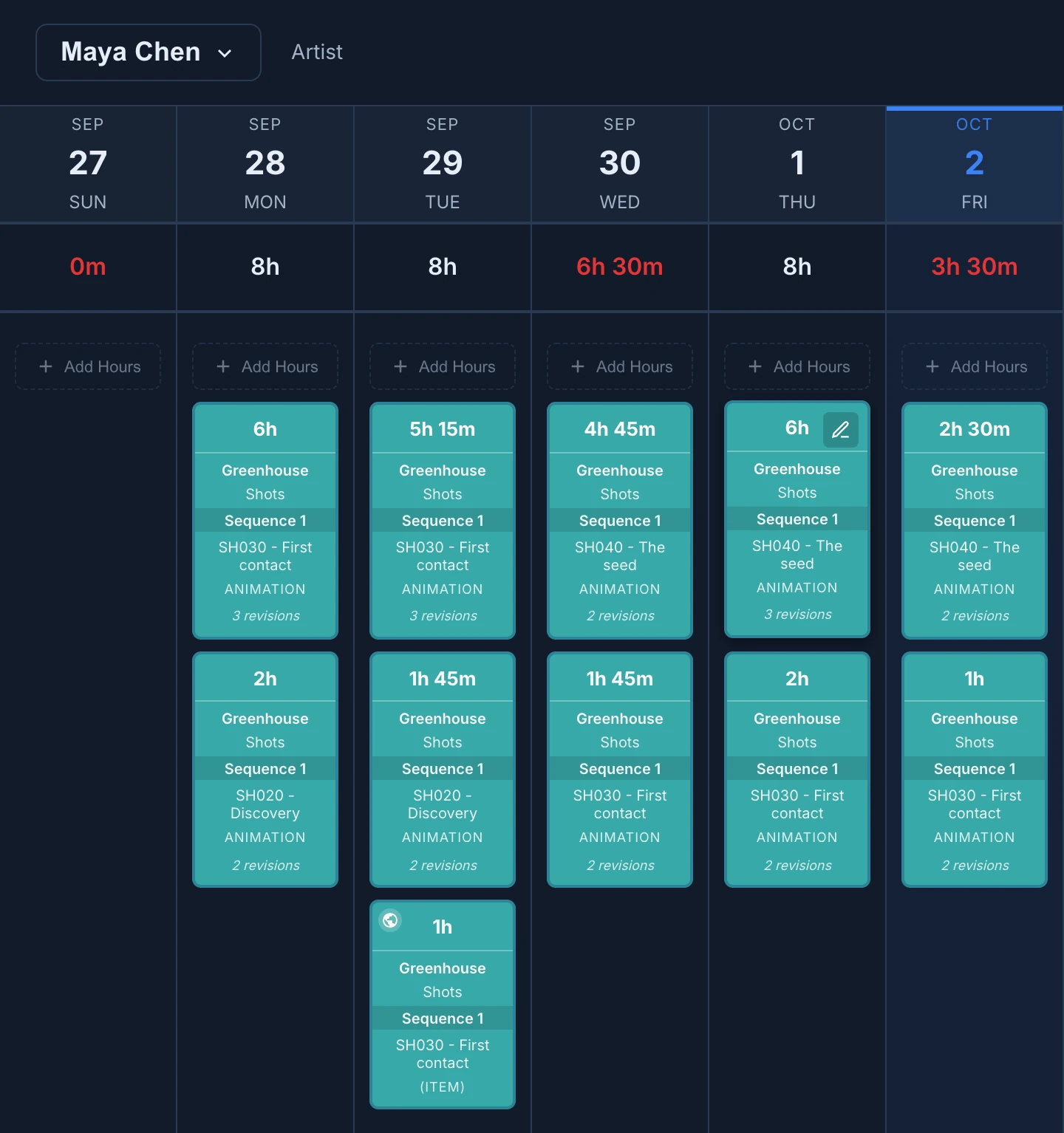
- The menu at the top switches between the studio and each person.
- Each column is a day. Today is highlighted, and the page opens with today in view. Scroll sideways for earlier and later days.
- The total row adds up each day. On a person's page it turns red when the day is not exactly 8 hours.
- A revision pill shows the time, the project, space, collection, item and stage, and how many revisions it adds up. A person's revisions on one item on one day share a pill.
- A time entry pill has a dashed border and a small badge.
- On the studio page, each person has one pill per day. Click it to open that person's Timesheet on that day.
Point to a pill on a person's page for its buttons:
- The pencil changes the time. Type H and M and press Enter. On a revision pill, the new time is shared among that day's revisions of the item, in proportion to their time.
- The ✕ on a time entry pill removes it, after you confirm.
You can change the time of your own revisions. Other people's time entries need Manage all on the project.
Add Hours with AI
On your own Timesheet, + Add Hours, at the top of each day, splits a number of hours across what you talked about that day.
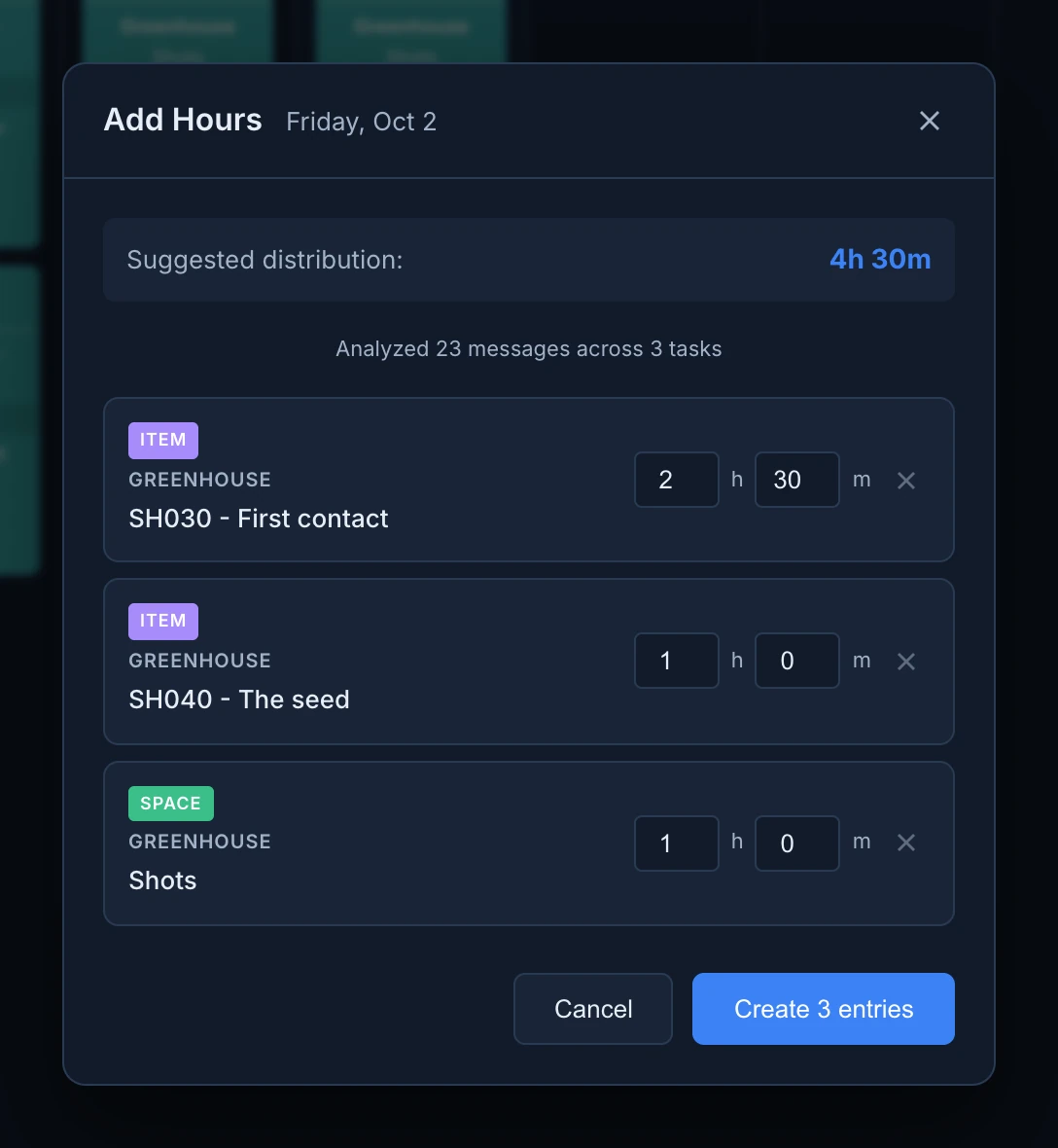
- Press + Add Hours on the day.
- Hours to calculate starts at what is left to reach 8 hours. Change it if needed and press Calculate.
- Animanager reads your messages in the chats of that day and proposes a distribution, item by item. Change the hours of a line (the others adjust to keep the total) or remove a line with ✕.
- Press Create N entries.
With no messages that day, it says so and you can try another day. Running it again on the same day replaces the entries it made.